The Parse Object tool is used exclusively to parse Object columns and is almost always used just after an API tool (and a Columns tool that turns the API response into an Object column).
Parsing objects can be tricky. It requires that you have more or less than same
structure throughout your column - which can be hard to spot with a lot
of data. Reach out to us if you’d like us to support.
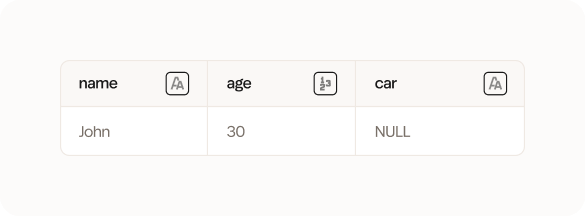
The Parse Object tool transforms the below:
{ "name": "John", "age": 30, "car": null }
To columns like this:
A simple example of parsing the object above in Less
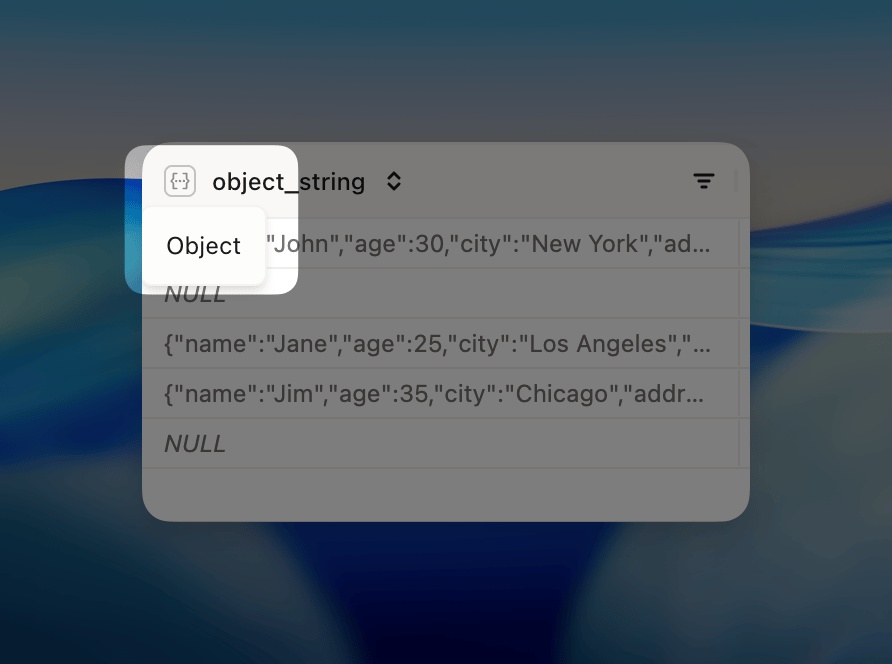
Whenever you see this data type you can be certain you need to use the Parse Object tool.
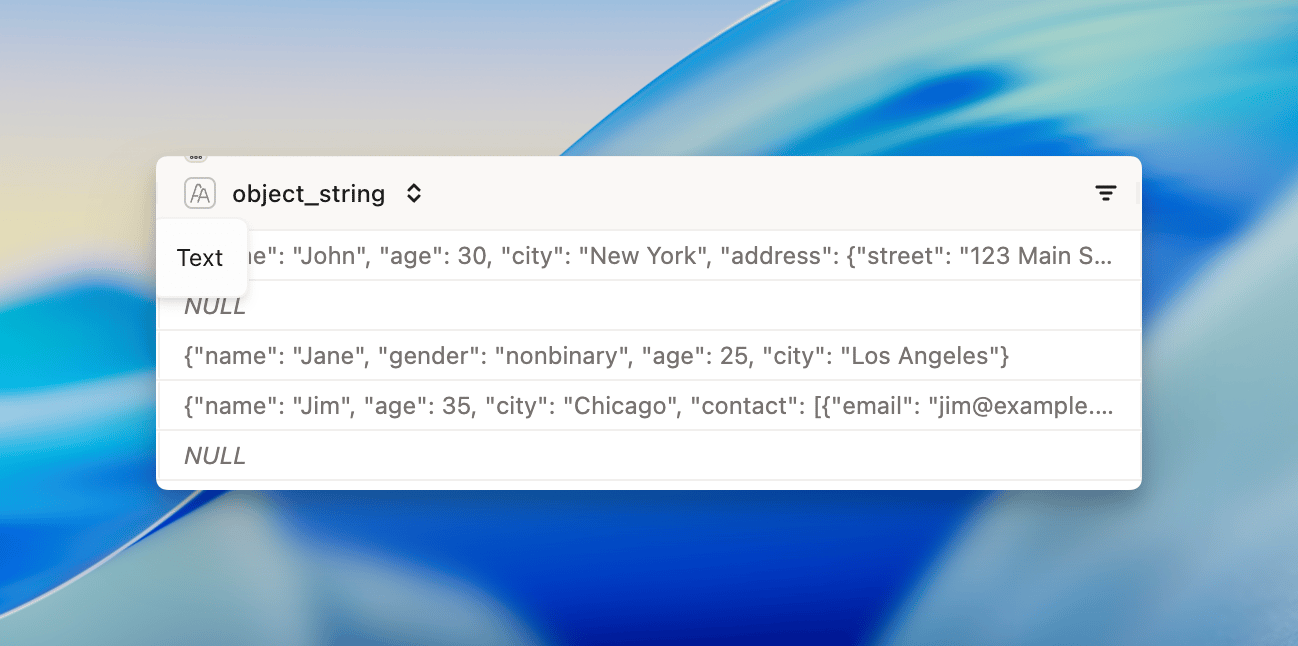
However, object-like data can also be in simple text columns. Use a Columns tool to turn the text column into an Object column.
Object-like data in a string/text column
Configuration
Select Object Column
The Parse Object tool is very simple. All you have to do is select the Object column you want to parse.
Examples
In this example, we have an Object column with the following data that contains name, age, city, address (which itself is an Object column with street and zip), gender and contact (which also is an Object column). We want to parse it into a new columns with the following data: name, age, city, street, zip, and country.
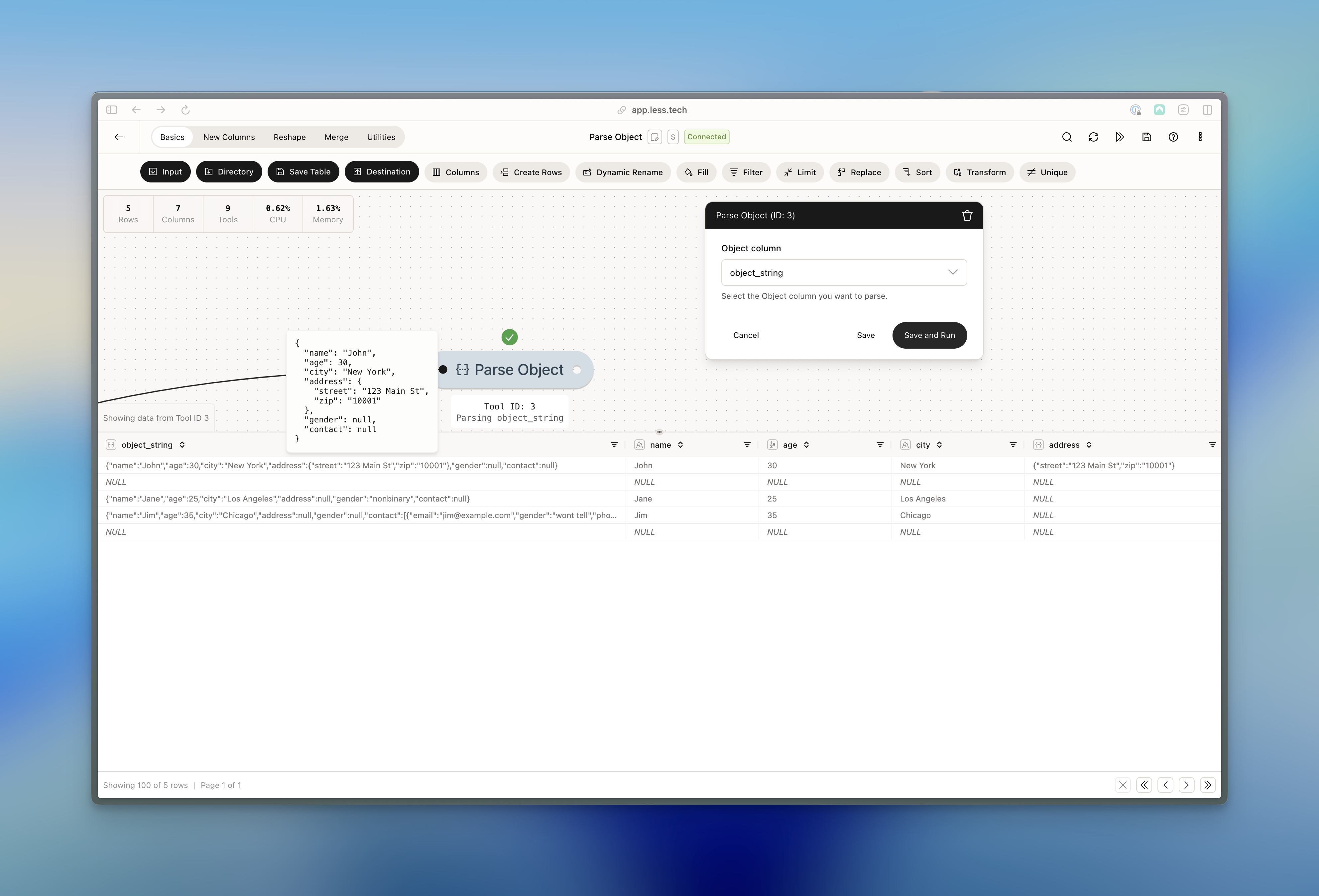
Notice that our original Object column is kept in the dataset. We can add additional Parse Object tools to parse the address and contact columns.