

Overview
You can also easily see which tool you seeing data from. Similarly, you can see the number of rows and columns in the data grid.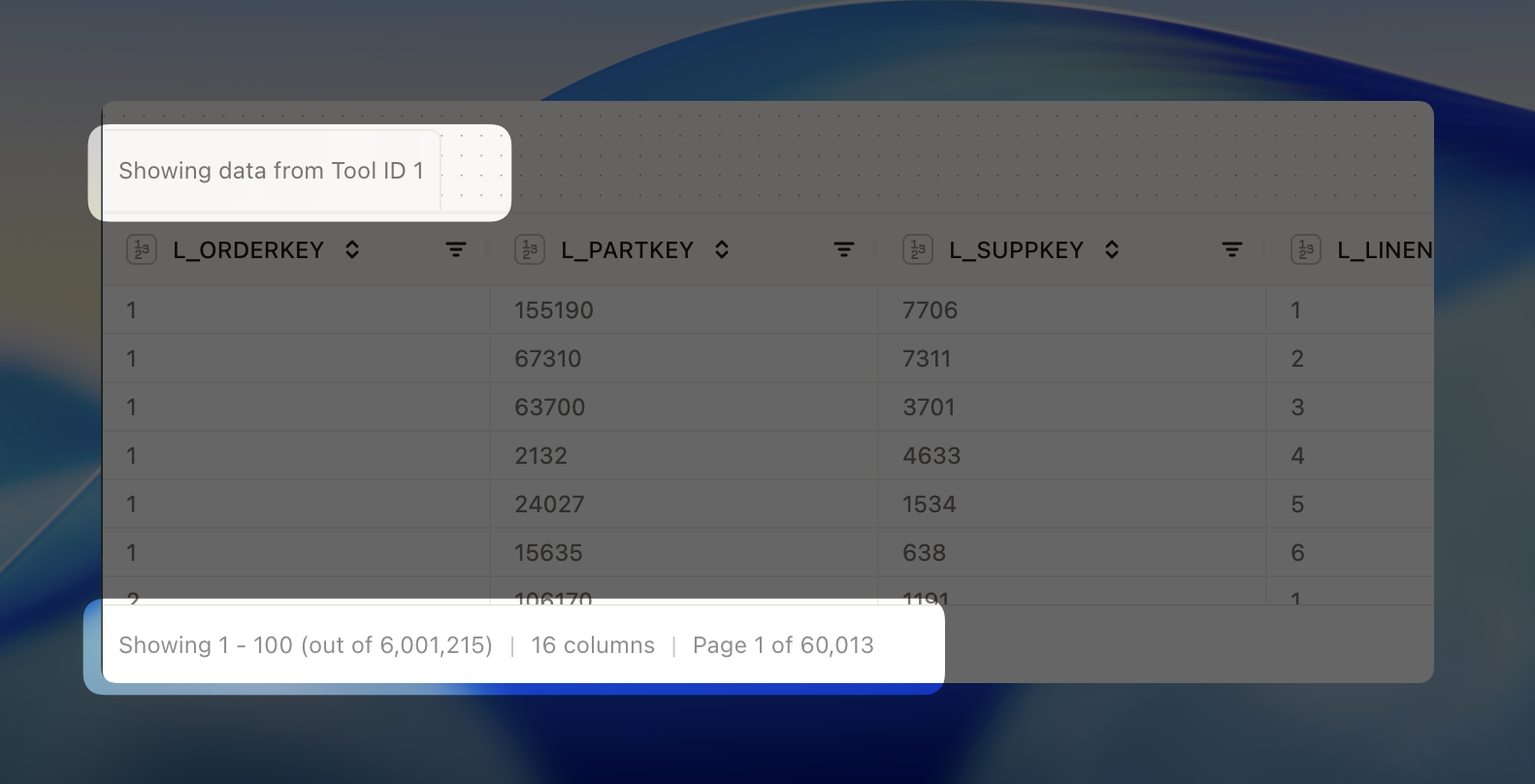
Data types
Data types are automatically detected and displayed in the data grid. Simply hover the icon to see the data type.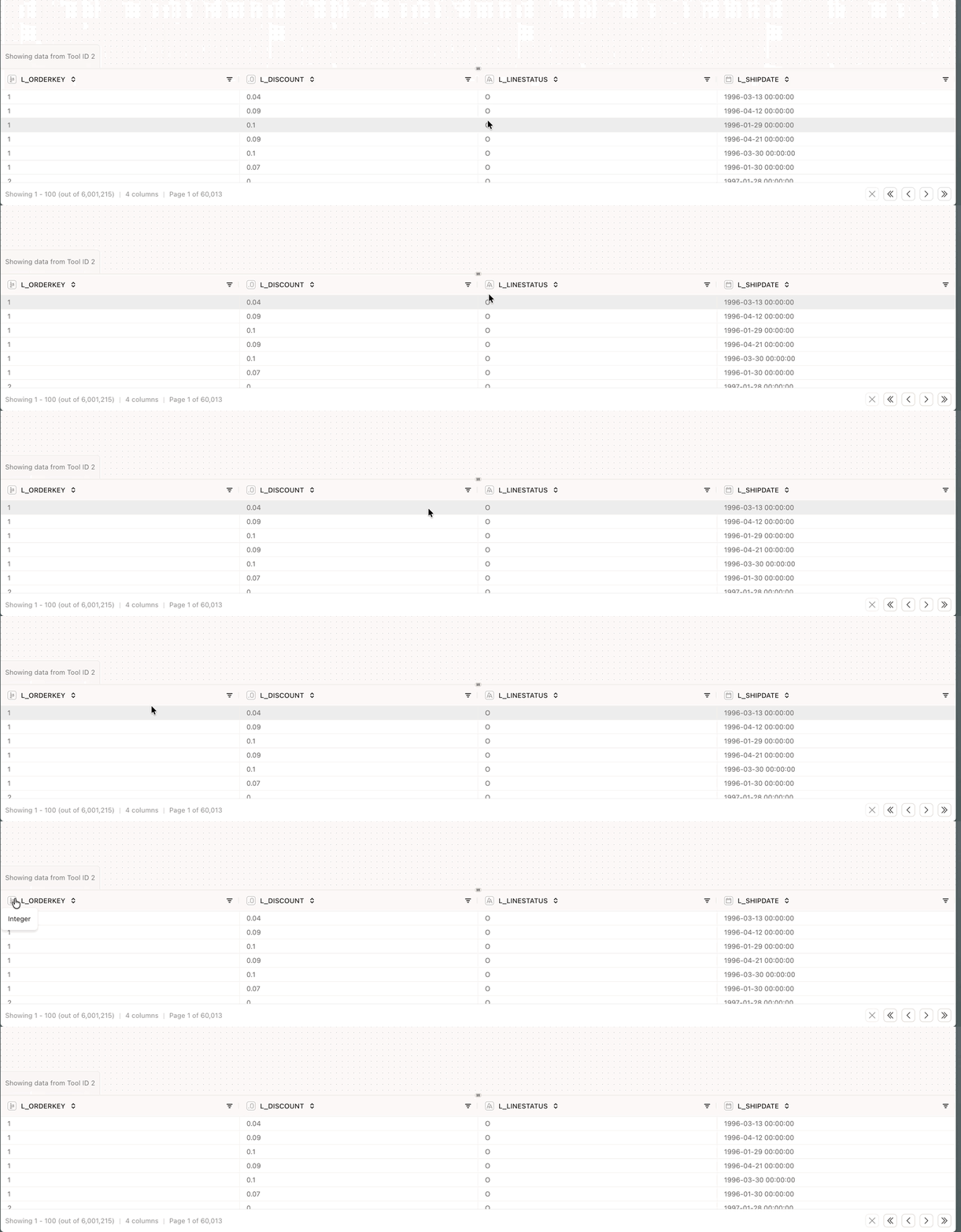
Trailing spaces and tabs
If a cell contains trailing spaces, newlines or tabs, you can easily spot them. The text will be highlighted in red and you can hover to see what you need to pay attention to.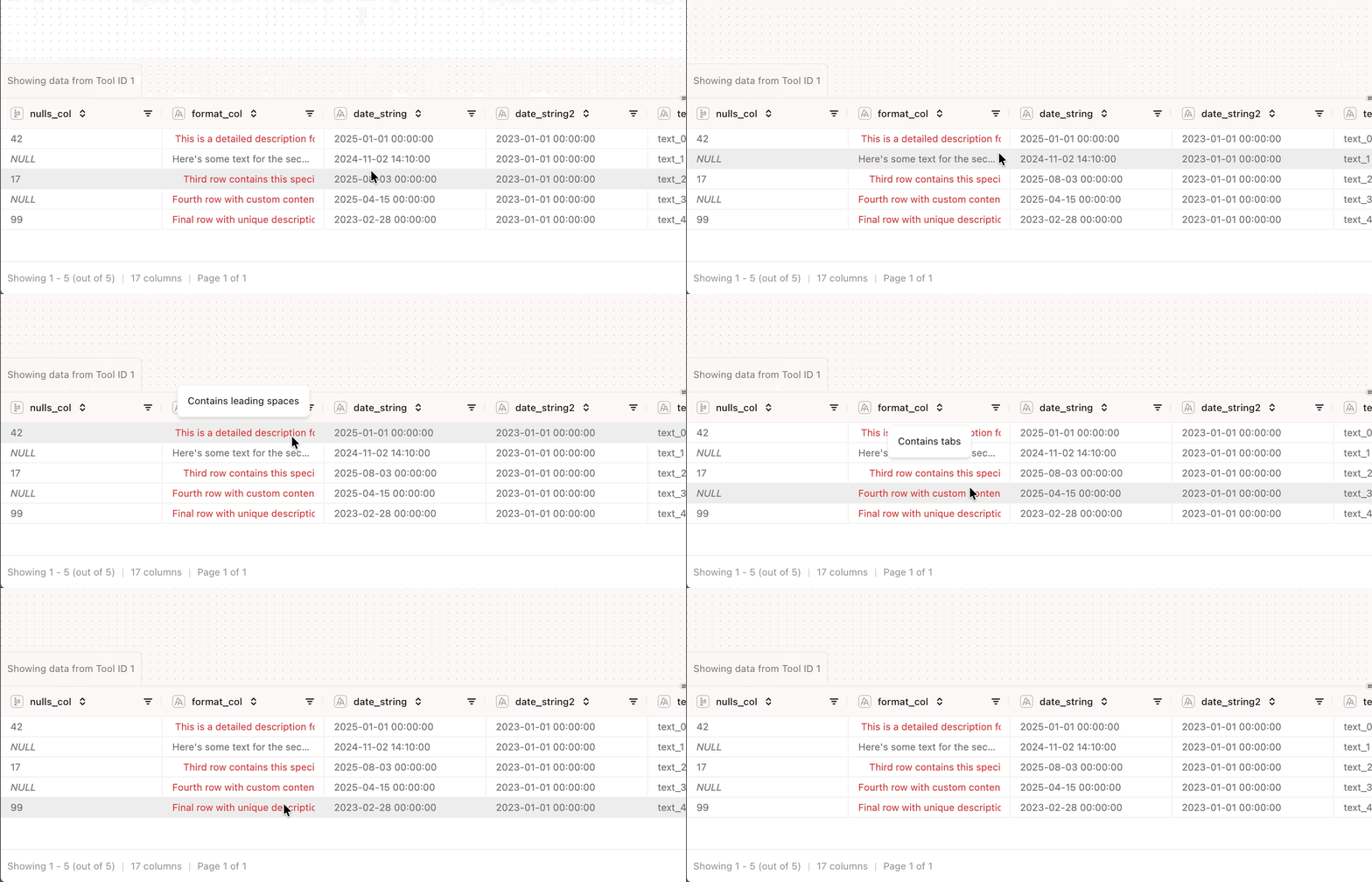
Filtering
It might be helpful to inspect your data before you begin building your model. The data grid allows you to filter your data based on the values in the columns. Note that you’re filtering the full dataset and not just the first page. You can add multiple filters to the data grid that are all applied to the dataset.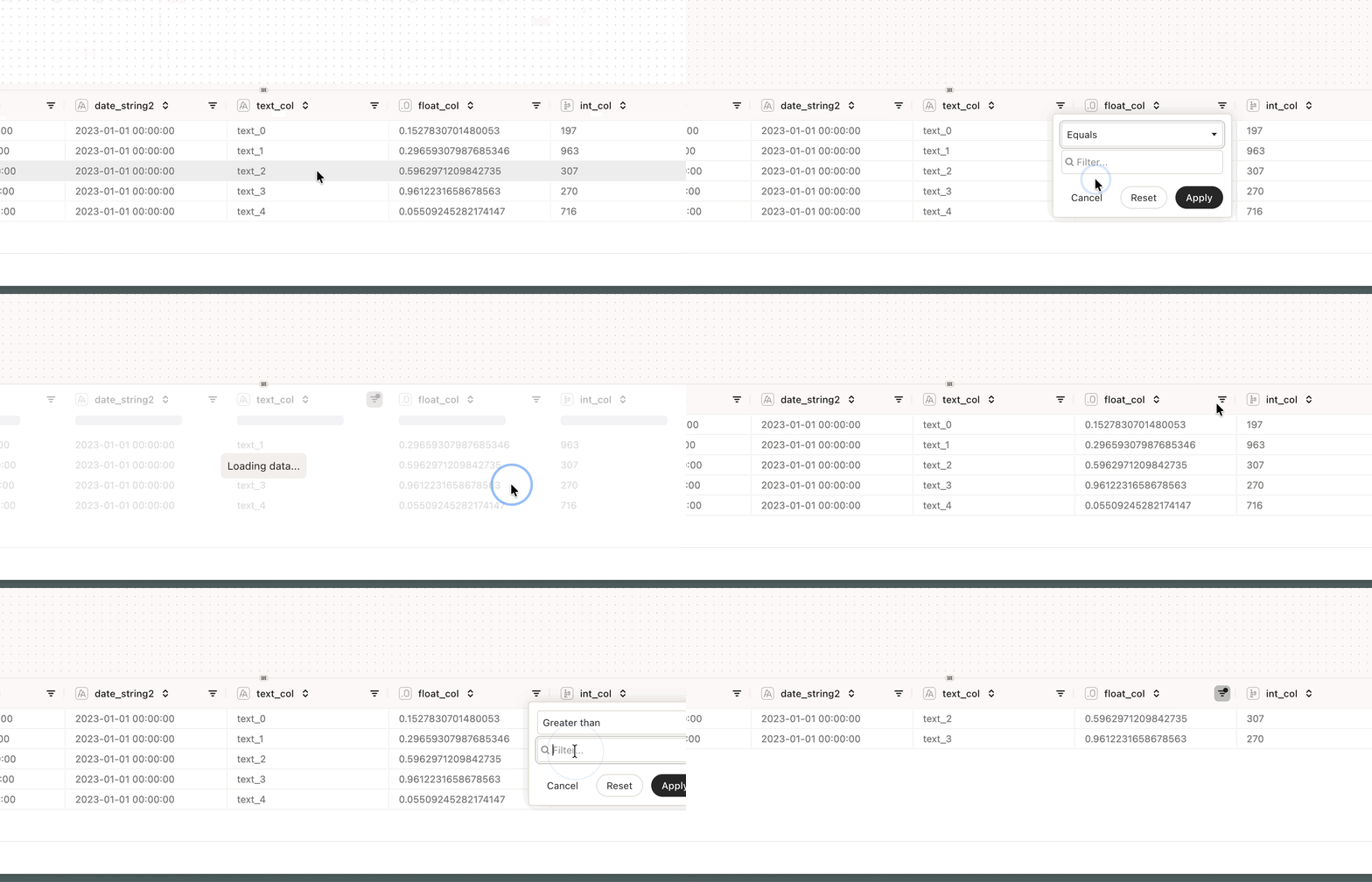
Sorting
Like filtering, it might be helpful to sort your data to get to know your data better. The data grid allows you to sort your data based on the values in the columns.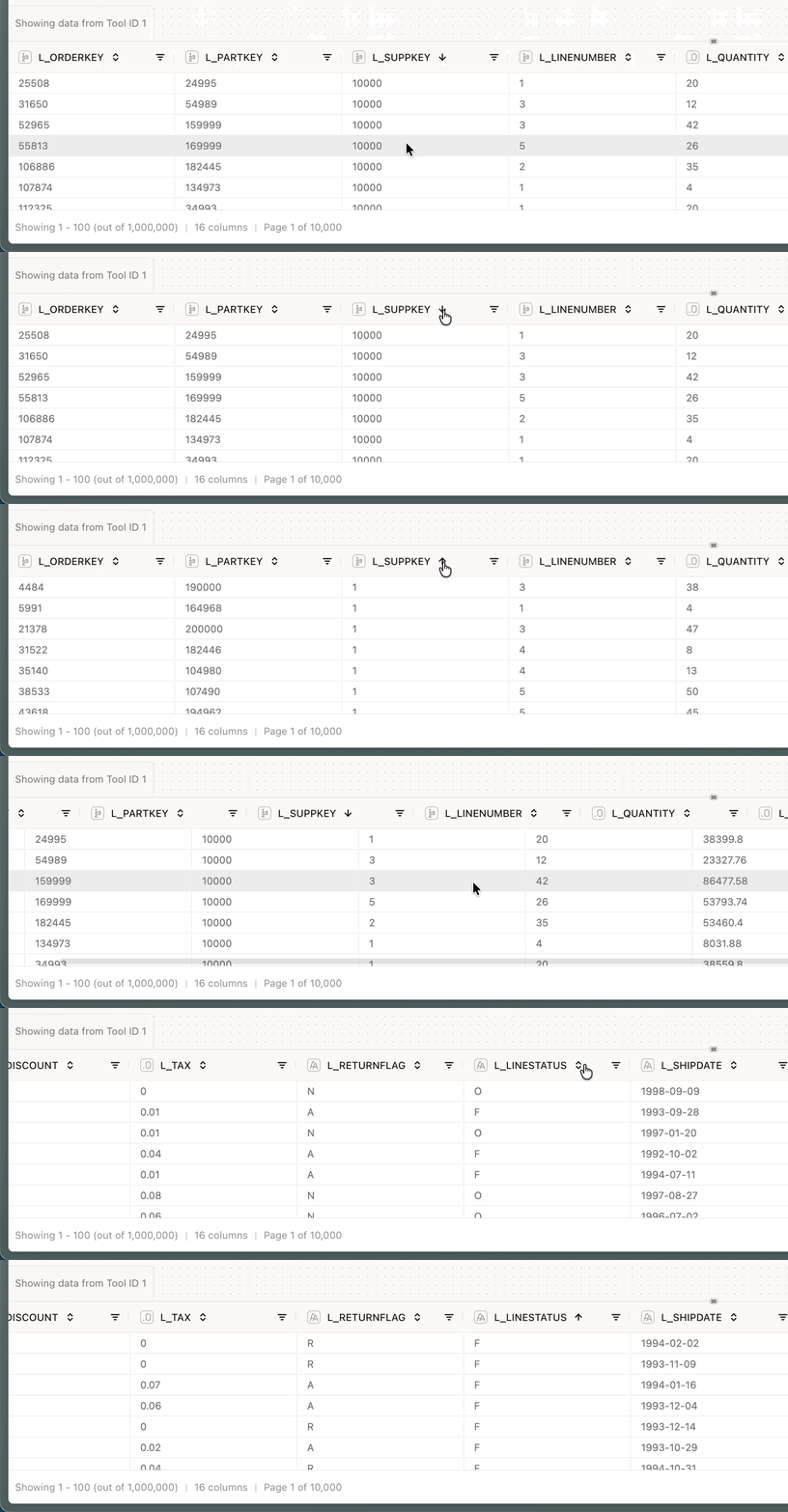
Anchors
Some tools have multiple outputs - we call these anchors. For instance, a Unique contains two outputs: the unique values and the duplicate values. These anchors are also shown in the data grid and enable you to easily switch between the views.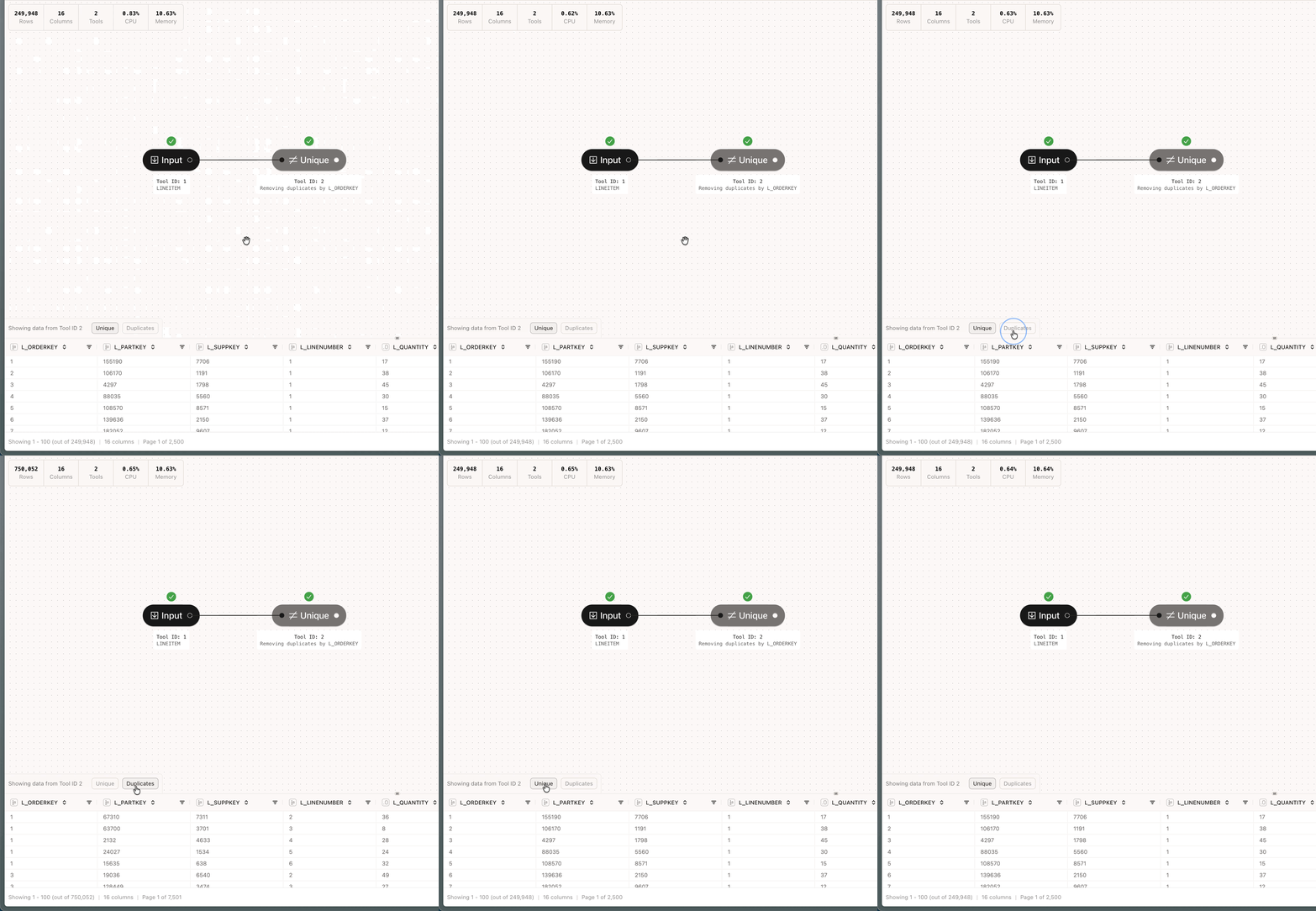
Notice how the row count changes when you switch between the anchors
Pagination
You can navigate through the pages of the data grid using the pagination controls at the bottom-right of the data grid.
Notice how the page numbering changes to the far left when you go to the next page