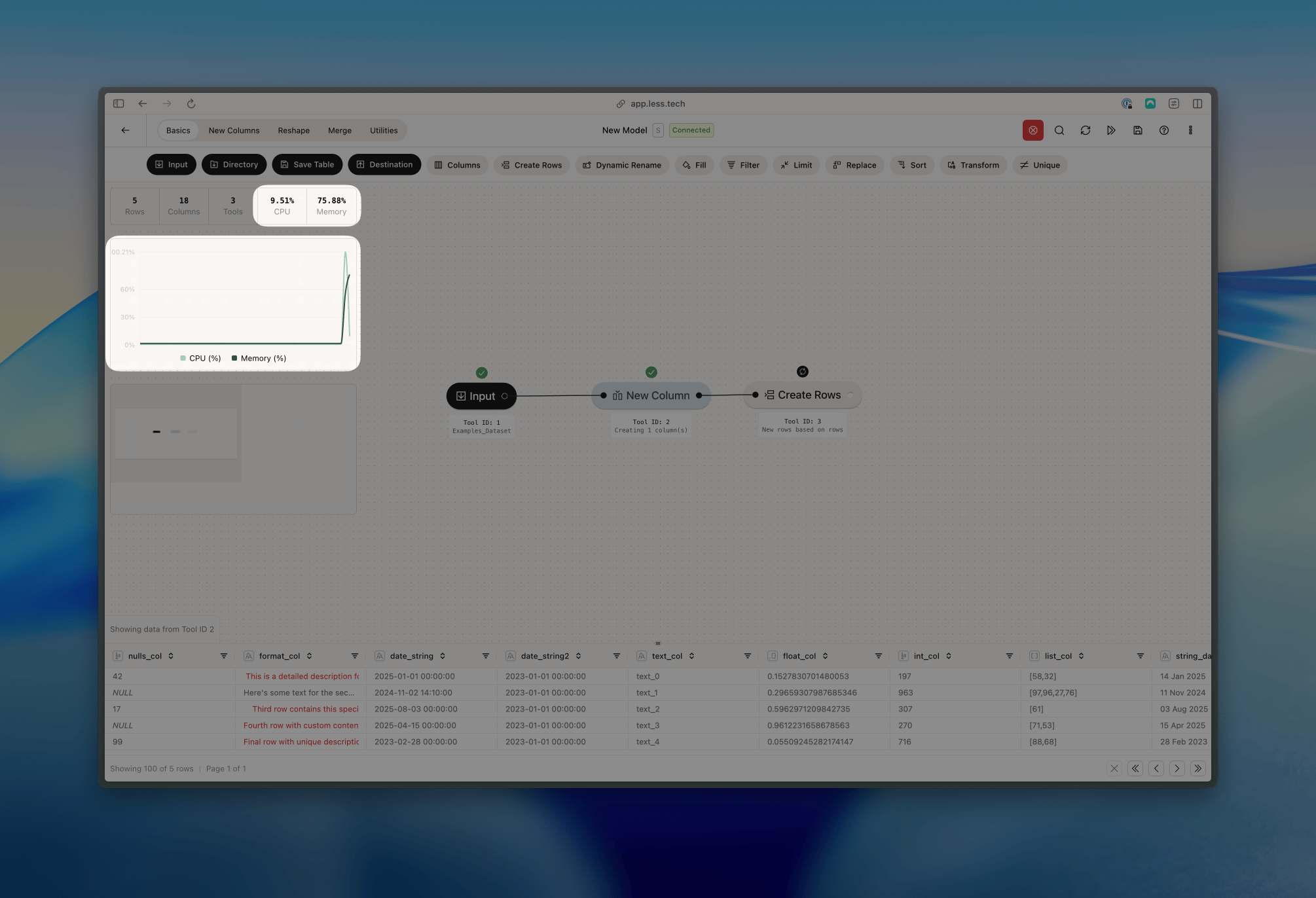
When working on the Canvas, you get a dedicated session for you to work in. This session is running on a certain instance size. You can see how much of the resources you’re consuming in the top left corner and on the metrics charts.
If you see an error message that says “You don’t have enough resources to run this model..”, you should upgrade your instance to a larger size. You can do this from the Canvas by clikcing on the settings in the top right corner. Then click on the Select instance dropdown.
Info

You can see how much of the resources you're consuming in the top left corner and on the metrics charts.

Less allows you to add more computation power whenever you need it. This is primarily useful if you need more computation power to handle large datasets but can also be effective if you want want to run a model faster.
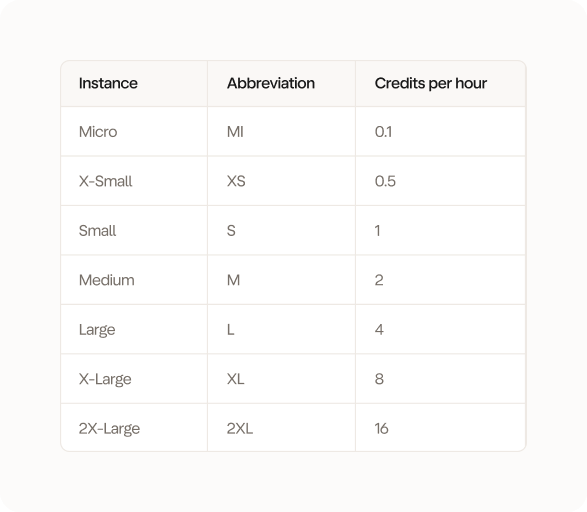
The larger the instance you use, the more credits you will consume.
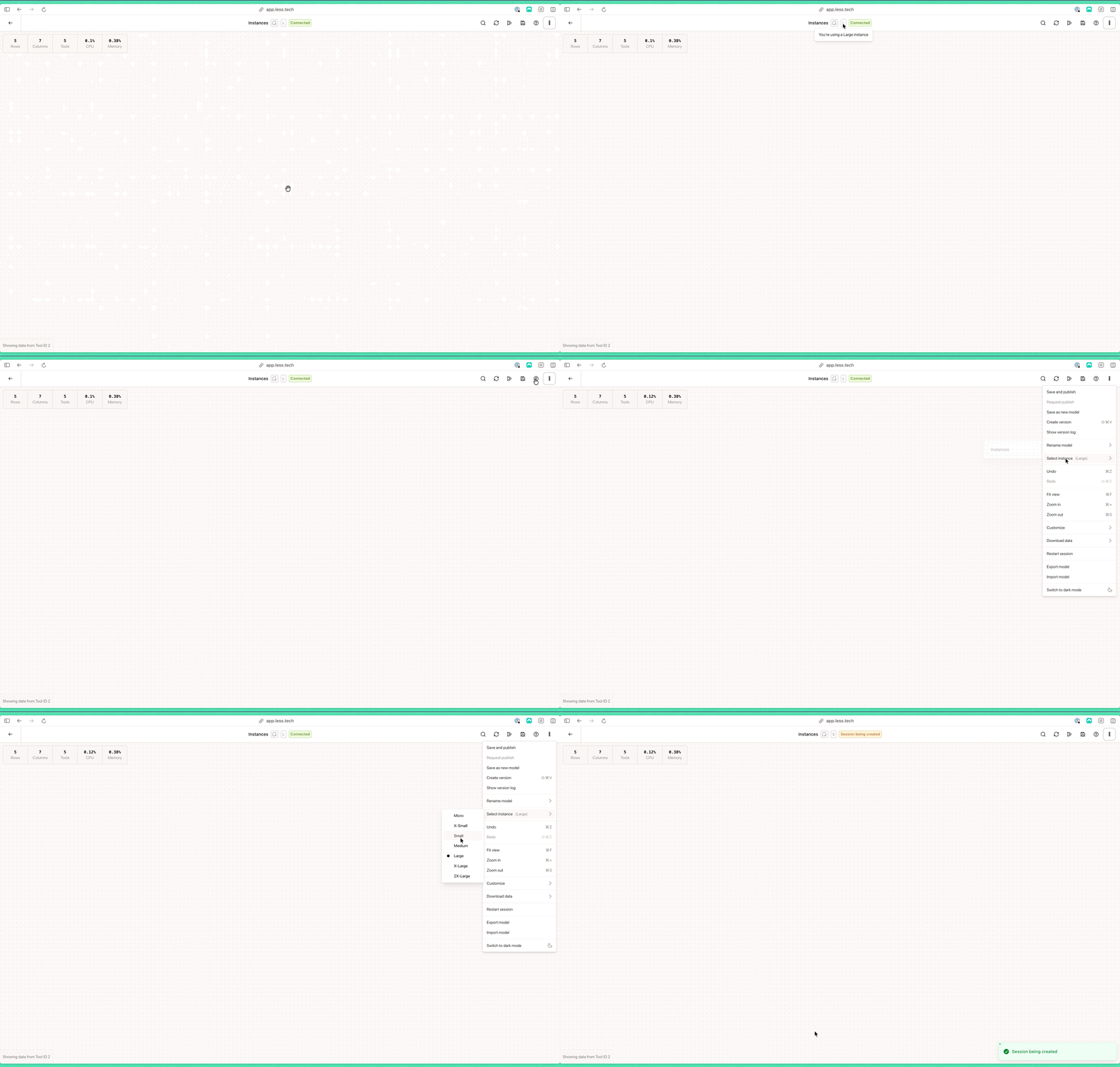
You can change the instance size at any time from the Canvas. Navigate to the Settings in the top right corner and use the Select Instances dropdown. At the top of the Canvas window you can see which session size is currently selected.

Instances

You can choose from a number of different instance sizes. The instance size determines how much computational power is available for your model. The larger the instance, the more credits you consume.Read more about credits.
Benchmarking

Coming soon.