

Configuration
1
Table name pattern
Input a pattern that correspondxs to the tables names you want to import. This
uses wildcards to match table names. You could - for instance - write testDataset*
to get all the tables whose name begins with testDataset.You can use the following to get started with pattern matching:
- * matches any number of characters (including none). Example: dataset* matches dataset_1, dataset_abc but not hello_dataset_1
- ? matches any single character. Example: data*?.csv matches data_a.csv, data_1.csv but not data_123.csv
- [seq] matches any character in seq. Example: file[12].csv matches file1.csv and file2.csv but not file55.csv
2
Folder matching
If selected, you can restrict the tables being matched to only come from a
certain folder. This requires you to input the revelant folder ID (which you
can find from the URL when navigating to a folder). This might be helpful if
you want to ensure you don’t match any undesired tables.
3
Folder ID pattern
This input is only shown if Folder matching above is enabled.You should input the ID of the folder you want to restrict tables coming from here.
4
File limit (optional)
You can choose to limit the number of files being loaded. If you’re working with less restrictive patterns such as *.csv, it could be quite helpful to restrict the number of files as you might otherwise end up with very large combined tables.
5
Row limit (optional)
You can choose to limit the number of rows being loaded from each file. If you’re working with large datasets, it could be helpful to begin by restricting the number of rows while you validate what’s being loaded.
6
Dataset column matching
By enabling this option you place a restriction that all tables that are loaded must have exactly the same columns. If one of the tables doesn’t, then the Directory tool will fail. This is helpful if you know that all tables should match 1:1 in their structure and if they don’t then it must be because of a wrong table being loaded.
Example
In this example, we want to use a Parameter to match all tables beginning with testDataset. We only want to import 2 tables and each you be limited to 10 rows. We don’t need tables to match each others structure (no column matching) and we don’t care if tables come from different folders (no folder matching).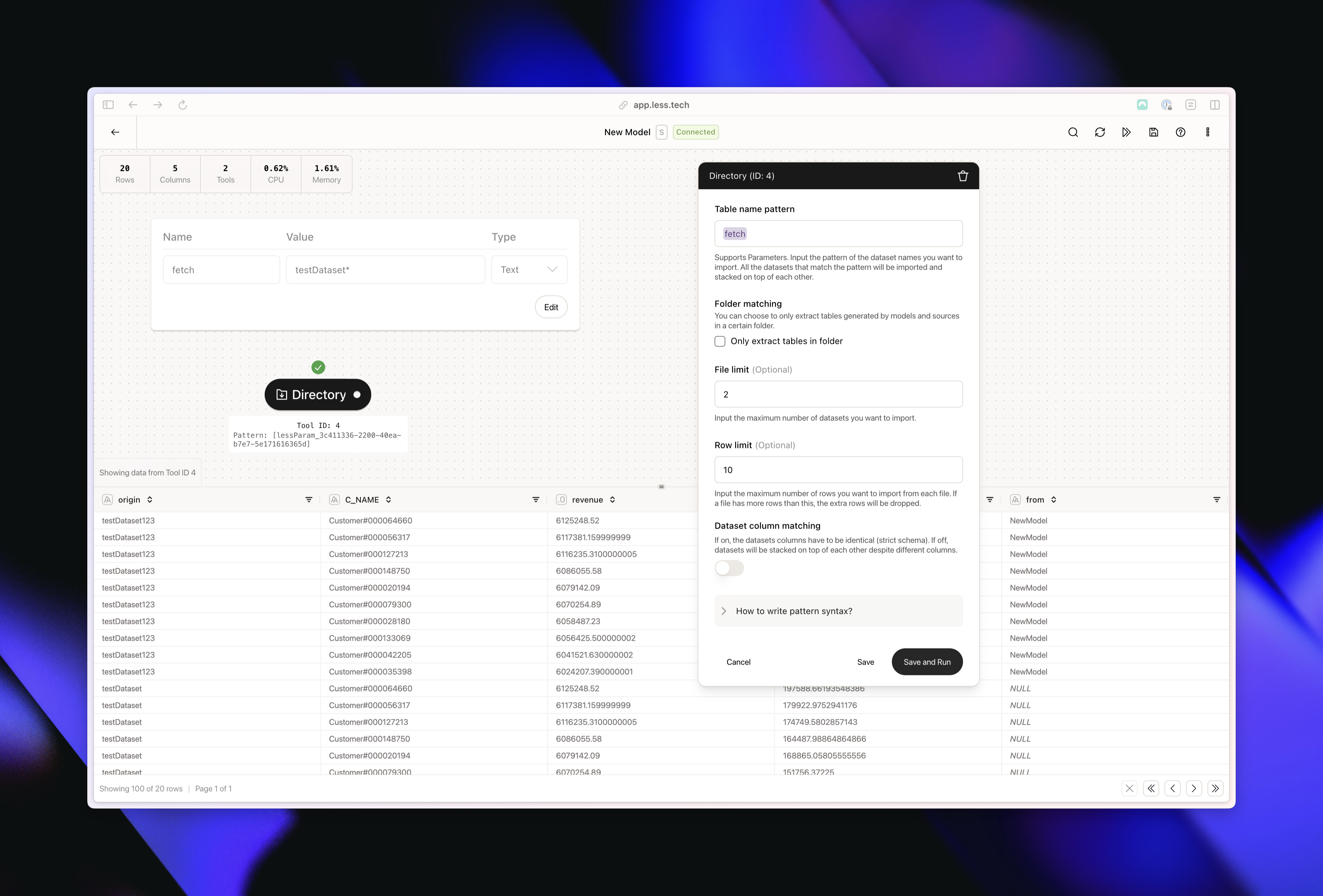
- We only have 20 rows. That seems correct. Maximum 2 tables each limited to 10 rows = a total of 20 rows
- We’re using our fetch parameter to get the *testDataset** pattern into our Directory tool. We use this to match two tables: testDataset and testDataset123
- We have an origin column showing the original table name of each row - we can use this to track where our data originates from
- We have a column called from in our testDataset123 that is not present in testDataset. That’s fine because we disabled column matching