On the Browse page you can see all the tables that are either coming into Less from a source or from using the Save Table tool. This is like a central hub for all your data.
You can also view the tables for the sources and models that you have permission to read.

Overview

From the overview you can do the following actions:
  1. Search for a table by name
  2. Create a new tag
  3. See all your tables including its status, tag, what generated it, when it was last updated and the rows and columns in the table
  4. Filter the tables by status, owner, generation type (source or model), source name and tags
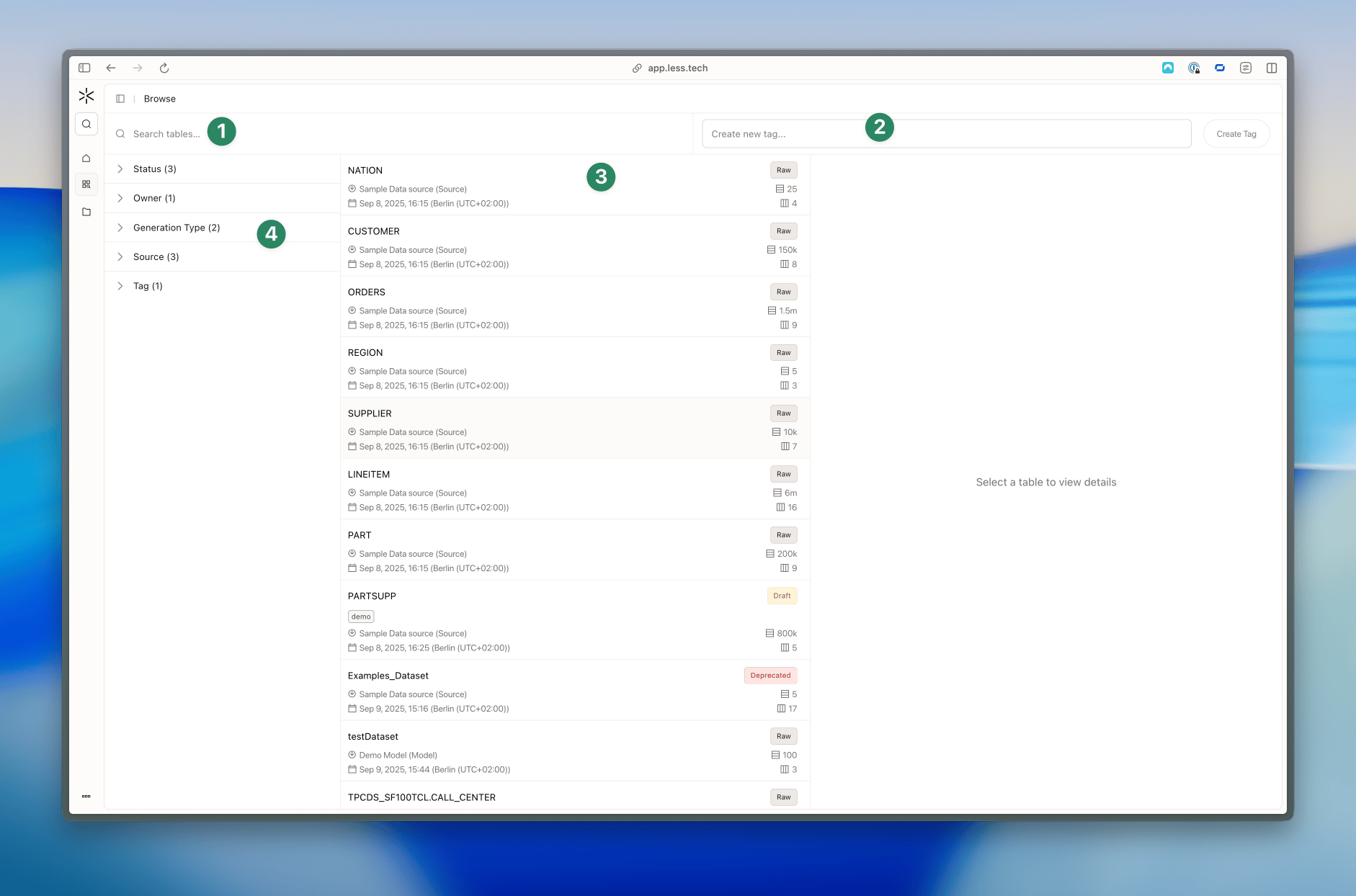
You can click on a table to view more details in the right-hand side panel.

Tags and Statuses

You can add tags to tables to help you organize your data. That could for example be by department such as sales, marketing, finance, etc. Or if you a consultancy, you could tag tables by client. You can view all your tags by navigating to the Profile page and clicking on the Tags tab. Here you can also create new tags.
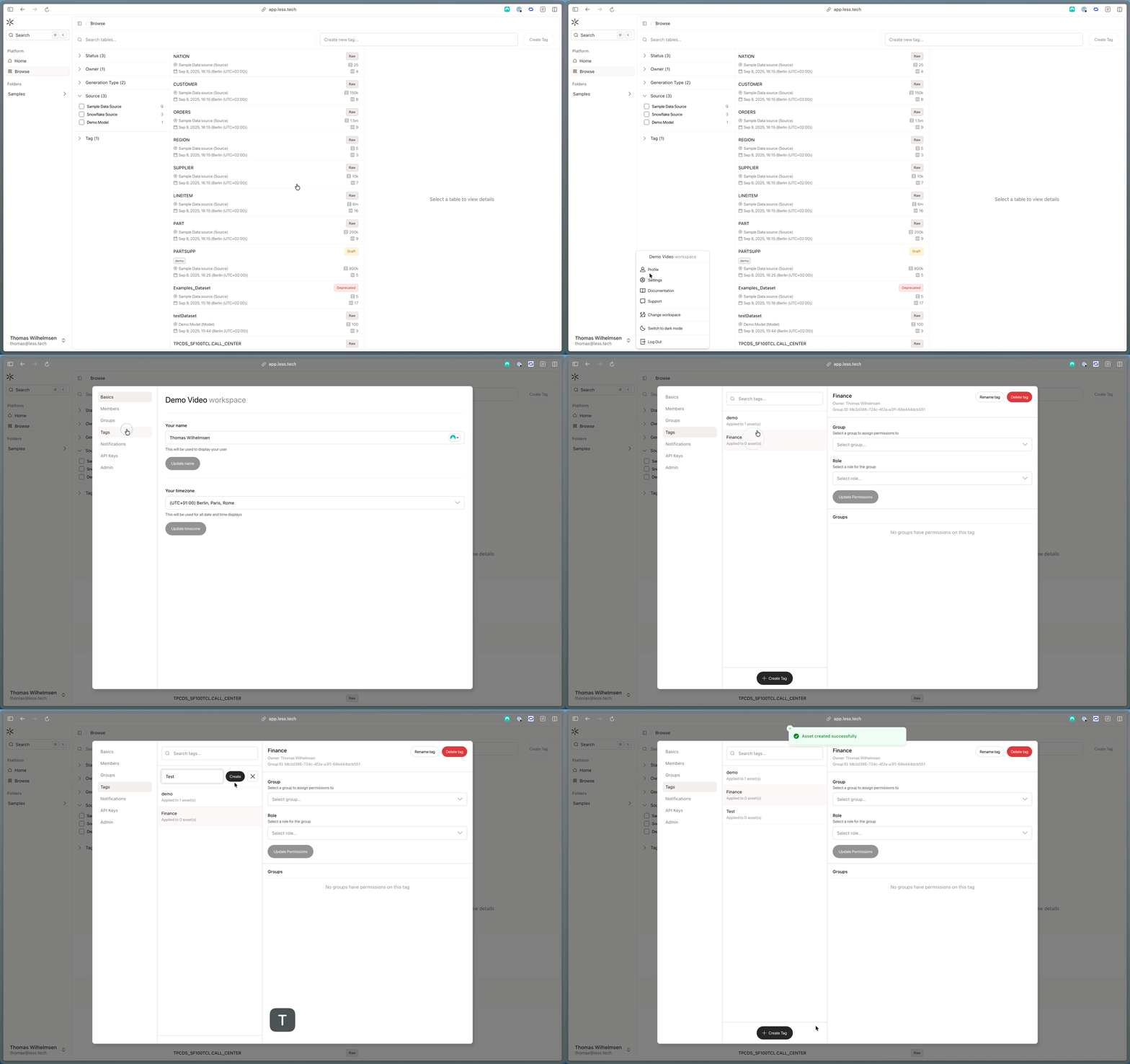
Statuses on the other hand are defined by us and are used to indicate the health of a table. You can choose between “No Status”, “Raw”, “Deprecated”, “Draft”, “Verified”. It’s entirely up to you if we want to use our statuses but it can help your colleagues understand which tables are ready to use and which are not.

Single table view

When selecting a single table you can see more details about the table. You can change it’s status (1), add tags (6), and edit the table description (5). You’ll also see what it’s generated by, when it was last updated, the owner and the number of rows and columns in the table (7).
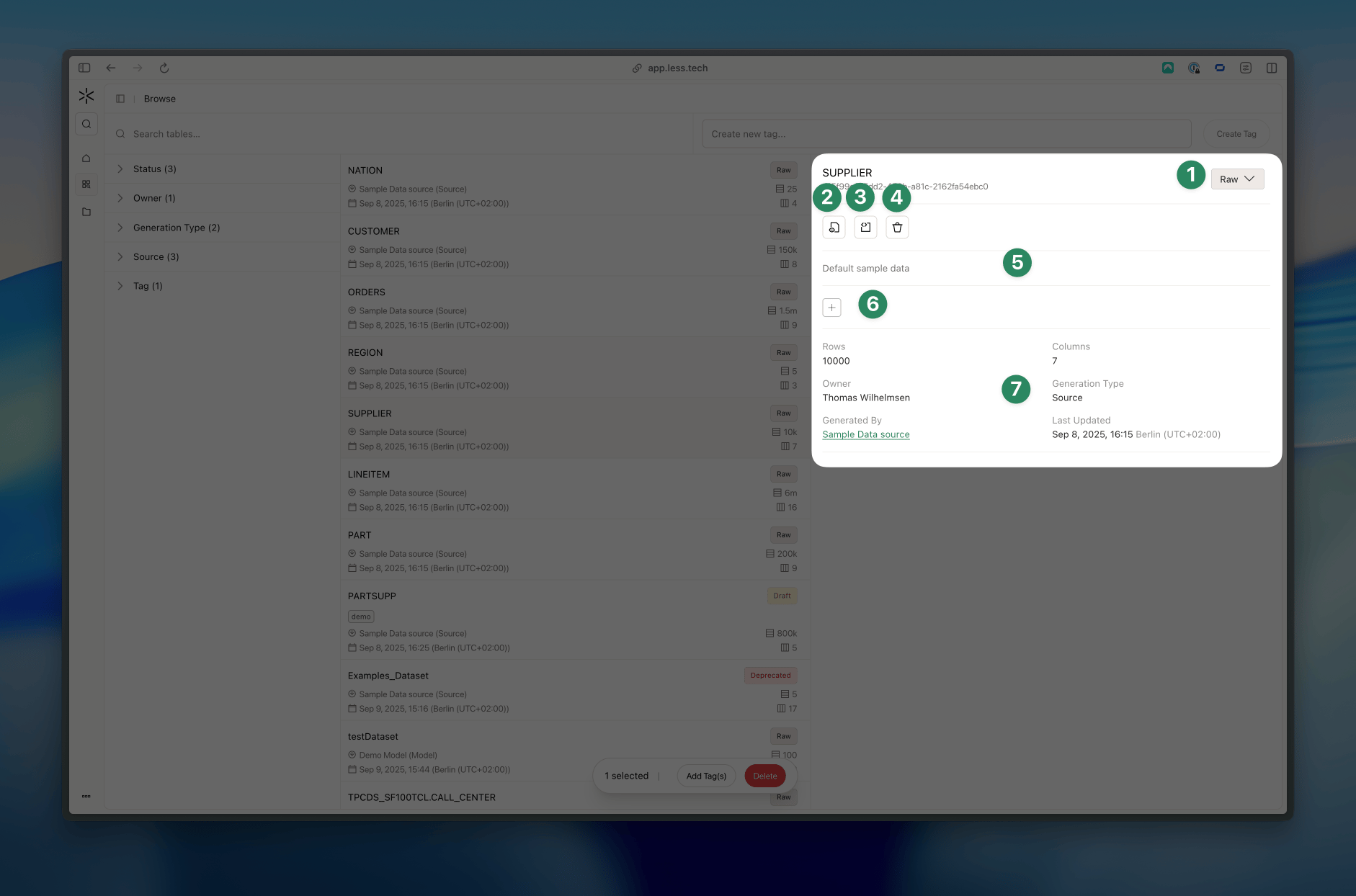
We number 2, 3 and 4 in the image above you can view the first 100 rows of the table (2), view the schema, i.e. the columns, their type, min/max values and a null count (4) and delete the table (5).
Note that if you delete a table that is created by a source/model which is on a schedule, the table will be created again the next time the source/model runs

Multiple table view

When you select multiple tables you’ll see each tables, its description and status. You can hover a table and click “x” to select it. Press “escape” to deselect all tables. You can use the action bar at the bottom of the screen to add tags and delete multiple tables at once.