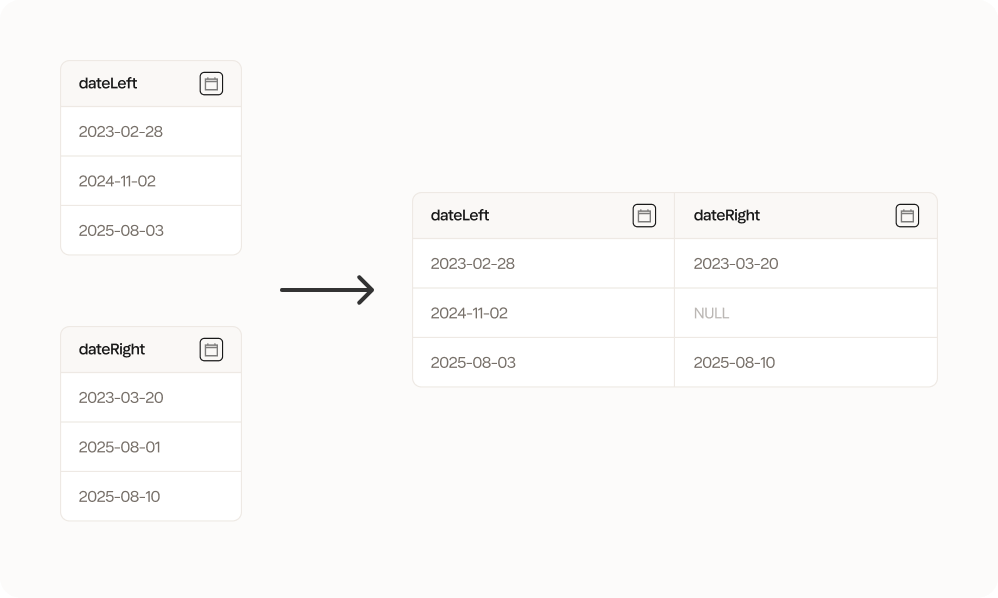
Left column = dateLeft, right column = dateRight, strategy = forward, tolerance = 90 days
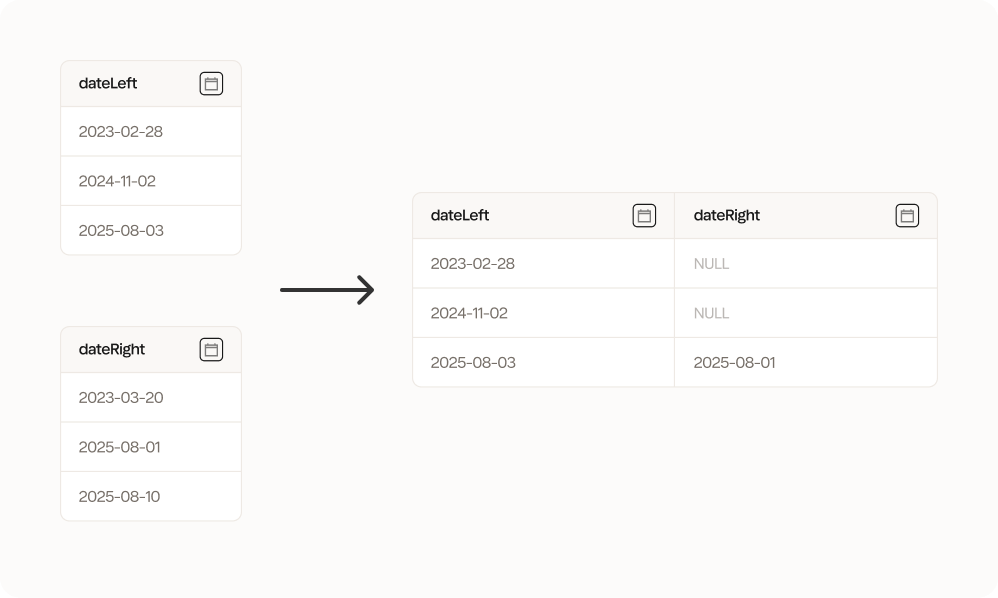
Left column = dateLeft, right column = dateRight, strategy = backward, tolerance = 90 days
Configuration
1
Left column
Choose the column from the left dataset that you want to use to combine with the right dataset.
2
Right column
Choose the column from the right dataset that you want to use to combine with the left dataset.
3
Strategy
Choose the strategy you want to use to combine the datasets. You can choose between forward, backward or nearest:
- Forward: Look for the nearest similar value looking forward/down in the right (R) dataset. If two values are the same, the first one (from the top going downwards) is chosen.
- Backward: Look for the nearest similar value looking backward/up in the right (R) dataset. If two values are the same, the first one (from the bottom going upwards) is chosen.
- Nearest: Look for the nearest similar value in the right (R) dataset. If two values are the same, the first one (from the top going downwards) is chosen.
4
Tolerance (Datetime only)
When you’re combining datetime columns, you can add a tolerance to the comparison. This is the maximum duration that the two dates can be apart. You can choose between:
- None: all values are matched regardless of the duration between them.
- 1 second
- 1 minute
- 1 hour
- 1 day
- 1 week
- 30 days
- 90 days
- 365 days
5
By column pairs (optional)
You can choose to combine first by some other columns from each dataset. This is like a built-in Combine tool where you choose the columns you want to combine by before doing the close combine.
6
Suffix (optional)
You can choose to add a suffix to potential duplicate columns. Otherwise, we add a default suffix to duplicate column names in the right dataset.
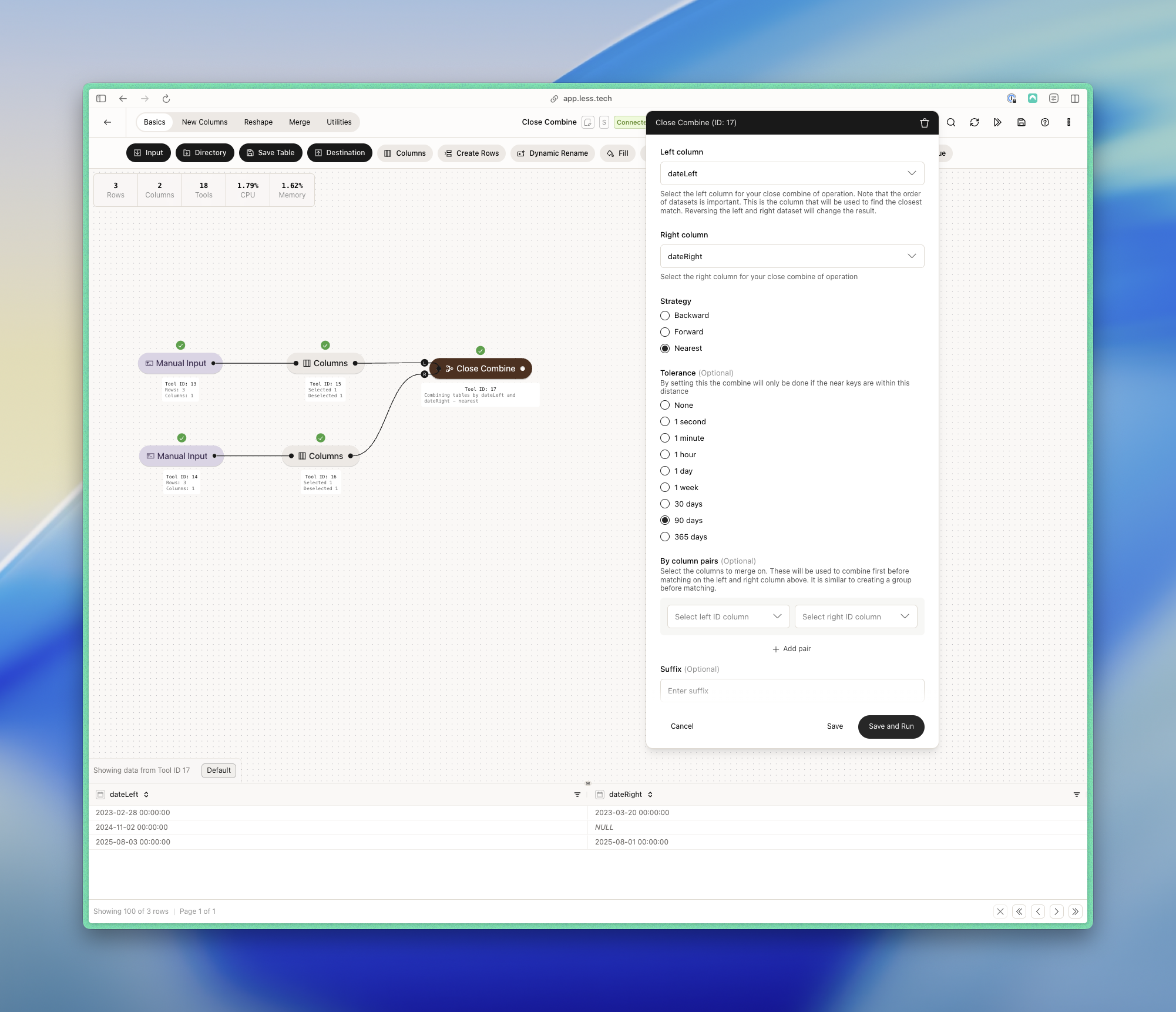
Example: The illustration example 👆
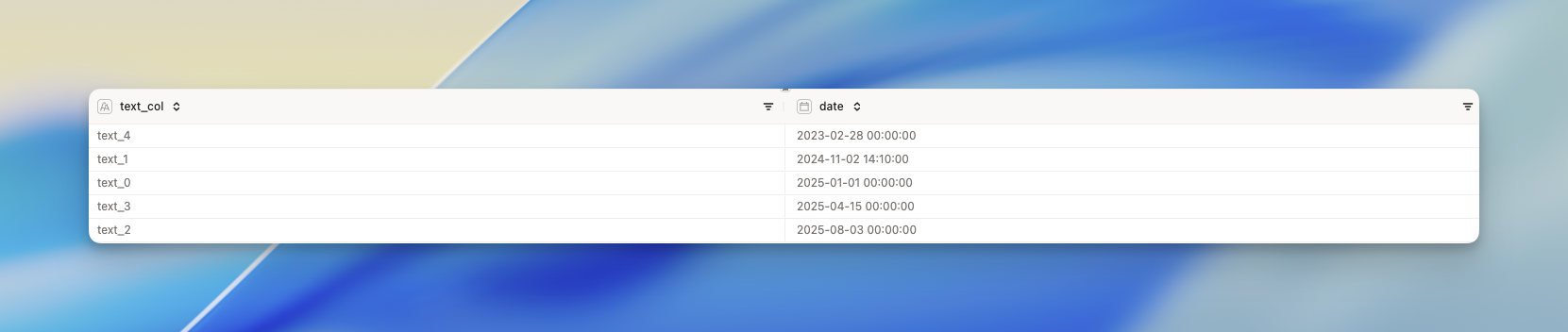
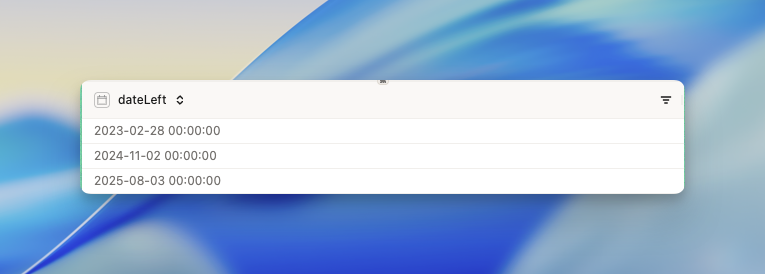
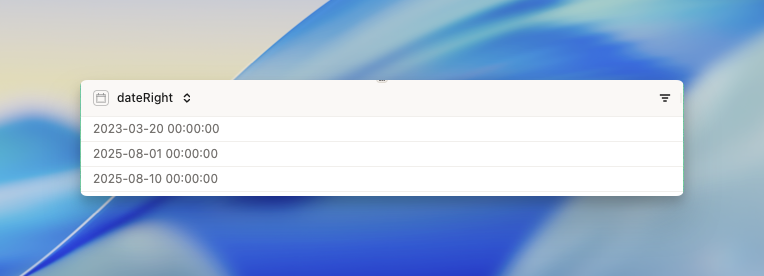
Here we’re showing exactly how to configure the tool to get the same results as the first illustration example above.- Left dataset
- Right dataset
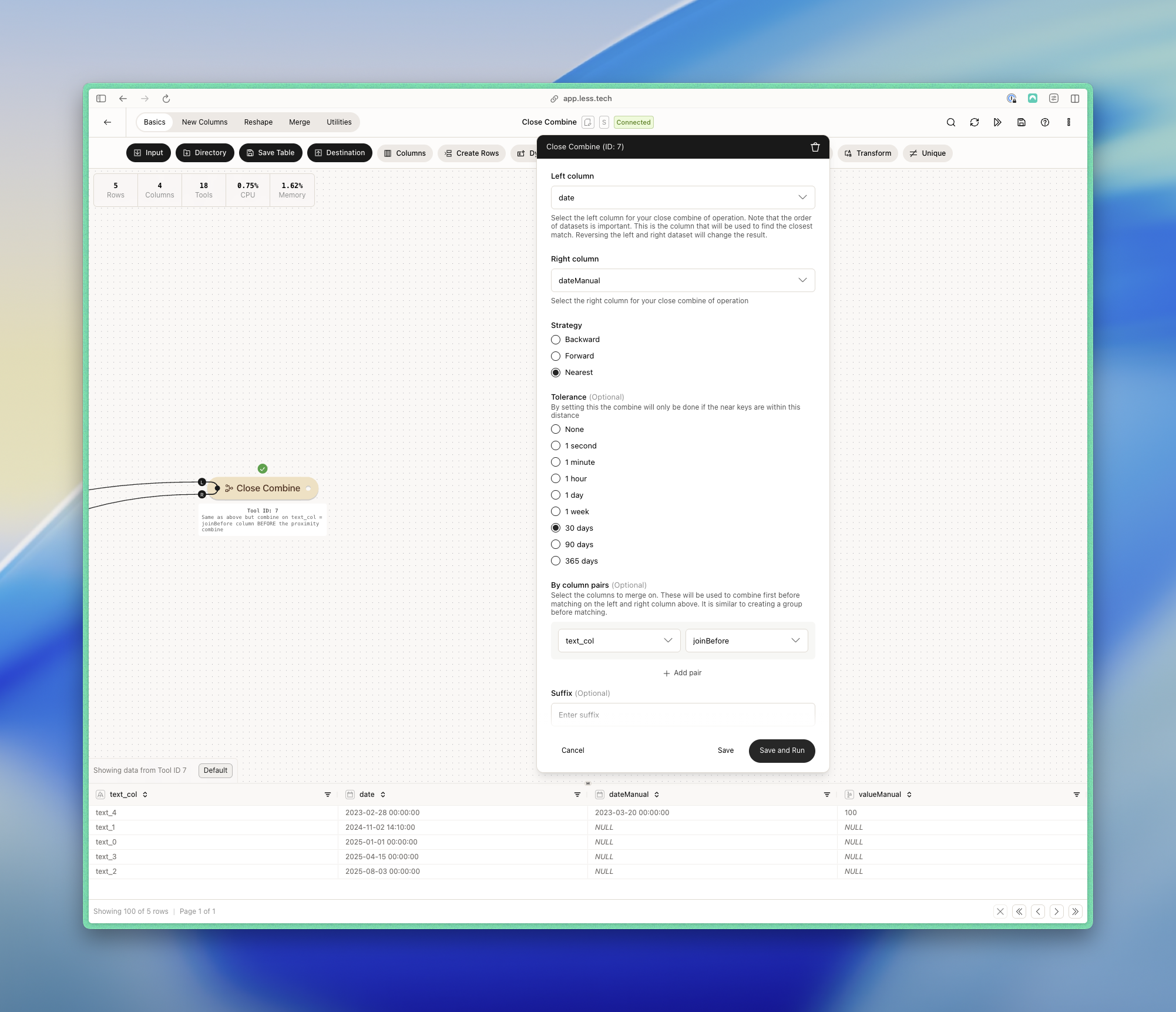
- Output
Example: Using the ‘by columns’ feature
In this example, we want to first combine on the text_col from the left dataset to the joinBefore from the right dataset. This will act as a filter to only combine the rows where the text_col is the same as the joinBefore column. We also use the nearest strategy with a tolerance of 90 days.- Left dataset
- Right dataset
- Output