

You need to make sure the Less IPs are whitelisted in your Snowflake account. You can find the IPs here.You can also choose to use PAT (programmatic access tokens) instead of username and password. You need to have a user account with write access to the database to be able to use the Snowflake destination.
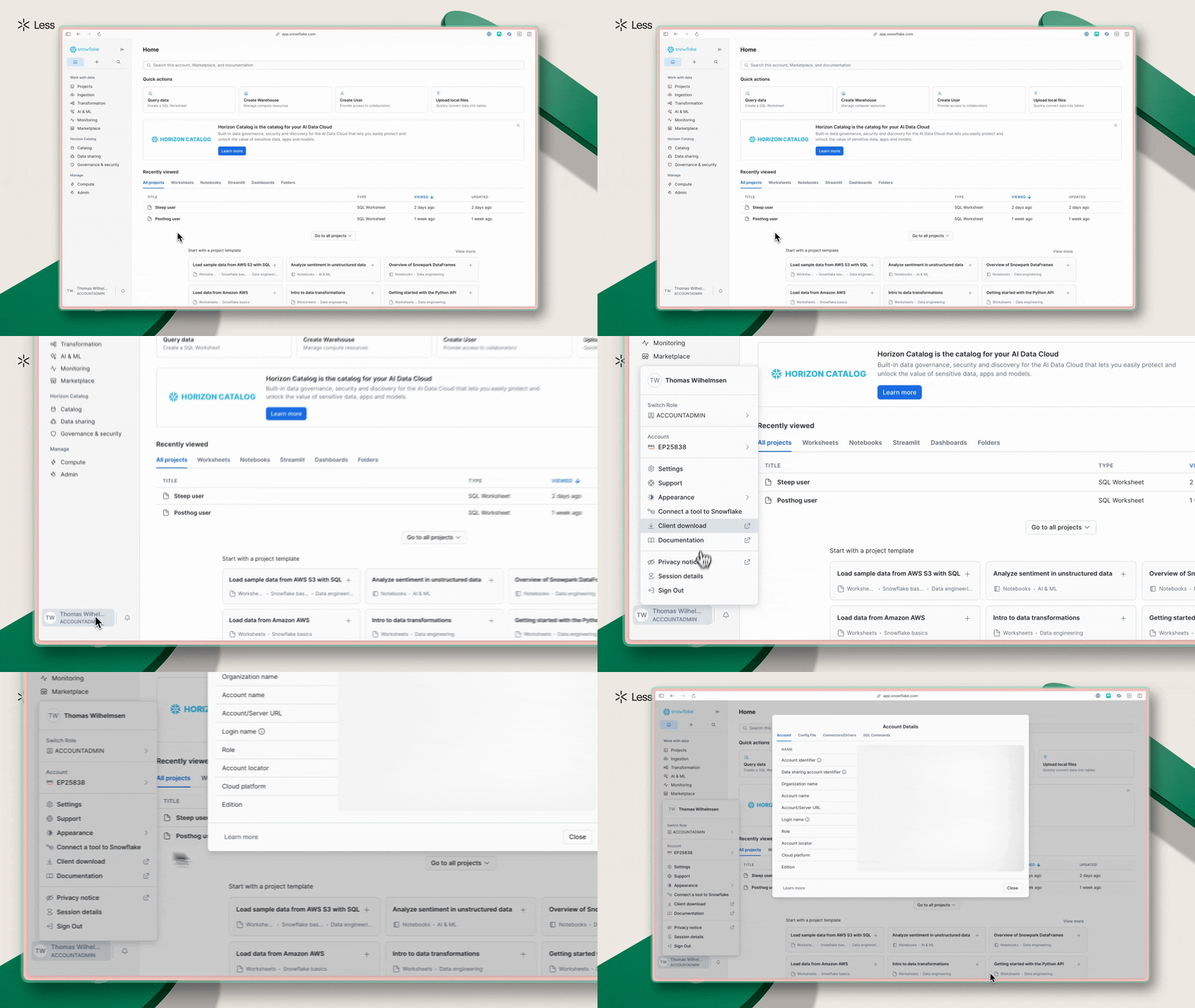
Password or Service Account Setup
There are two parts to setting up a Snowflake destination.Account
Account
The first step is input account identifier, compute warehouse, and the name of the database you want to send data into.
Credentials
Credentials
Step two is to input a role (see the GIF above to find it in Snowflake). Secondly, you need to select your authentication type. By default, you can only choose “Password”. You can enable OAuth 2.0 authentication as well (see below).Input your username and password if you choose “Password” authentication. Alternatively, click “Authenticate with Snowflake” if you have enabled OAuth 2.0 authentication.Finally, we recommend that you test the connection before continuing to ensure that the connection is successful.
We’re working on enabling Service Account authentication
OAuth 2.0 Authentication
Admins and Super Admins can enable the users in your Less workspace to connect to Snowflake with OAuth 2.0 authentication. To do so, you need to first create a custom OAuth 2.0 application in Snowflake. You can find the instructions here. Once you’ve created the OAuth 2.0 application in Snowflake, navigate Settings -> Other and click “Connect” in the Snowflake OAuth settings section. There you’ll need to input the following:- Client ID: The Client ID of the OAuth 2.0 application you created in Snowflake.
- Client Secret: The Client Secret of the OAuth 2.0 application you created in Snowflake.
- Authorization URL: The Authorization URL of the OAuth 2.0 application you created in Snowflake.
- Token URL: The Token URL of the OAuth 2.0 application you created in Snowflake.