> ## Documentation Index
> Fetch the complete documentation index at: https://docs.less.tech/llms.txt
> Use this file to discover all available pages before exploring further.
# Validate
> Create customized warnings
The Validate tool is useful for automated testing and productionizing models. It enables you to create custom warnings based on conditions so you can highlight if something seems strange. The Validate tool can be highly effective for customizing warnings that highlight scenarios that should cause caution in the dataset.
You can create multiple warnings in a single model
### Configuration
There are two ways to use the Validate tool: zero rows and by condition. Zero rows means that you want to create a warning if the incoming dataset has zero rows. By condition means that you want to create a warning if a boolean column is false.
Select the method you want to use: zero row or by condition.
Info, Warning or Error. If an `Info` is triggered it will generate a row in your logs, a `Warning` will turn the whole job is to a warning and the `Error` will simply turn the job into an erroneous run.
If you choose Info or Warning in the log type, you can choose to stop the downstream execution. In other words, if you have tool attached after the Validate tool that you don't want to run, you should check this option.
Enter a message that you want to show in your logs. When using the "zero rows" method, you cannot reference columns. You can do that with the "by condition" method.
Select the method you want to use: zero row or by condition.
Info, warning or error
Select the timezone that you want the current date and time to be formatted
in. All timezones are available in the dropdown.
Select a Boolean column that will be used to trigger the validate tool. When the boolean column is `FALSE` then the validate tool will be triggered.
You can choose to stop the validation after one row that hits the FALSE value. Or print the first 10 rows in the job logs.
Enter a message that you want to show in your logs. You can reference columns, so you could write log messages comprising your data values (or at least the first 10 rows - see 'number of messages' above)
## Examples
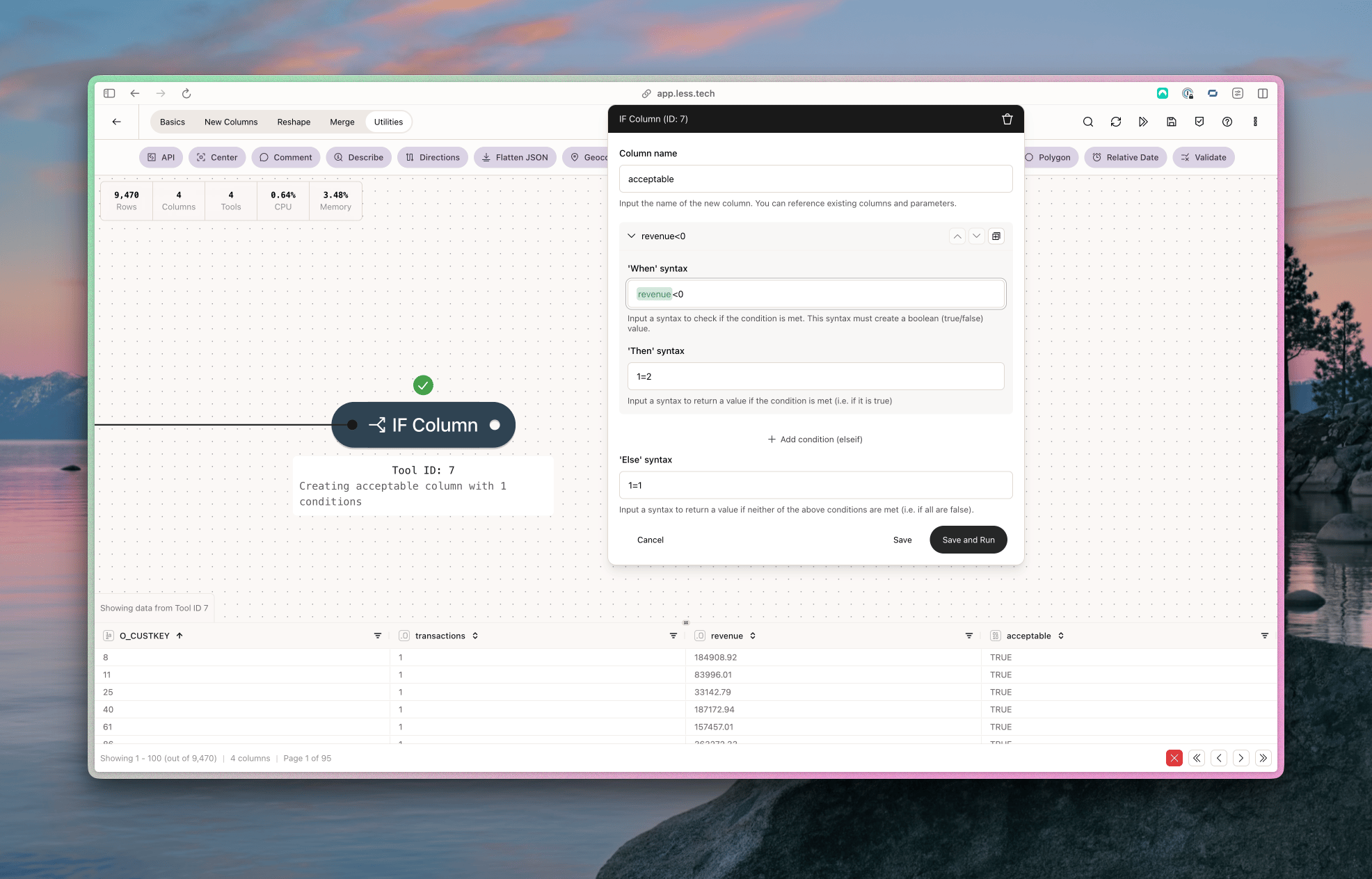
In this case, we want to create a conditional warning when a our revenue column is lower than zero. That should be able to happen for our customers.
So we'll start by creating the boolean column that we'll use in the Validate tool.
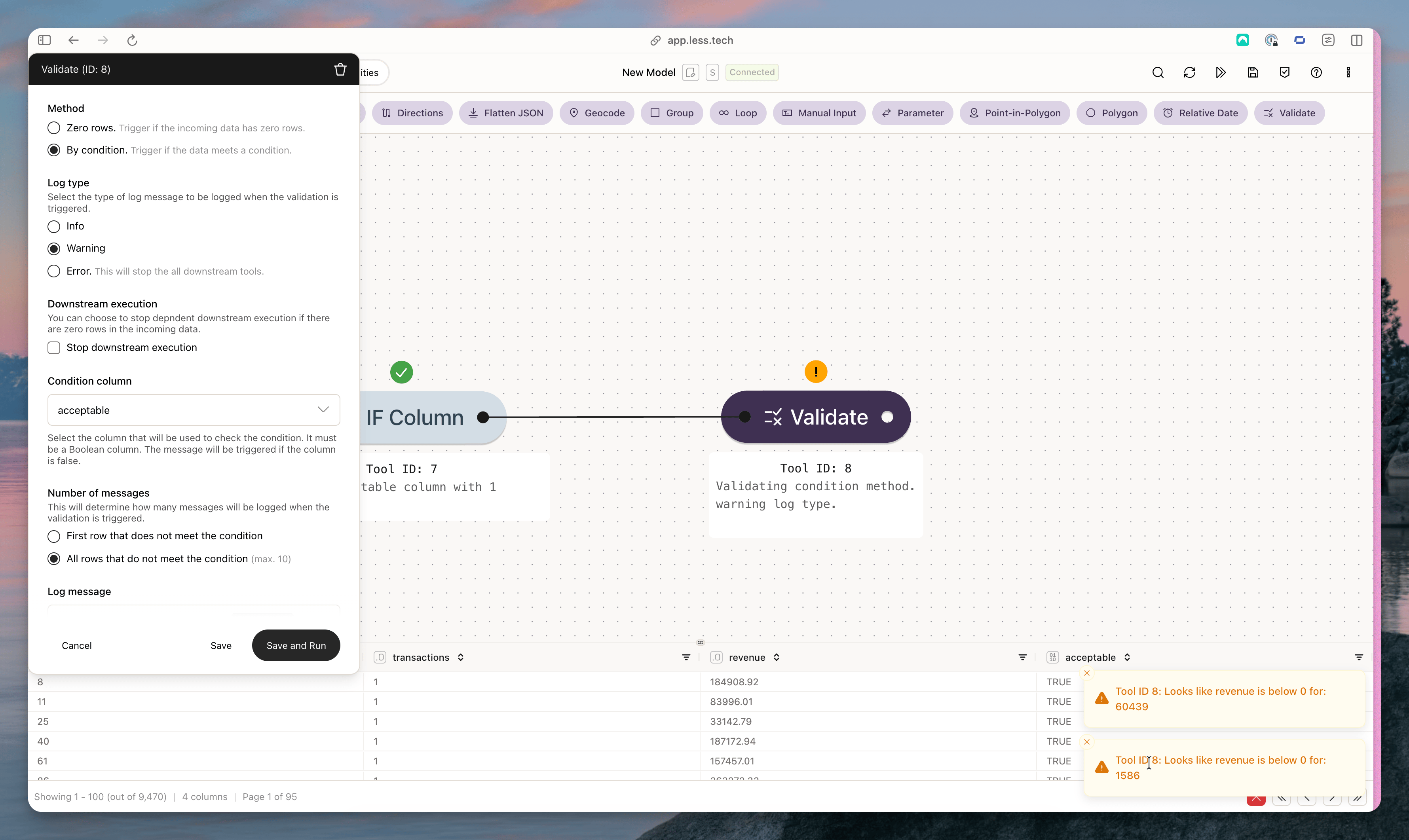
 Then we'll use that in our Validate tool. Notice the warnings in the bottom right-hand corner.
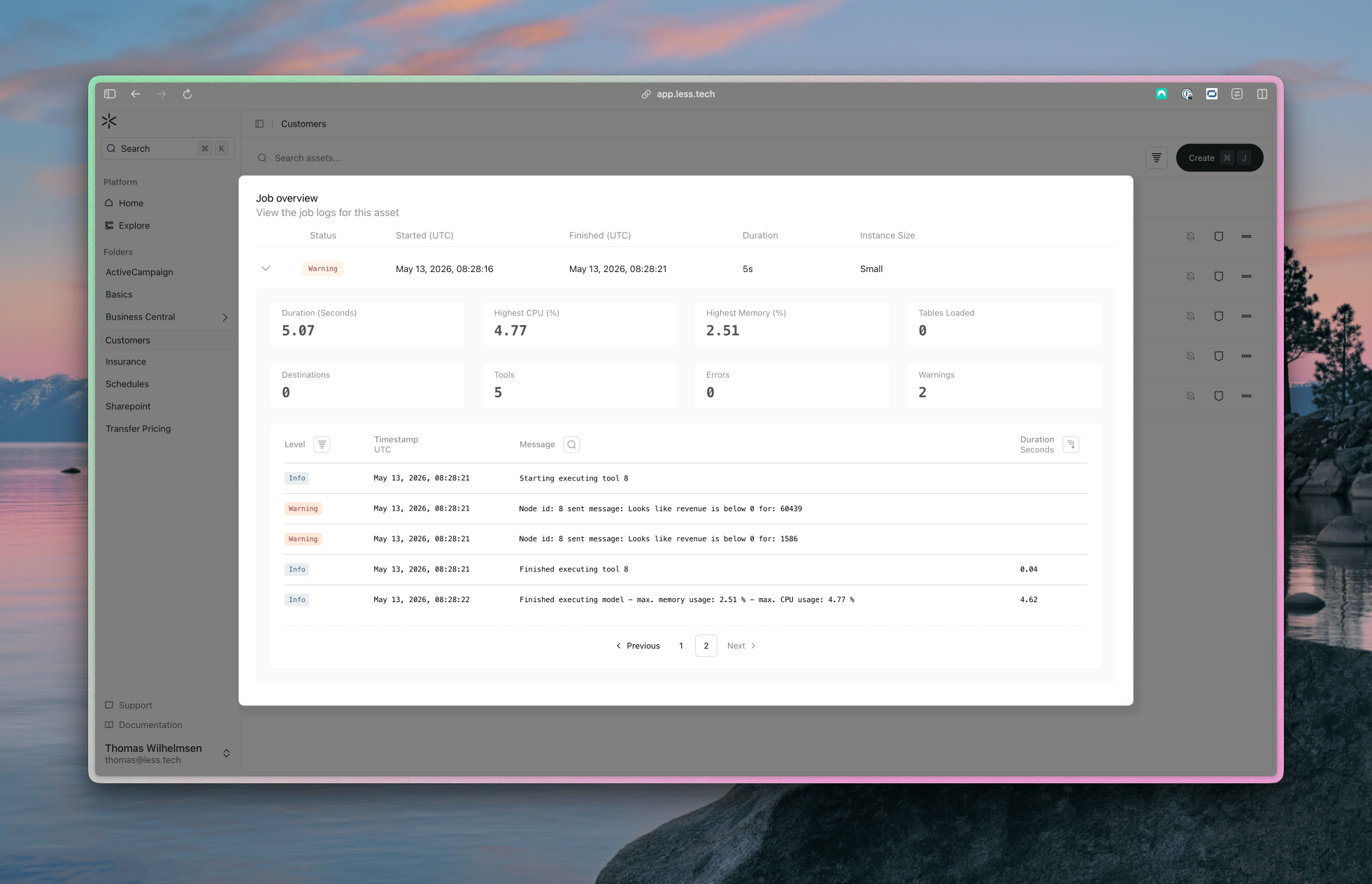
 Lastly, when we run this demo model on a schedule, this is what we'll see in our job log. Notice how the warning messages are identical to the ones in the screenshot above.