> ## Documentation Index
> Fetch the complete documentation index at: https://docs.less.tech/llms.txt
> Use this file to discover all available pages before exploring further.
# Relative Date
> Get the current date and time
The Relative Date tool lets you select a timezone and format and then return current date and time in that timezone. The tool is dynamic and will always return the date and time of when the tools is run - also when the models runs on a schedule.
### Configuration
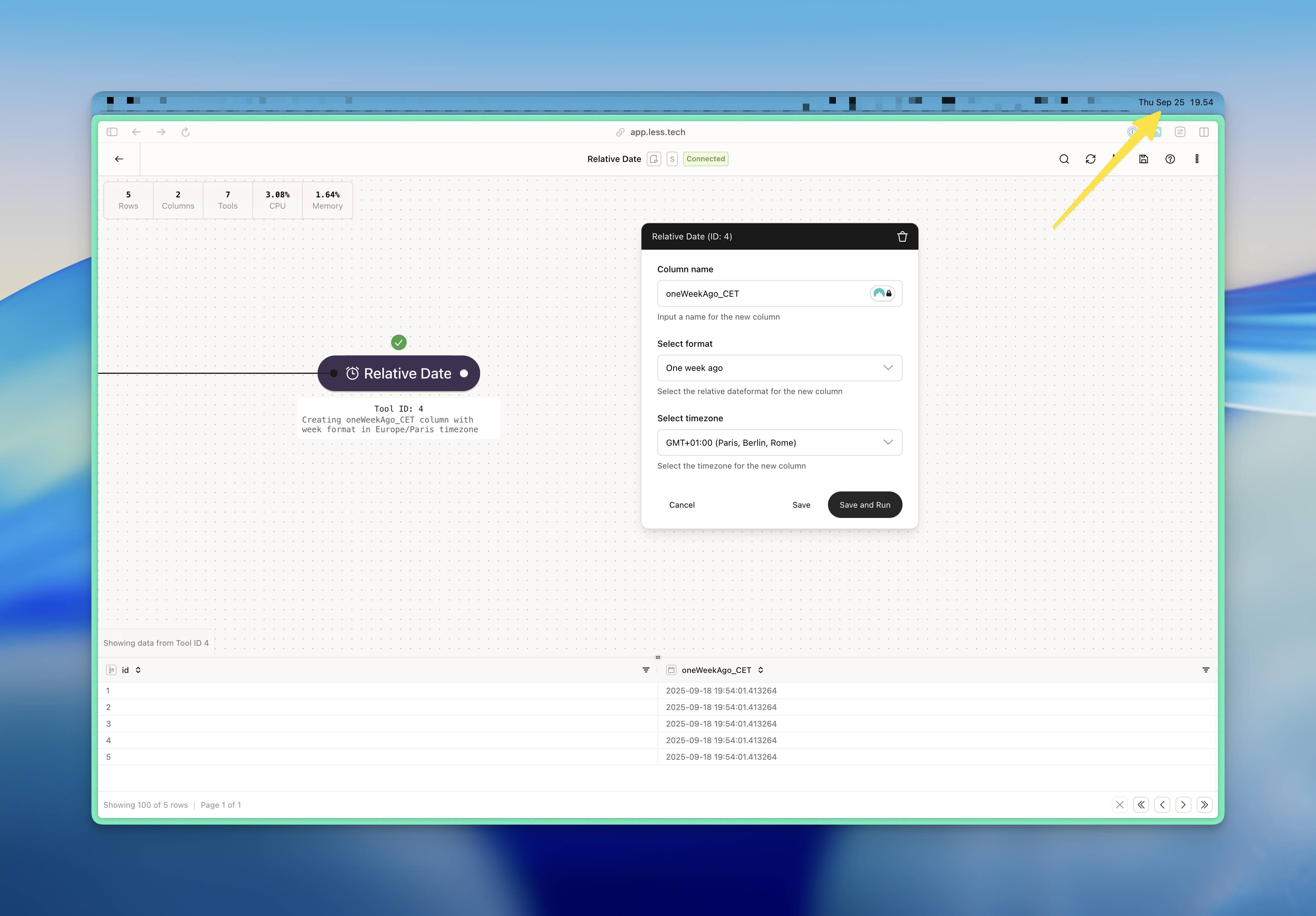
The Today tool will create a new column. Use this input to name it.
Select the format that you want the current date and time to be formatted
in. You can choose between the following formats:
* *Now*: outputs the current date and time
* *Now (date)*: outputs the current date (at midnight, i.e. without the specific time)
* *Now (time)*: outputs the current time
* *Yesterday*: outputs the current datetime minus 1 day (i.e. yesterday at this specific time)
* *One week ago*: outputs the current datetime minus 1 day
* *One month ago*: outputs the current datetime minus 1 month
* *One year ago*: outputs the current datetime minus 1 year
Select the timezone that you want the current date and time to be formatted
in. All timezones are available in the dropdown.
### Example
In this example, we want a reference date that always references one week ago in GMT+01:00 (CET). Note the current date and time is 2025-09-25 19:54:00 in CET whereby we get a result of 2025-09-18 19:54:00 in CET.