> ## Documentation Index
> Fetch the complete documentation index at: https://docs.less.tech/llms.txt
> Use this file to discover all available pages before exploring further.
# Comment
> Add documentation on the Canvas
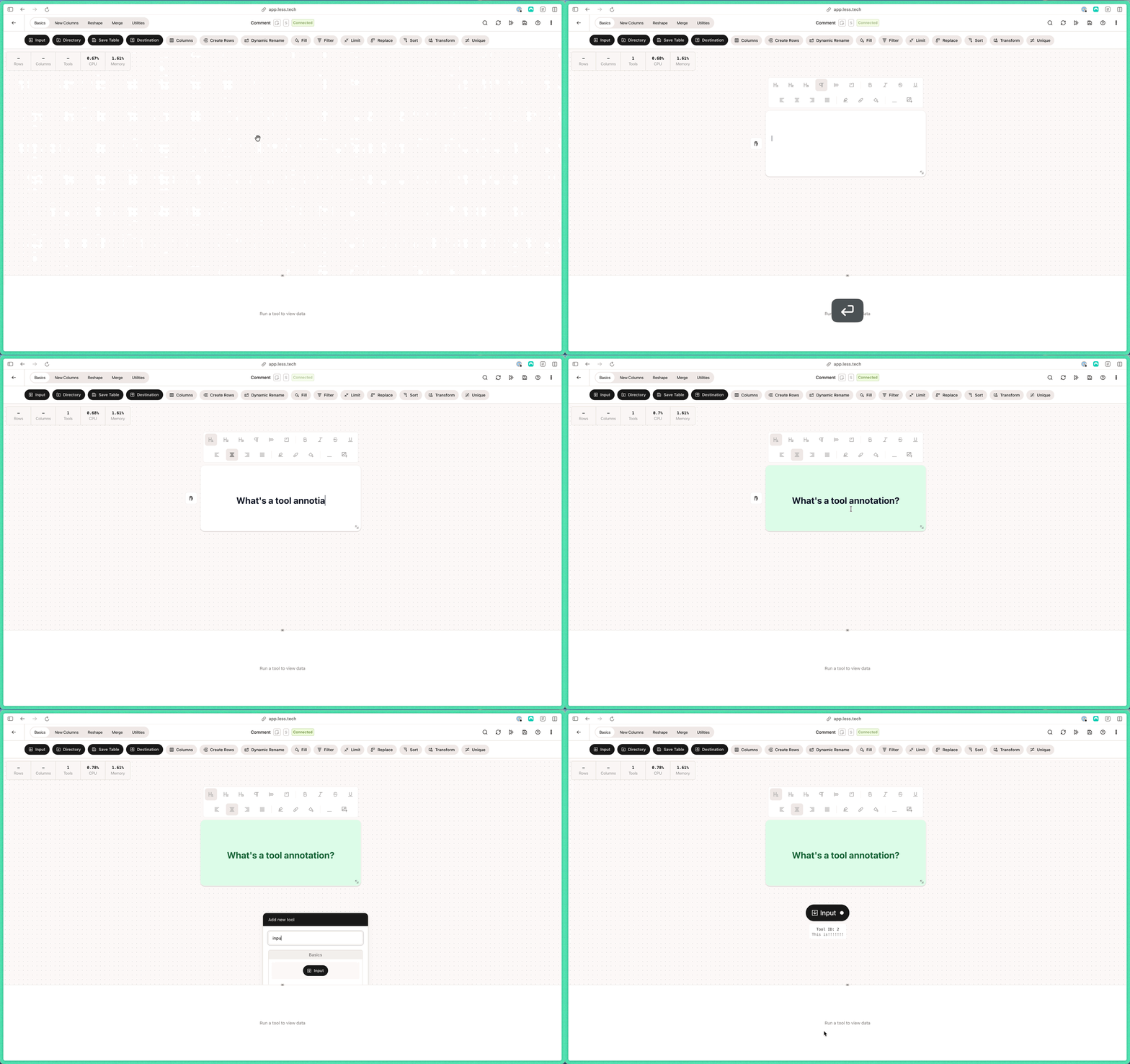
The Comment tool is simple. It can be used to add documentation on the Canvas. Some use it to help colleagues understand workflows more easily while other use cases simply requires documentation.
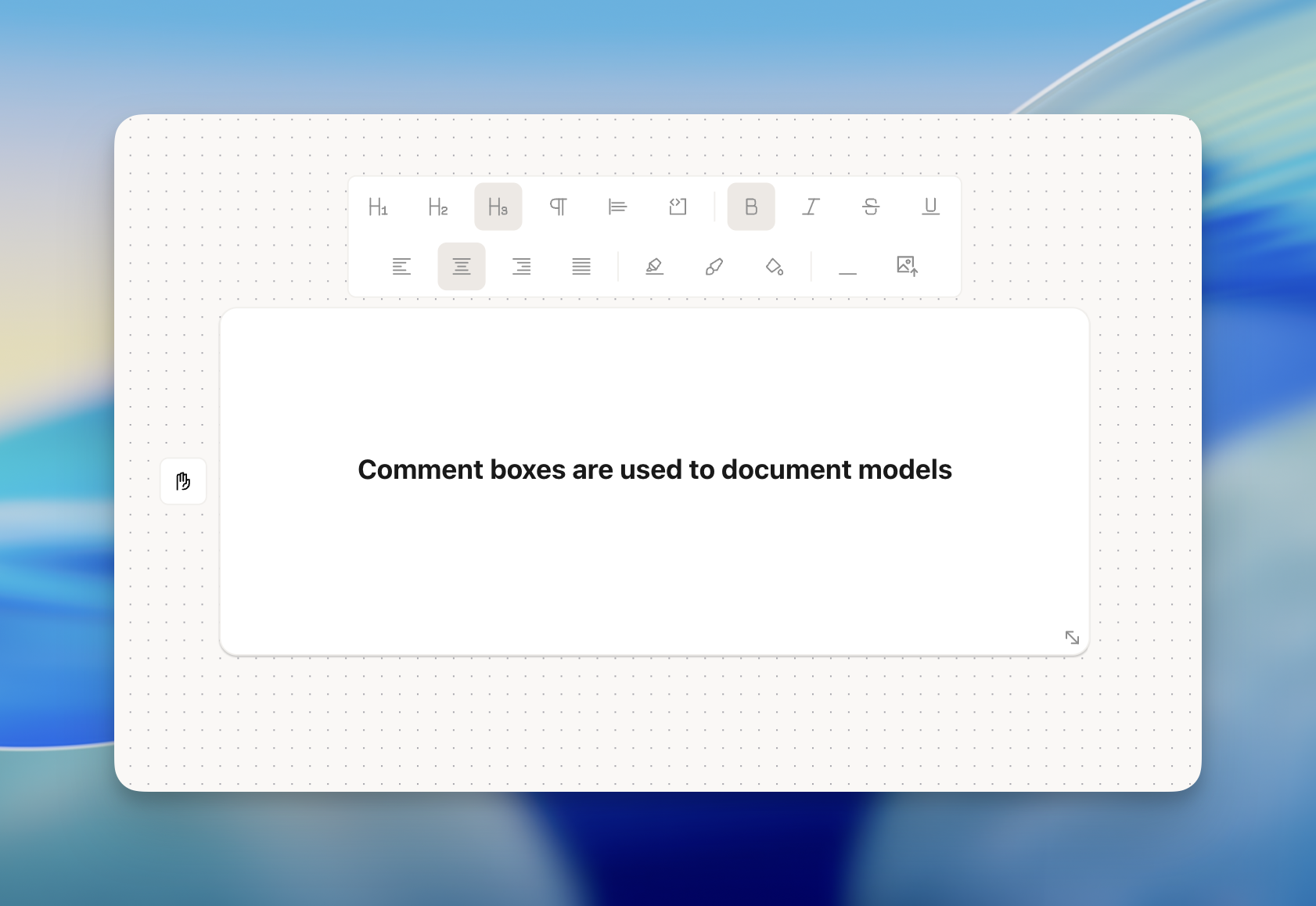 You can do the following this in the Comment tool (top-left to bottom-right):
1. Large header text
2. Medium header text
3. Small header text
4. Paragraph text
5. Blockquote
6. Code-block
7. Bold text
8. Italic text
9. Strikethrough text
10. Underline text
11. Align text left
12. Align text center
13. Align text right
14. Align text justify
15. Adjust highlight text color
16. Change font color
17. Change background color
18. Add horizontal divider
19. Add image
You can drag the comment box with the hand icon on the left side of the comment box. You can adjust the size of the comment box with the resize icon on the bottom right of the comment box.
Note that you can also change the annotations of tools. Generally, we recommend using Comment tools to document multi-tool processes and the tool annotations to document single-tool logic.
You can do the following this in the Comment tool (top-left to bottom-right):
1. Large header text
2. Medium header text
3. Small header text
4. Paragraph text
5. Blockquote
6. Code-block
7. Bold text
8. Italic text
9. Strikethrough text
10. Underline text
11. Align text left
12. Align text center
13. Align text right
14. Align text justify
15. Adjust highlight text color
16. Change font color
17. Change background color
18. Add horizontal divider
19. Add image
You can drag the comment box with the hand icon on the left side of the comment box. You can adjust the size of the comment box with the resize icon on the bottom right of the comment box.
Note that you can also change the annotations of tools. Generally, we recommend using Comment tools to document multi-tool processes and the tool annotations to document single-tool logic.