> ## Documentation Index
> Fetch the complete documentation index at: https://docs.less.tech/llms.txt
> Use this file to discover all available pages before exploring further.
# Transpose
> Convert columns to rows
The Transpose tool doesn't change your data, it simply reorganises it. It can help you restructure your data to reduce the need for additional tools.
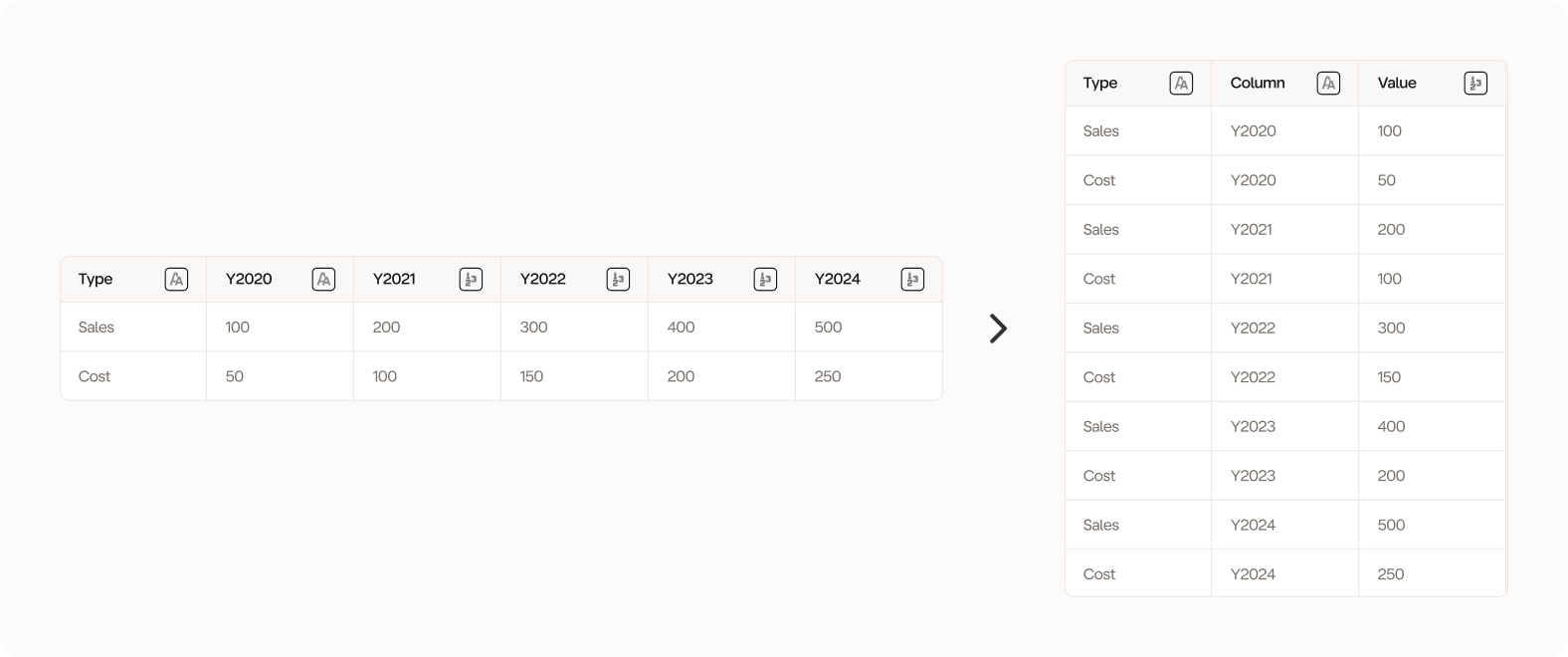 The Transpose tool more or less does the reverse of the [Pivot](/tools/reshape/pivot) tool
The Transpose tool can be very useful before storing your data if you want to use filters/slicers in visualisation tools that select the metric instead of showing all metrics.
### Configuration
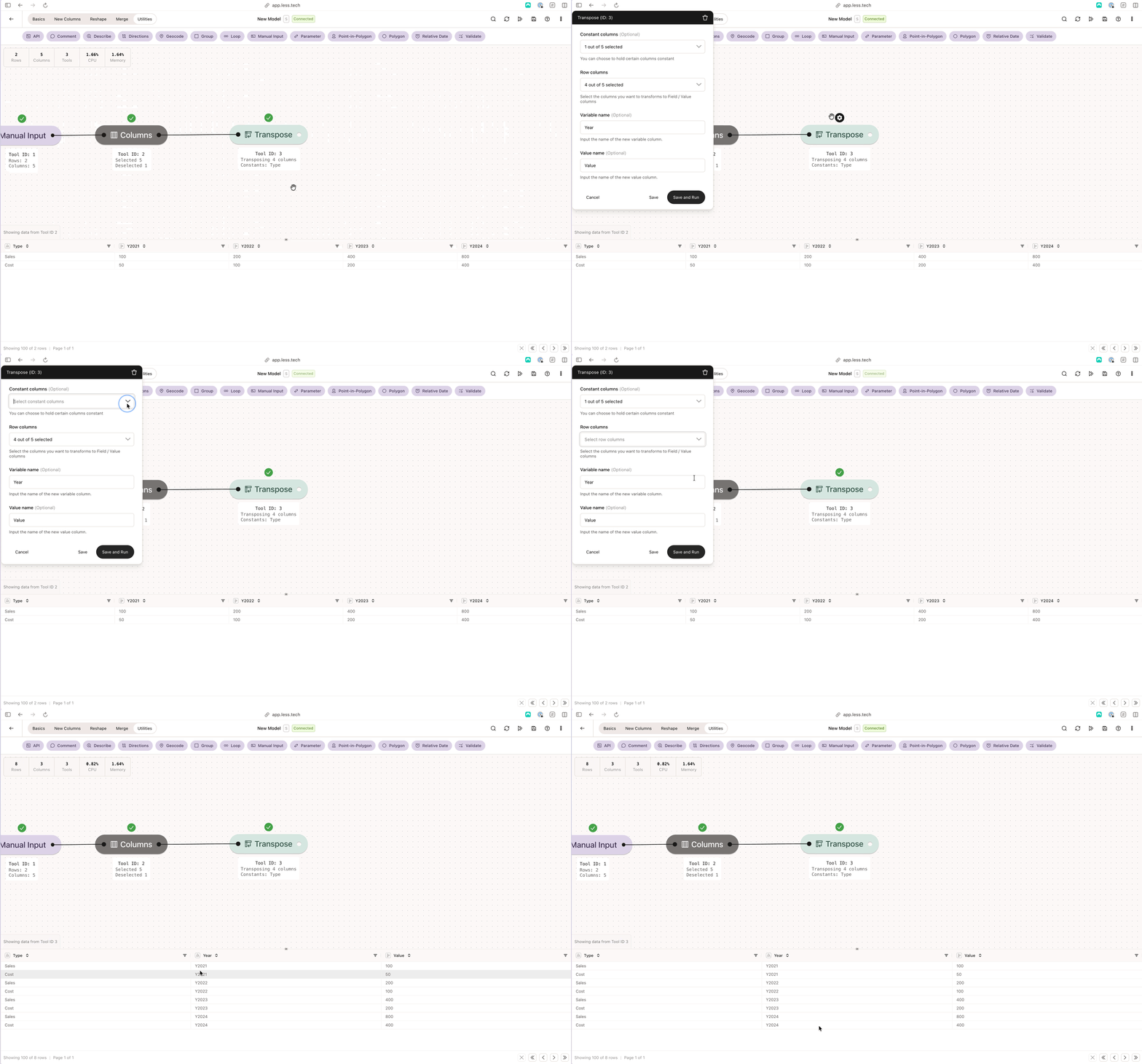
Select the column(s) to hold constant. You can imagine that the columns you select here will remain on rows.
Select the column you want to transform into columns. You can select as many columns as you need.
As these are transpose you will get a *Column* and *Value* column consisting of the selected columns name and corresponding value.
Select the column you want to transform into columns. You can select as many columns as you need.
As these are transpose you will get a *Column* and *Value* column consisting of the selected columns name and corresponding value.
Select the column you want to transform into columns. You can select as many columns as you need.
As these are transpose you will get a *Column* and *Value* column consisting of the selected columns name and corresponding value.
### Example: The illustration example 👆
The Transpose tool more or less does the reverse of the [Pivot](/tools/reshape/pivot) tool
The Transpose tool can be very useful before storing your data if you want to use filters/slicers in visualisation tools that select the metric instead of showing all metrics.
### Configuration
Select the column(s) to hold constant. You can imagine that the columns you select here will remain on rows.
Select the column you want to transform into columns. You can select as many columns as you need.
As these are transpose you will get a *Column* and *Value* column consisting of the selected columns name and corresponding value.
Select the column you want to transform into columns. You can select as many columns as you need.
As these are transpose you will get a *Column* and *Value* column consisting of the selected columns name and corresponding value.
Select the column you want to transform into columns. You can select as many columns as you need.
As these are transpose you will get a *Column* and *Value* column consisting of the selected columns name and corresponding value.
### Example: The illustration example 👆