> ## Documentation Index
> Fetch the complete documentation index at: https://docs.less.tech/llms.txt
> Use this file to discover all available pages before exploring further.
# Split Columns
> Split text columns by delimiters
The Split Columns tool enables you to break apart a piece of text using a "marker" (delimiter) - like how you might cut a piece of paper where you see dotted lines.
The Split Columns tool can be highly customized. You can choose your delimiter, if you want to split to rows or columns, how many columns/splits you want and whether you want to split from left-to-right or right-to-left.
The Split Columns tool is very similar to the Text to Columns function in Excel
### Configuration
The Split Columns tool consists of three required input and two optional input.
Select the column you want to split.
Input the delimiter by which you want to split.
The delimiter is case-sensitive.
Select if you want to split to rows or columns.
This is an optional input. Select how many split you maximum want to create. This can be helpful if you data structure is not consistent and you want a particularly part of the content split.
This is an optional input. Select the direction to want to split - you can choose left-to-right or right-to-left.
Defaults to left-to-right.
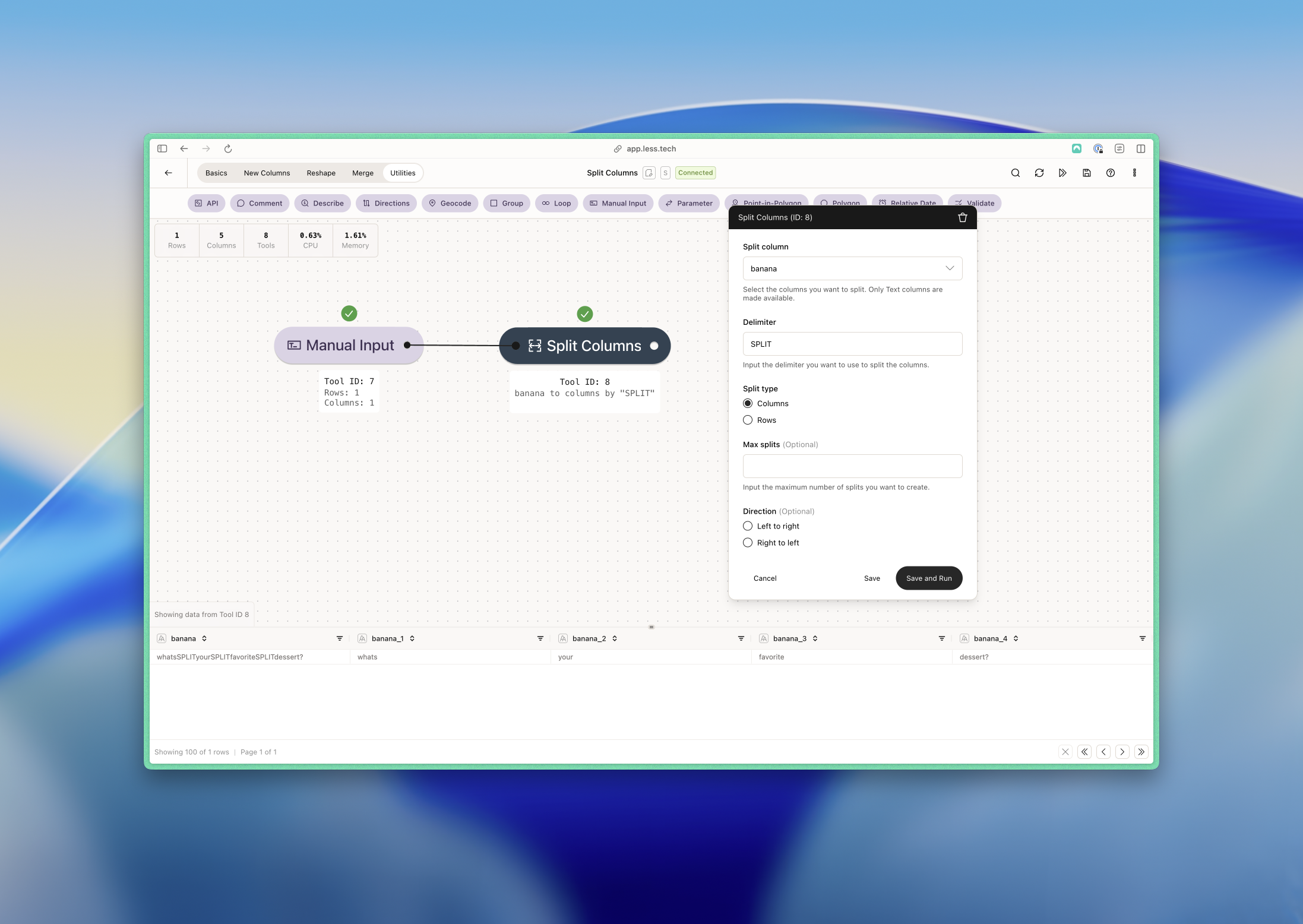
### Example: I want to do something fun 🍌
Here you can see how you can split a column by a text delimiter into unlimited columns.
 ### Example: Getting the country from an address
Here we have a number of addresses that differ in the format and country. We're interested in the country.
If we split without a direction or max split, we would get the following result:
### Example: Getting the country from an address
Here we have a number of addresses that differ in the format and country. We're interested in the country.
If we split without a direction or max split, we would get the following result:
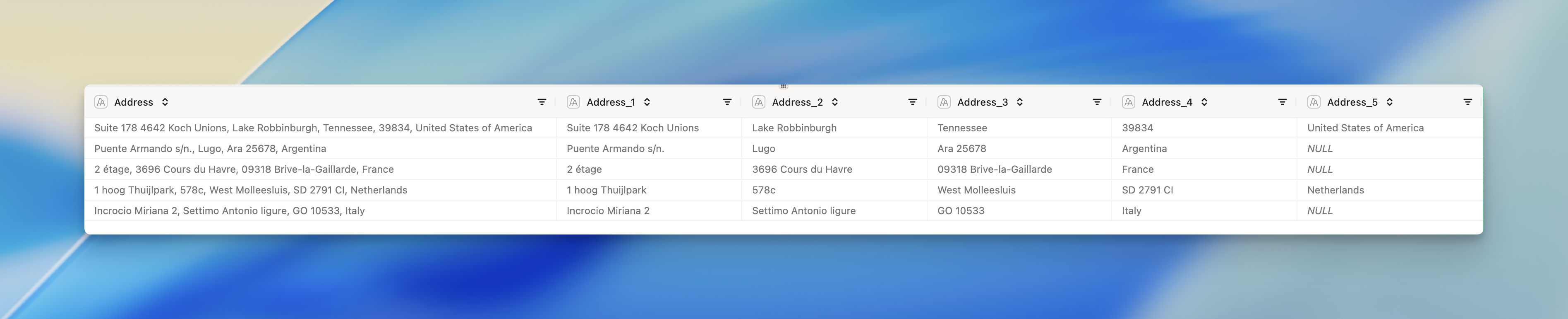 We see that we sometimes have country in the fourth column and sometimes in the fifth because of the differing format.
If we add a direction of right-to-left and set a max split of 1, we get the following result:
We see that we sometimes have country in the fourth column and sometimes in the fifth because of the differing format.
If we add a direction of right-to-left and set a max split of 1, we get the following result:
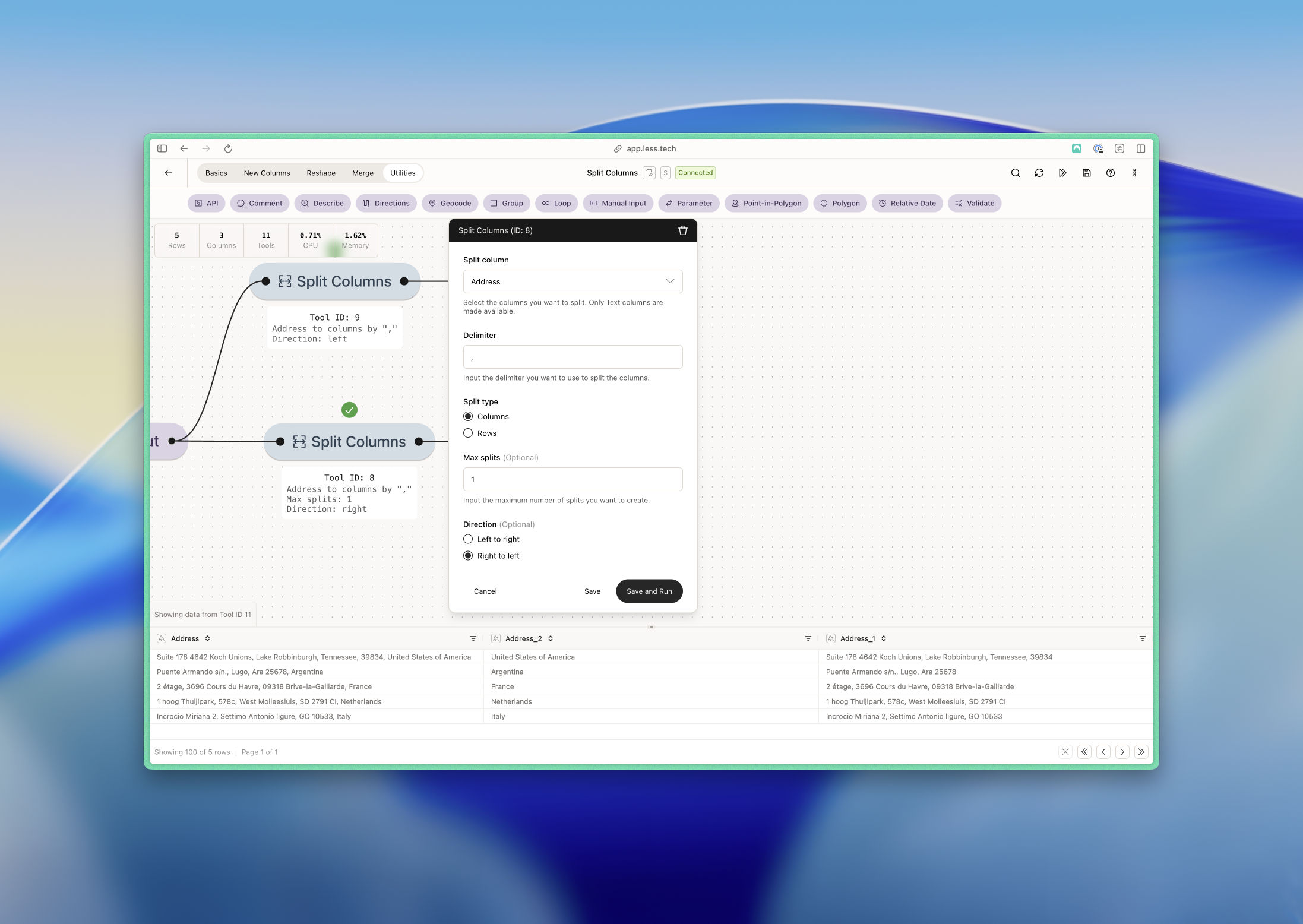 We see that we now have the country in the first new column and the rest of the address in the second new column.
### Example: Splitting line items to rows
Here we have a number of line items that are separated by a comma. We want to split these into rows.
We see that we now have the country in the first new column and the rest of the address in the second new column.
### Example: Splitting line items to rows
Here we have a number of line items that are separated by a comma. We want to split these into rows.
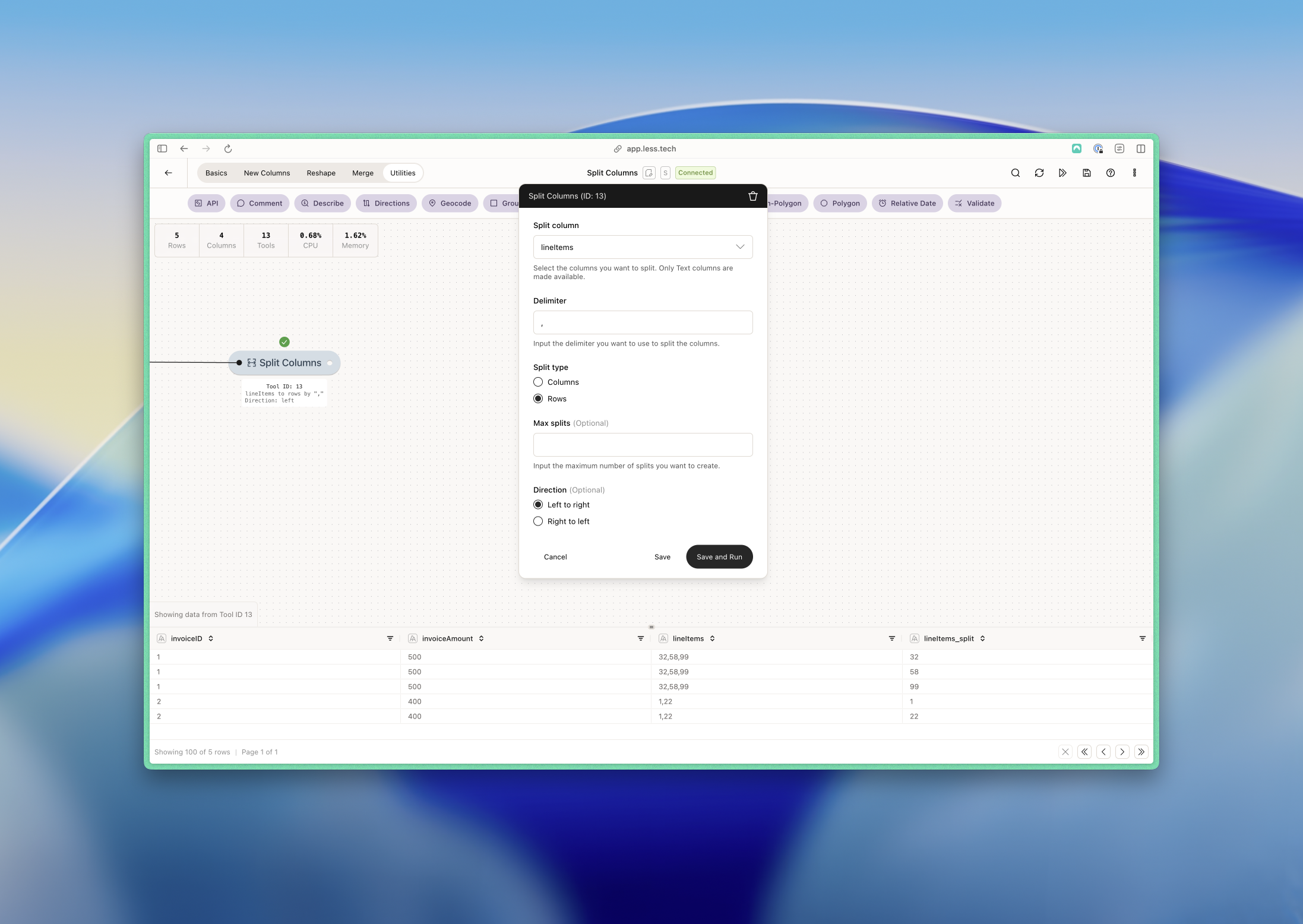 We see that we now have separated the line items into rows.