> ## Documentation Index
> Fetch the complete documentation index at: https://docs.less.tech/llms.txt
> Use this file to discover all available pages before exploring further.
# IF Column
> Create new columns with conditions
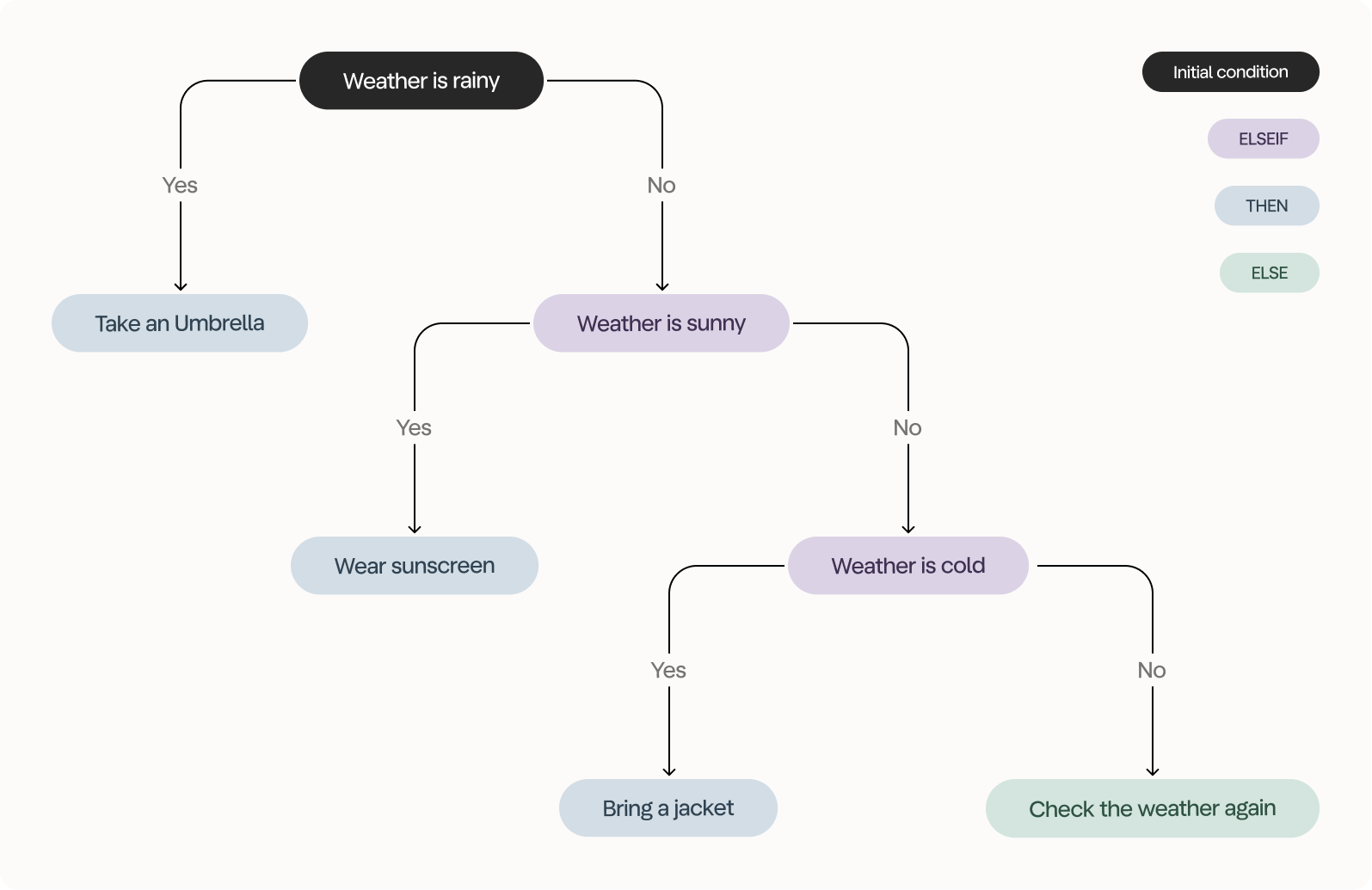
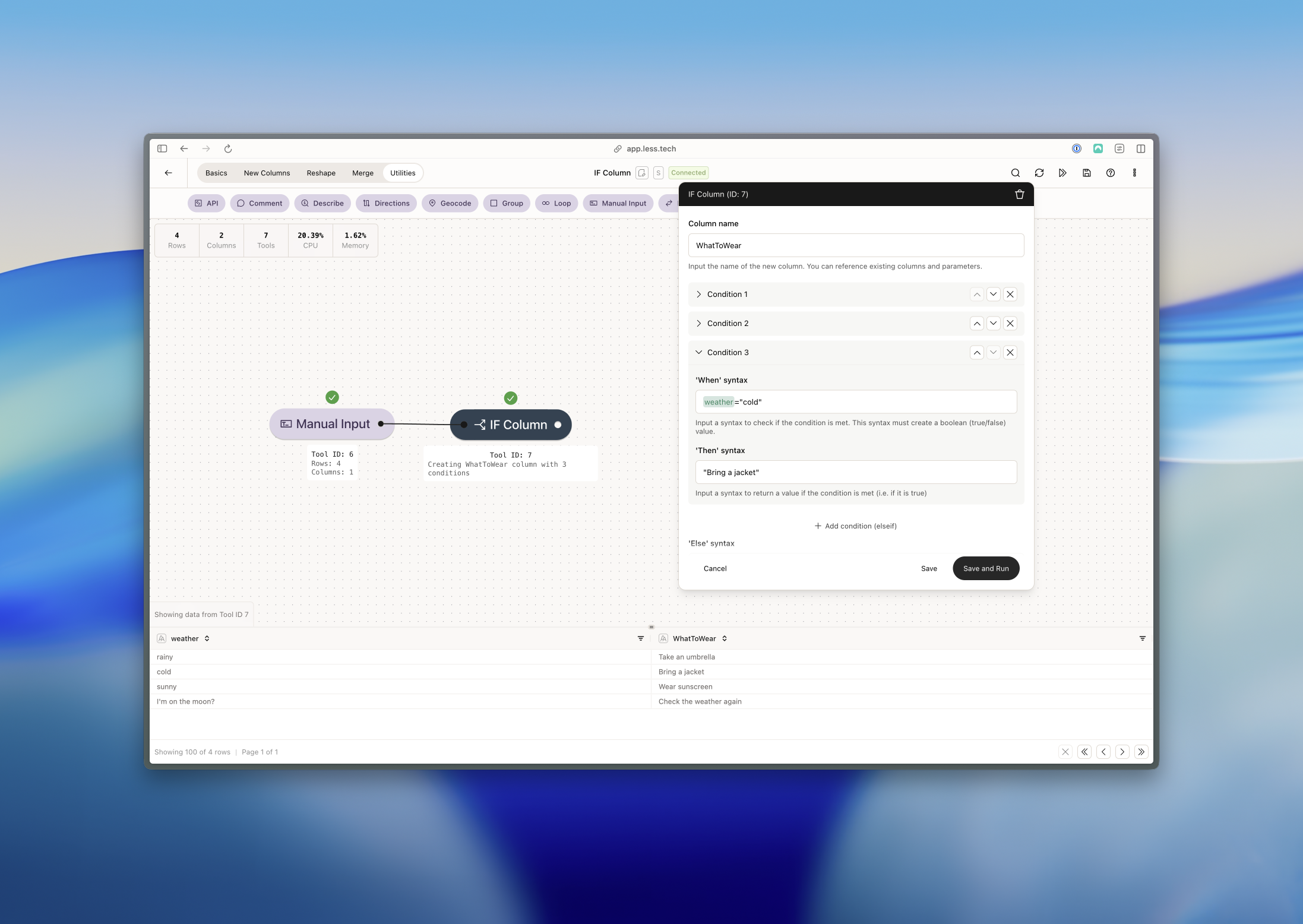
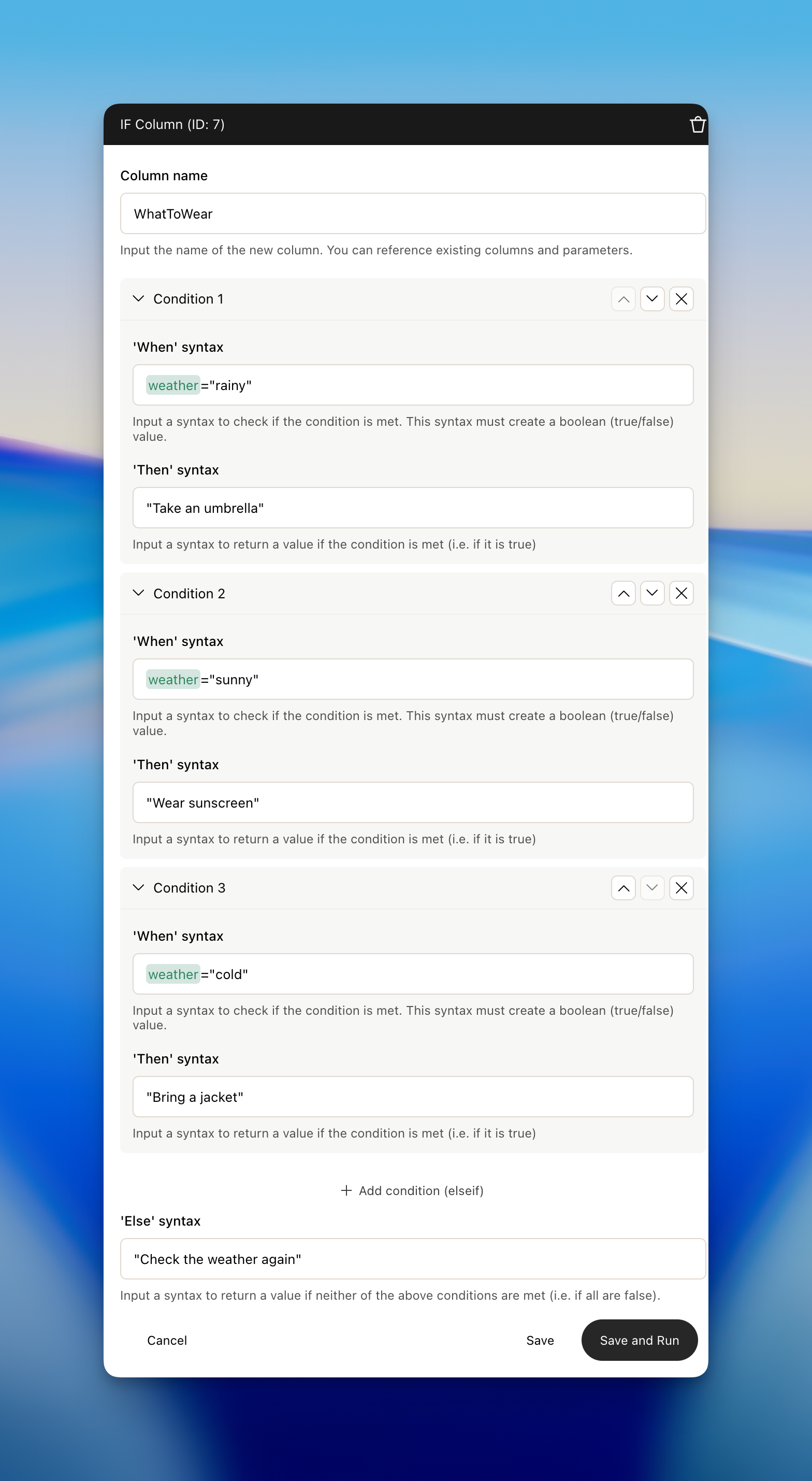
The IF Column tool is a very powerful way to create new custom columns. The best way to explain how it works is with an example. Think of it like choosing what to wear based on the weather. If it's raining, you wear a raincoat. If it's sunny, you wear a t-shirt. If it's cold, you wear a sweater.
With the IF Column tool you tell Less to make similar choices based on your data: "*If this is true, do this thing. If that's true, do that thing instead.*" Just like you check the weather before deciding what to wear, Less checks certain conditions before deciding what to do next.
The IF Column tool is also known as conditional statements, and is similar to a CASE statement in SQL and an =IF() function in Excel
Note that our Syntax also supports date math calculations. See more in the [Syntax](/canvas/syntax) section.
 ### Configuration
Your conditions are evaluated in the order you create them. In other words, if a cell value is equal to `Hello World` and your first condition is `IF [column].LEFT(5)="Hello" THEN "Something"` and your second condition is `IF [column].RIGHT(5)="World" THEN "SomethingElse"` then your output will rely on the **first true condition** which will lead to an output of `Something`
The IF Column tool will create a new column. Use this input to name it.
This input supports column references to overwrite a specific column as well as parameters.
Add your conditions and then clauses. The first condition and clause is required but additional ELSEIF pairs are optional. You can add them with the "+ Add condition (elseif)" button.
It is **very important** that your 'When' condition always defaults to a boolean value. Now what does that mean? That means that the statement '"hello"' is not a boolean value. However, \[column]="hello" is a boolean value because it is either true or false for a given row.
### Configuration
Your conditions are evaluated in the order you create them. In other words, if a cell value is equal to `Hello World` and your first condition is `IF [column].LEFT(5)="Hello" THEN "Something"` and your second condition is `IF [column].RIGHT(5)="World" THEN "SomethingElse"` then your output will rely on the **first true condition** which will lead to an output of `Something`
The IF Column tool will create a new column. Use this input to name it.
This input supports column references to overwrite a specific column as well as parameters.
Add your conditions and then clauses. The first condition and clause is required but additional ELSEIF pairs are optional. You can add them with the "+ Add condition (elseif)" button.
It is **very important** that your 'When' condition always defaults to a boolean value. Now what does that mean? That means that the statement '"hello"' is not a boolean value. However, \[column]="hello" is a boolean value because it is either true or false for a given row.
You'll get an error if you try to use a non-boolean value in your 'When' condition.
You can use syntax, column references and parameters in your conditions and clauses. This is what makes the IF Column tool so powerful. See more in the [Syntax](/canvas/syntax) section.
Add a fallback syntax (else clause). All the rows that doesn't fulfill any of your conditions from Step #2 will get this value.
You can move conditions up and down in the list by clicking the up and down arrows to the right hand side of the configuration window. You can also delete individal conditions by clicking the "X" icon.
### Example: Working with boolean columns
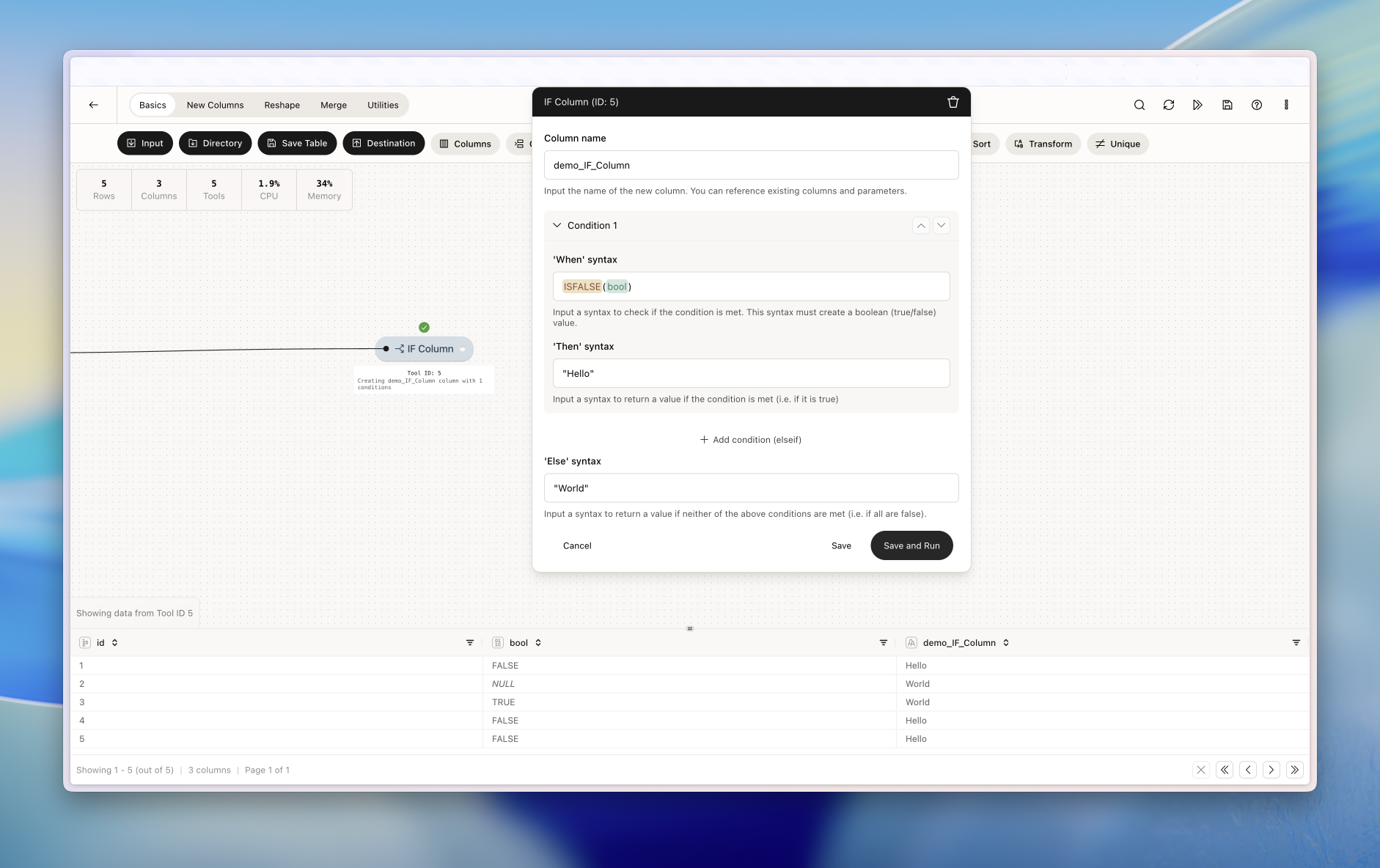
In this example, we want to create a new column based on the value of a boolean column. See how we use ISFALSE syntax to catch false values - we could use ISTRUE syntax to catch true values.
 ### Example: Creating nulls
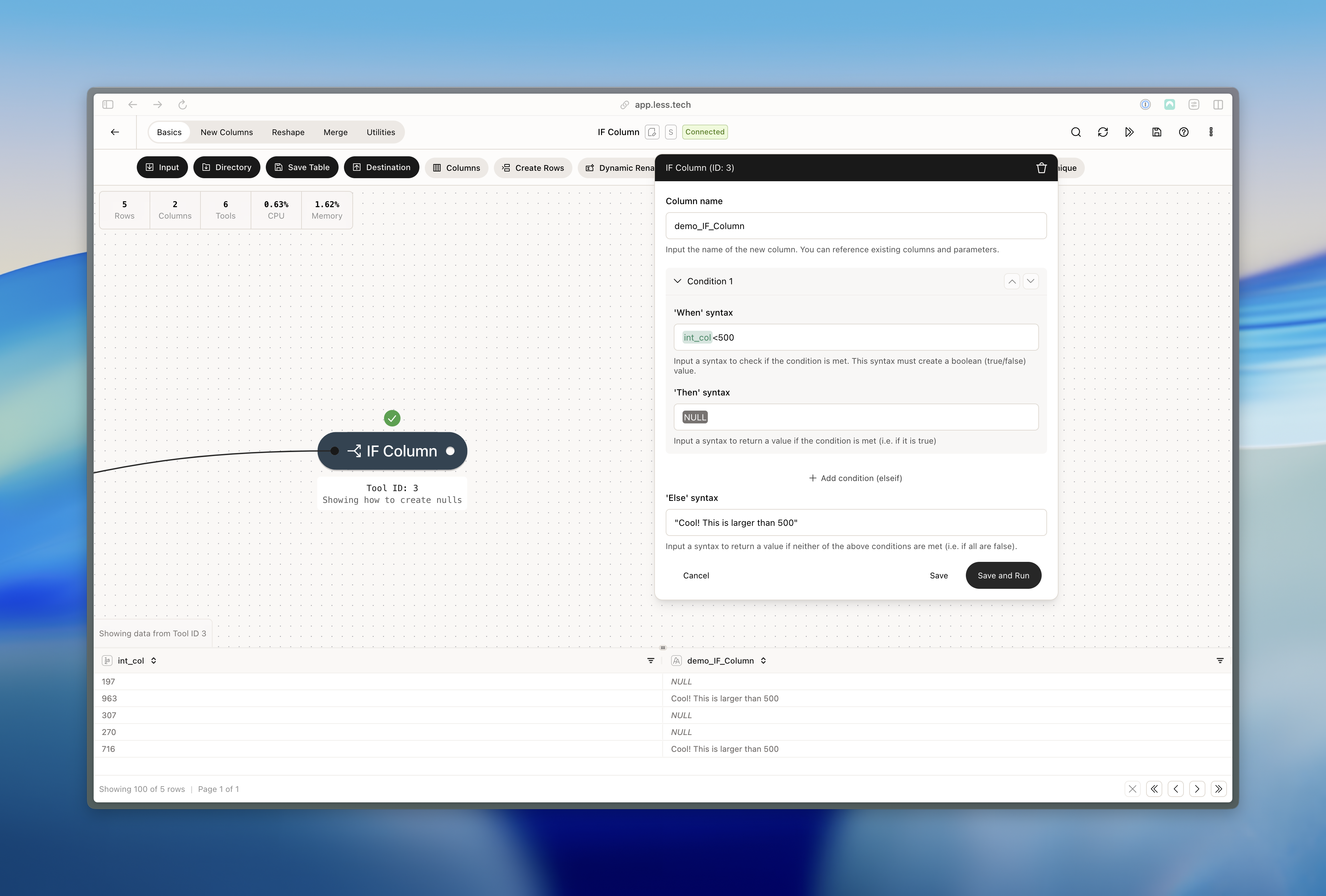
In this example, we want to create nulls if the value in our *int\_col* is lower than 500. Notice how we use the constant NULL (see [Syntax](/canvas/syntax)) in our 'Then' clause to create nulls.
### Example: Creating nulls
In this example, we want to create nulls if the value in our *int\_col* is lower than 500. Notice how we use the constant NULL (see [Syntax](/canvas/syntax)) in our 'Then' clause to create nulls.
 ### Example: More syntaxing
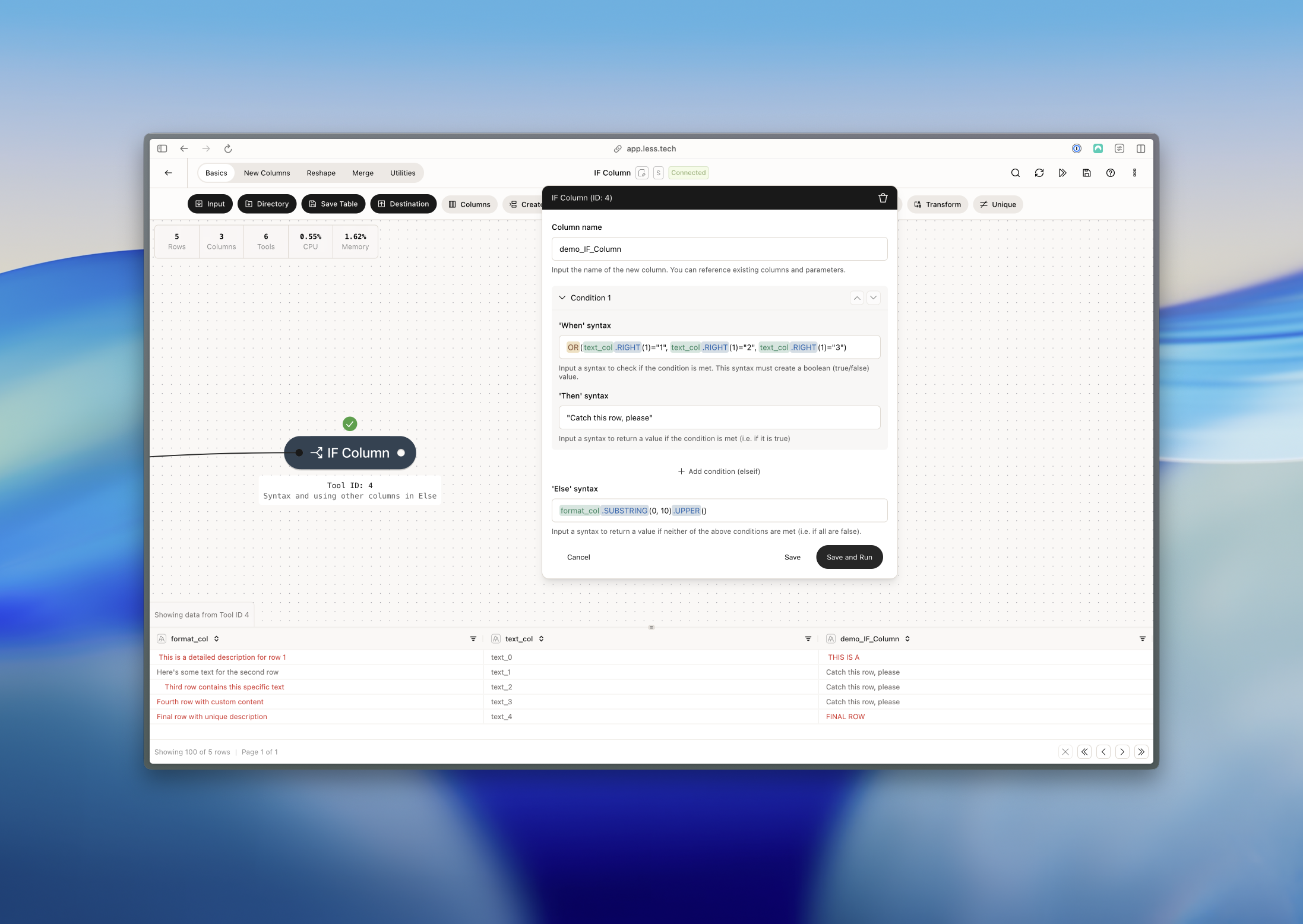
Now we're diving a bit deeper into syntaxing. Here we saying: "If the first character from the right of my *text\_col* is an '1' OR '2' OR '3' I want to create a new column with the value 'Catch this row, please'. If neither of those is true then I want to take the characters from 0 to 10 of my *format\_col* and make it uppercase.
### Example: More syntaxing
Now we're diving a bit deeper into syntaxing. Here we saying: "If the first character from the right of my *text\_col* is an '1' OR '2' OR '3' I want to create a new column with the value 'Catch this row, please'. If neither of those is true then I want to take the characters from 0 to 10 of my *format\_col* and make it uppercase.
 ### Example: Even more syntaxing!
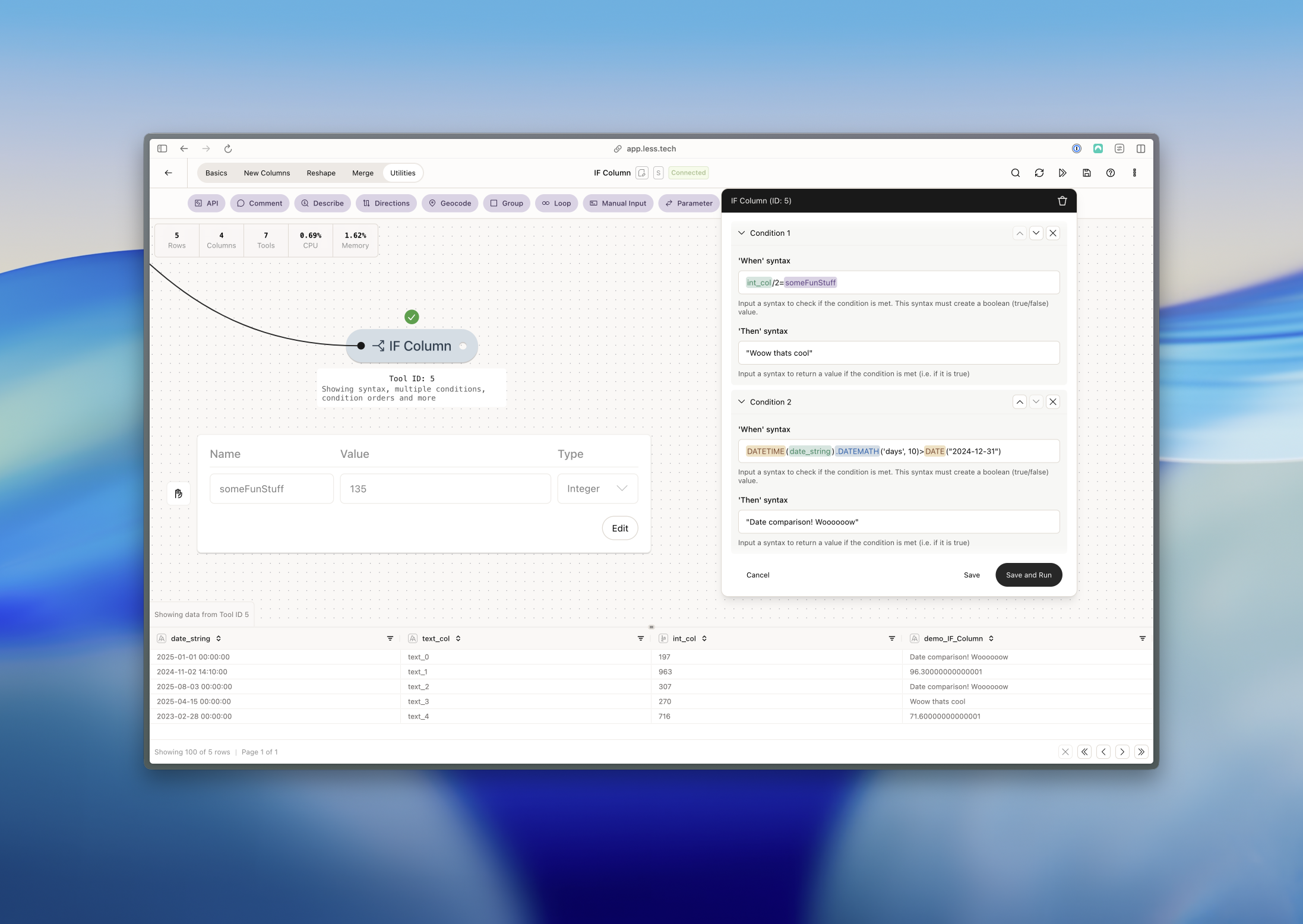
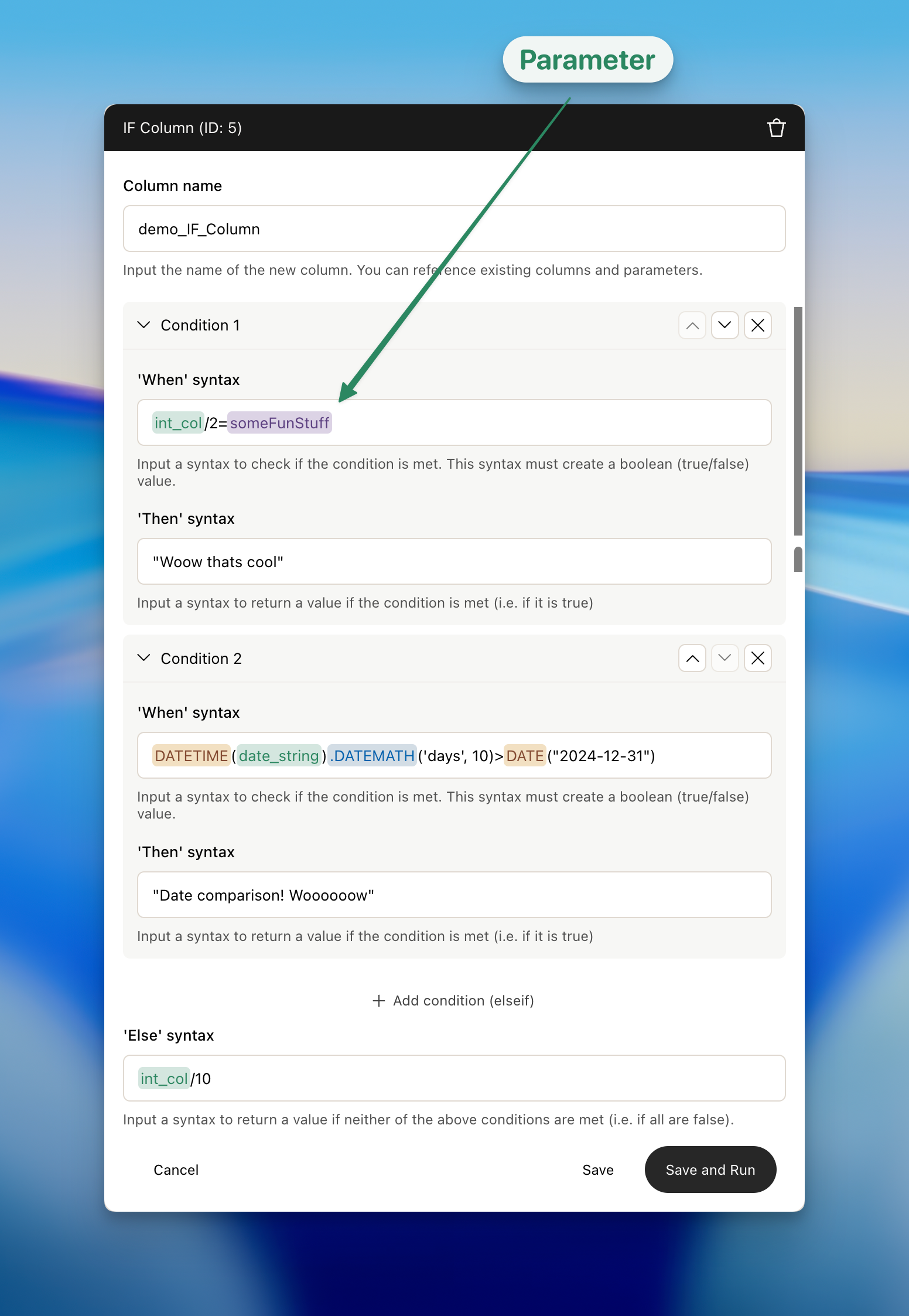
Okay, now things are getting fun. We're adding two conditions below and using parameters in one of them. In the second condition we're also working with dates comparisons.
### Example: Even more syntaxing!
Okay, now things are getting fun. We're adding two conditions below and using parameters in one of them. In the second condition we're also working with dates comparisons.