> ## Documentation Index
> Fetch the complete documentation index at: https://docs.less.tech/llms.txt
> Use this file to discover all available pages before exploring further.
# Date Math
> Add or subtract days, seconds, hours and more from date columns
You can use the Date Math tool to extract parts of date columns - such as a weekday or year. It is particularly helpful in combinations with others tools.
Note that our Syntax also supports date math calculations. See more in the [Syntax](/canvas/syntax) section.
### Configuration
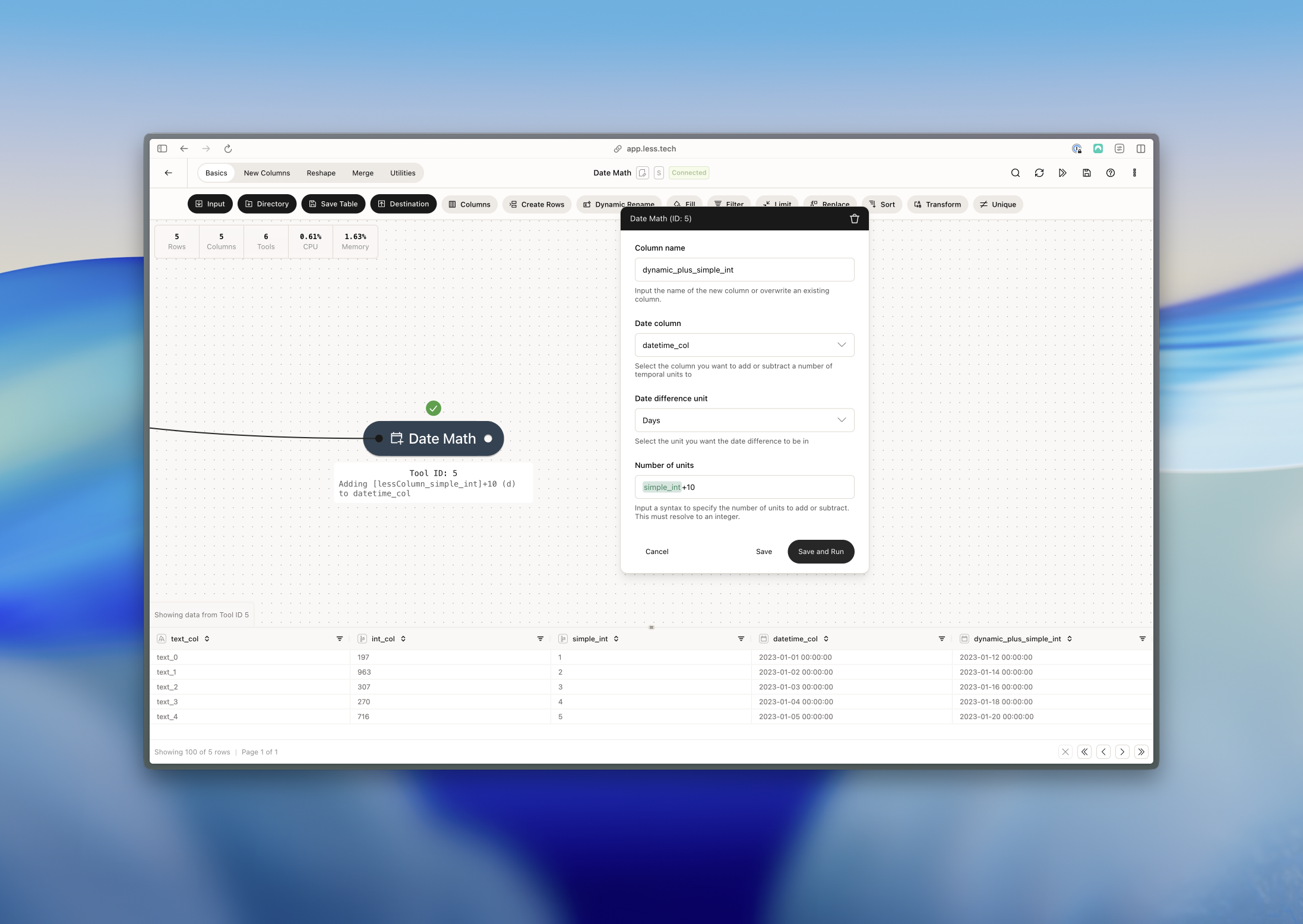
The Date Math tool will create a new column. Use this input to name it.
Select the Datetime column that you want to add/subtract a duration to/from
Select the unit you want to add/subtract to/from your date column. You can select one of the following:
* Seconds
* Minutes
* Hours
* Days
* Months
* Years
This input supports syntax, column references and parameters.
Input the number of units that you want to add/subtract from your date column. Simply put a **-** (minus) in front of the number of units to subtract instead of add.
### Example: Using syntax to add Days
In this example we want to add whatever is in the *simple\_int* column + 10 as days to the *datetime\_column* column. We simply select the *Days* unit and reference the *simple\_int* column + 10 to get the result we want.
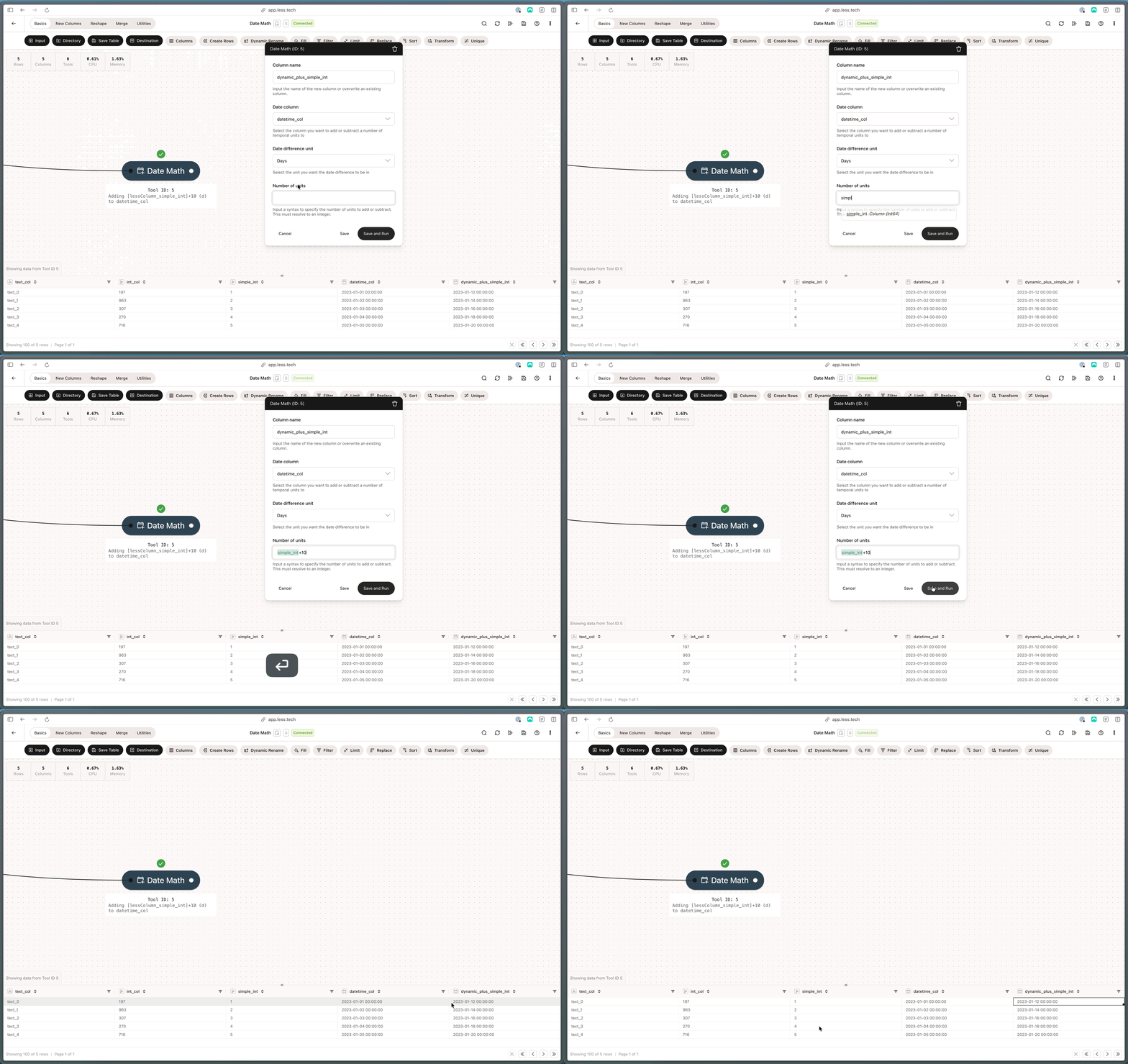 This result is by each row. So for row 1, we add 11 days to the *datetime\_column* column. For row 2, we add 12 days to the *datetime\_column* column. And so on.