> ## Documentation Index
> Fetch the complete documentation index at: https://docs.less.tech/llms.txt
> Use this file to discover all available pages before exploring further.
# Cumulative
> Create cumulative columns
Use the Cumulative tool to create new columns with a cumulative sum, cumulative average, cumulative minimum, cumulative maximum cumulative product and cumulative count. It can be helpful to analyse revenue growth over time, customer retention, cumulative ROI, etc.
Typically users add a [Sort](/tools/basics/sort) tool before using the Cumulative tool to make sure their data is in the right order.
If you're looking for more advanced ways to do row-wise calculations check out the [Cumulative](/tools/new-columns/cumulative), [Running Interval](/tools/new-columns/running-interval) or [Loop](/tools/utilities/loop) tool
### Configuration
Select column you want to calculate cumulative for.
Select the operation you want to perform. You can choose between the following operations:
* Cumulative Sum (running sum of the values of the column)
* Cumulative Average (running average of the values of the column)
* Cumulative Minimum (lowest running minimum value of the column)
* Cumulative Maximum (highest running maximum value of the column)
* Cumulative Product (running multiplication of the values of the column)
* Cumulative Count (running count of the values of the column)
You can choose to reverse the cumulative calculation whereby you start from the bottom of the dataset and work your way up (instead of default - from the top).
This is an optional input. You can choose to group the cumulative calculation by a column. For instance, if you want to calculate the cumulative sum of the values of the column by a month column.
You can add any many cumulative calculations as you want by clicking the "+ Add column" button.
### Example: Cumulative sum within a group
In this example we want to sum our *simple\_int* column within each group of the *bool\_col* column.
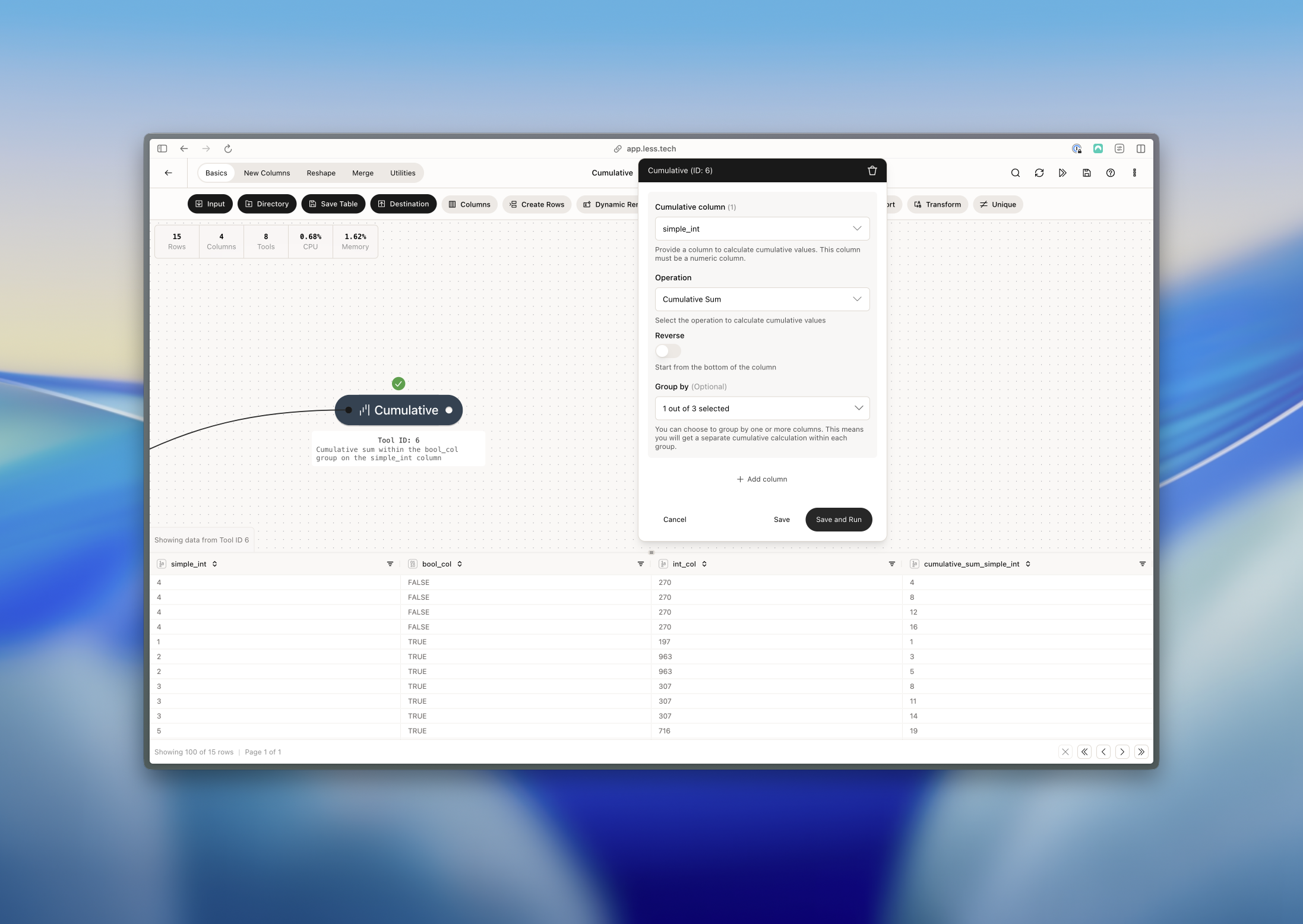 Notice how the *cumulative\_sum\_simple\_int* column resets when the *bool\_col* column changes and starts from 1 (the value of the *simple\_int* column) again on row 5. That's because the *bool\_col* column is true from row 5 onwards and because we grouped by the that column.