> ## Documentation Index
> Fetch the complete documentation index at: https://docs.less.tech/llms.txt
> Use this file to discover all available pages before exploring further.
# Add Business Days
> Add business days while accounting for holidays
The Add Business Days tool is used to add a number of business days while accounting for holidays. You can use the [Date Math](/tools/new-columns/date-math) tool if you're just looking to add days.
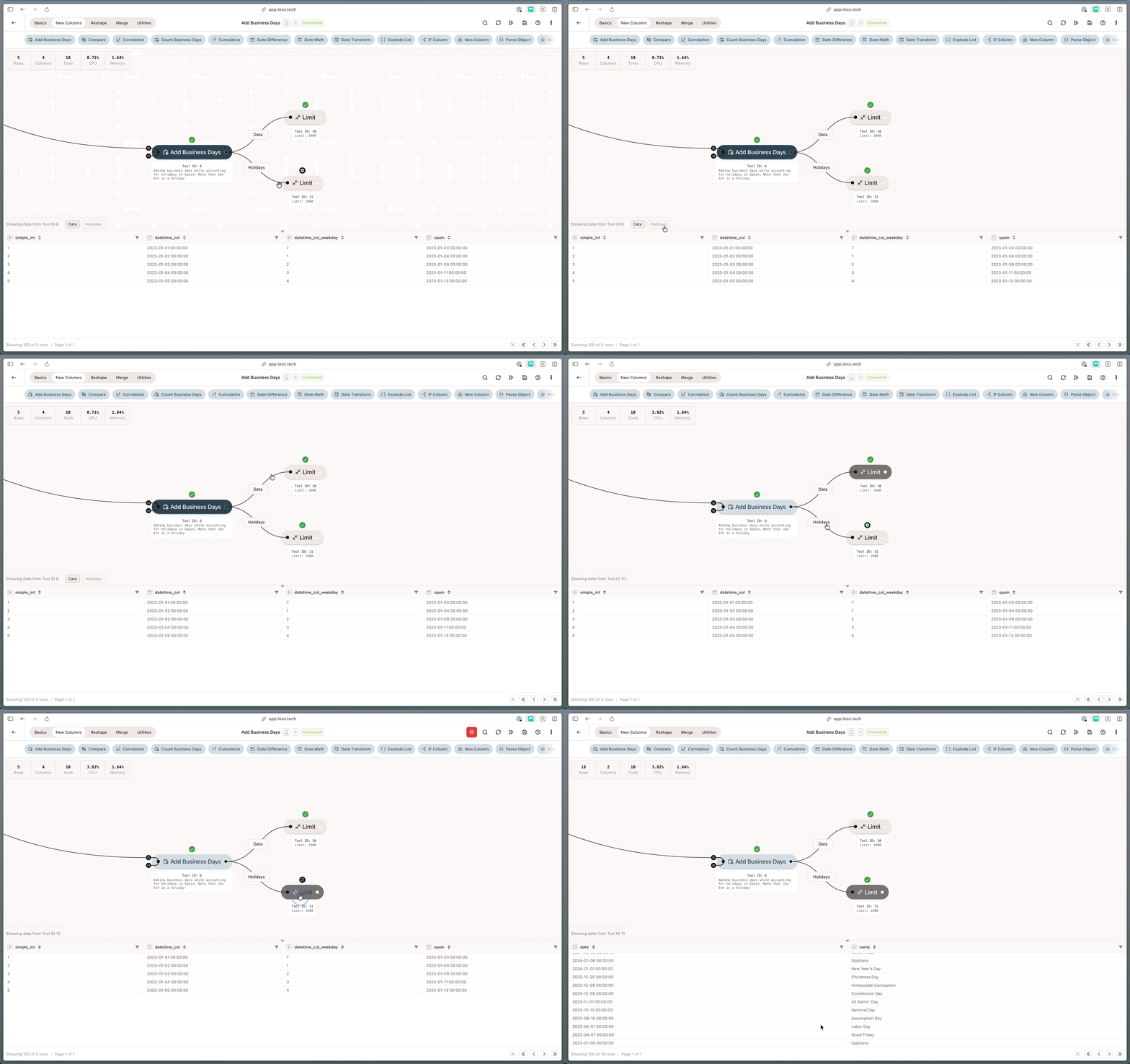
The Add Business Days tool outputs two anchors. The "Holidays" anchor contains the holidays that were used to calculate the new date - use this to validate the holidays that were used. The "Data" anchor contains the primary data with the new date column.
 ### Configuration
If you want to bring your own holidays data, you need to connect your primary data to the *D* anchor and the dataset containing your holidays to the *H* anchor. Check out the examples to see how.
The Add Business Days tool will create a new column. Use this input to name it.
Select the column in your primary data containing the date to which you want to add a number of days.
Select the column in your primary data that contains the number of business days that you would like to add to your date column from Step #2.
Select whether you 1) don't want to account for holidays, 2) want to account for holidays and want to use our built-in holidays, or 3) want to account for holidays and have your own holiday data.
If you choose to use our built-in holidays, you can specify the country that you want to use for the holidays.
For some countries there are optional holidays that can be included. For instance, in Denmark, December 24th is technically not a public holiday, but it is a closing day under the Danish Closing Act. Such examples exist and can be included with the holday categories input.
If you choose to use your own holiday data, you need to specify the column in your holiday data (dataset connected to the *H* anchor) that contains the holiday dates.
### Example: Accounting for holidays
In this example, we want to add the integer value of business days in our *simple\_int* column to our *datetime\_col* column. We want to account for holidays in Spain and use our built-in holidays.
### Configuration
If you want to bring your own holidays data, you need to connect your primary data to the *D* anchor and the dataset containing your holidays to the *H* anchor. Check out the examples to see how.
The Add Business Days tool will create a new column. Use this input to name it.
Select the column in your primary data containing the date to which you want to add a number of days.
Select the column in your primary data that contains the number of business days that you would like to add to your date column from Step #2.
Select whether you 1) don't want to account for holidays, 2) want to account for holidays and want to use our built-in holidays, or 3) want to account for holidays and have your own holiday data.
If you choose to use our built-in holidays, you can specify the country that you want to use for the holidays.
For some countries there are optional holidays that can be included. For instance, in Denmark, December 24th is technically not a public holiday, but it is a closing day under the Danish Closing Act. Such examples exist and can be included with the holday categories input.
If you choose to use your own holiday data, you need to specify the column in your holiday data (dataset connected to the *H* anchor) that contains the holiday dates.
### Example: Accounting for holidays
In this example, we want to add the integer value of business days in our *simple\_int* column to our *datetime\_col* column. We want to account for holidays in Spain and use our built-in holidays.
 Notice that the *H* anchor is empty. This means that we want to use our built-in holidays. Secondly, look at row 5. The start date is Jan 5th 2023 (a Thursday) and we want to add 5 business days (the value in the *simple\_int* column). The output date is Jan 13th 2023. Here's why.
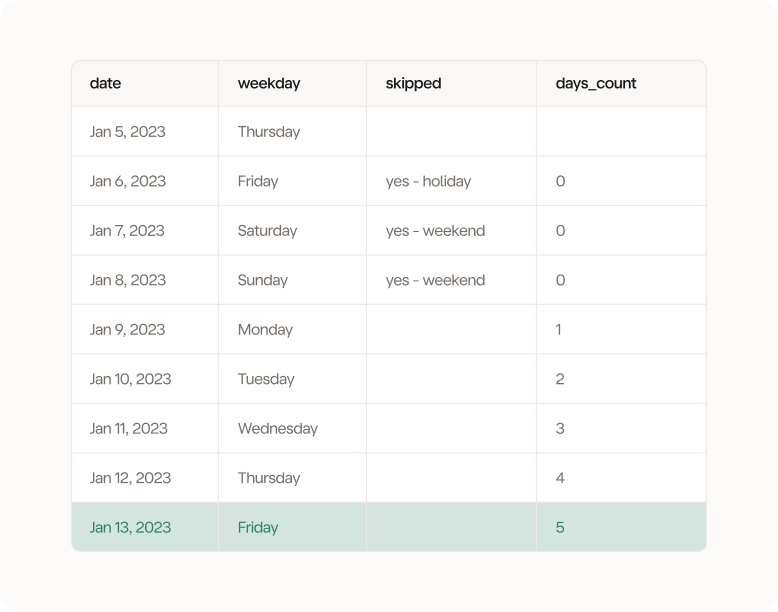 Jan 6th is skipped because it Epiphany in Spain. The weekend is also skipped whereby our 5-day count begins on Monday, Jan 9th and ends on Friday, Jan 13th which becomes our output date.
### Example: Accounting for holidays and using your own holiday data
You can also bring your own custom holiday data. That might be relevant if your company has its own holiday calendar. In the example below, we have connected the *H* anchor to a custom holiday dataset.
Jan 6th is skipped because it Epiphany in Spain. The weekend is also skipped whereby our 5-day count begins on Monday, Jan 9th and ends on Friday, Jan 13th which becomes our output date.
### Example: Accounting for holidays and using your own holiday data
You can also bring your own custom holiday data. That might be relevant if your company has its own holiday calendar. In the example below, we have connected the *H* anchor to a custom holiday dataset.
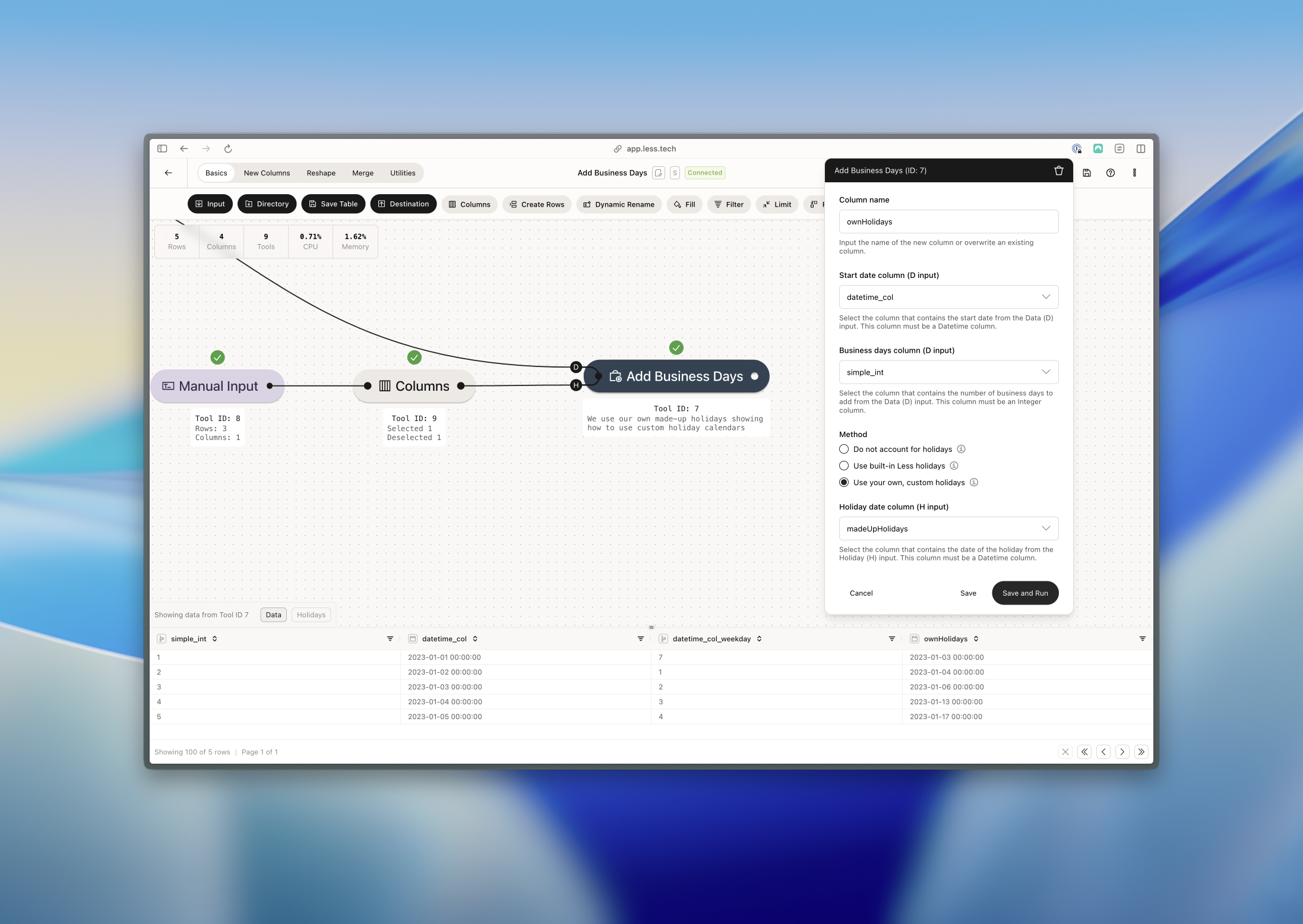 Our custom holidays for the above example is Jan 9th, 10th and 11th whereby row 5's output date is Jan 17th.