> ## Documentation Index
> Fetch the complete documentation index at: https://docs.less.tech/llms.txt
> Use this file to discover all available pages before exploring further.
# Combine
> Merge datasets horizontally
The Combine tool is probably the most important and used tool in Less. It is used to merge datasets horisontally via one of more IDs.
The Combine is called a Join in SQL, Merge in Pandas and XLOOKUP in Excel.
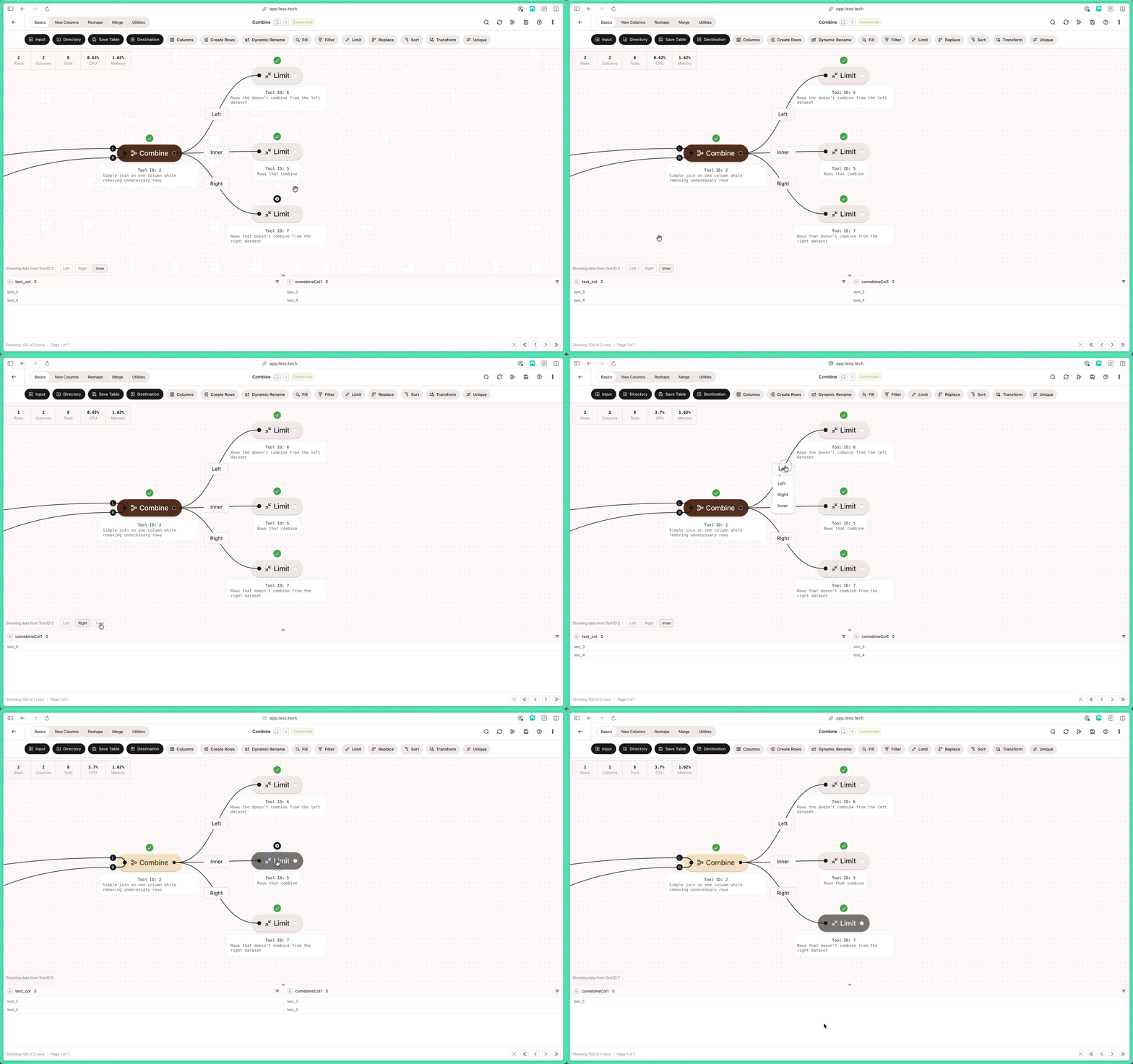
Imagine you have two lists of friends - one list has their names and favorite colors, and another list has their names and favorite foods. A Combine is like putting these lists together by matching the names! You get three results: friends who appear in both lists (with all their info), friends who only appear in the first list, and friends who only appear in the second list. It's like making a super list that has everything from both your original lists!
In technical terms, the Combine tool outputs three anchors - just like how we got three different friend lists in our example above. That means you can easily access the rows that combine, the ones that don't combine from the **left** dataset and the ones that don't combine from the **right** dataset.
 ## Configuration
Note that the *L* and *R* of the Combine anchors refers to *left table* and *right table* respectively.
Choose which columns to use as ID columns. The right column refers to the R anchor and the left column refers to the L anchor.
The ID columns must be the same data type.
You can add as many ID columnn pars as you need with the "+ Add pair"-button. Check out the examples below.
You can choose to add a suffix to the output columns. This is useful if you potentially have duplicate columns in your datasets.
You can choose to select the output columns in dataset. This is like a built-in [Columns](../basics/columns) tool (though slightlty less sophiscated).
### Example: Single ID column
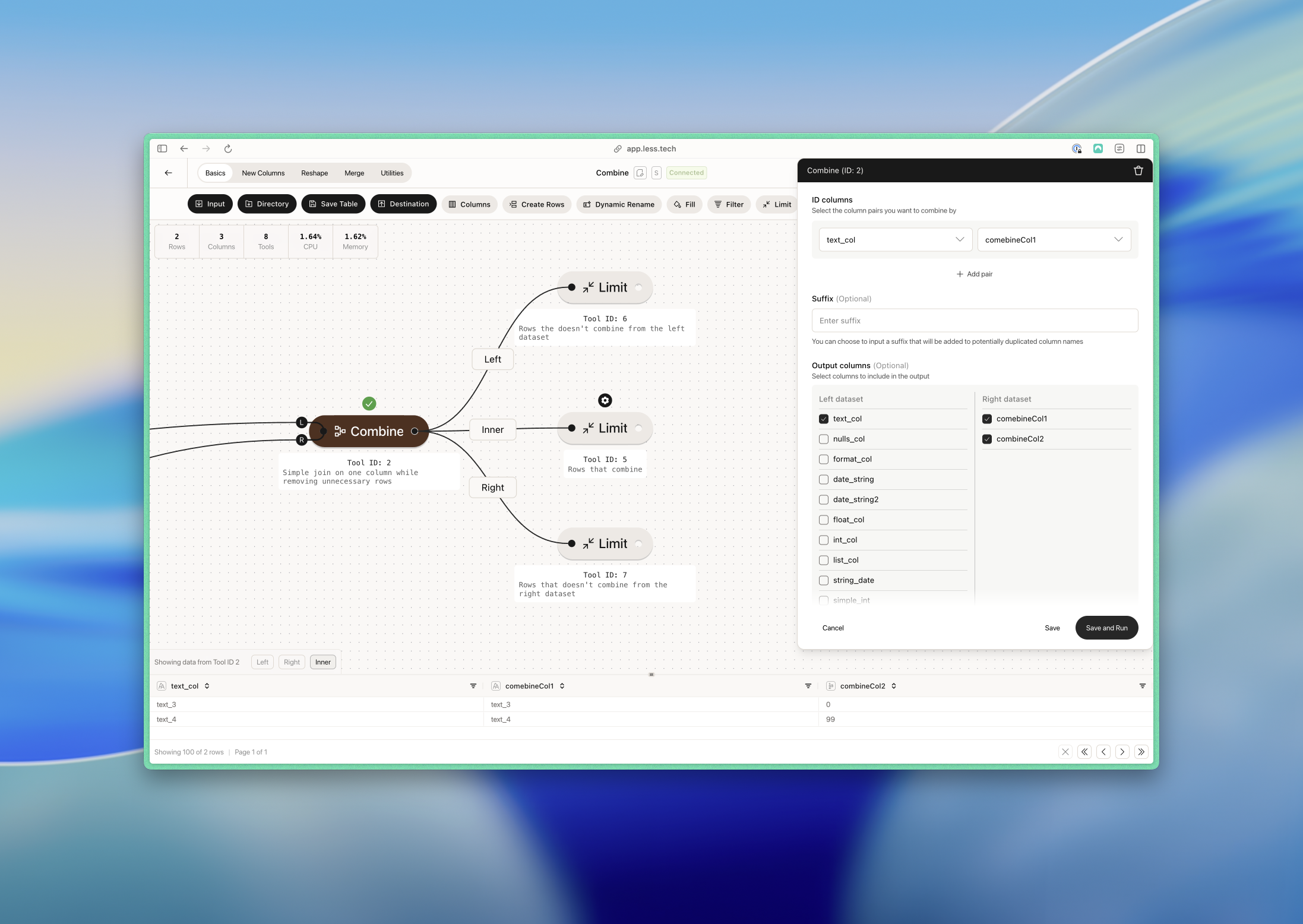
Here we have a simple example where we want to combine on *text\_col* (L) and *combineCol1* (R).
We deselect a lot of columns from the left dataset while we're at it.
## Configuration
Note that the *L* and *R* of the Combine anchors refers to *left table* and *right table* respectively.
Choose which columns to use as ID columns. The right column refers to the R anchor and the left column refers to the L anchor.
The ID columns must be the same data type.
You can add as many ID columnn pars as you need with the "+ Add pair"-button. Check out the examples below.
You can choose to add a suffix to the output columns. This is useful if you potentially have duplicate columns in your datasets.
You can choose to select the output columns in dataset. This is like a built-in [Columns](../basics/columns) tool (though slightlty less sophiscated).
### Example: Single ID column
Here we have a simple example where we want to combine on *text\_col* (L) and *combineCol1* (R).
We deselect a lot of columns from the left dataset while we're at it.


 ### Example: Multiple ID columns
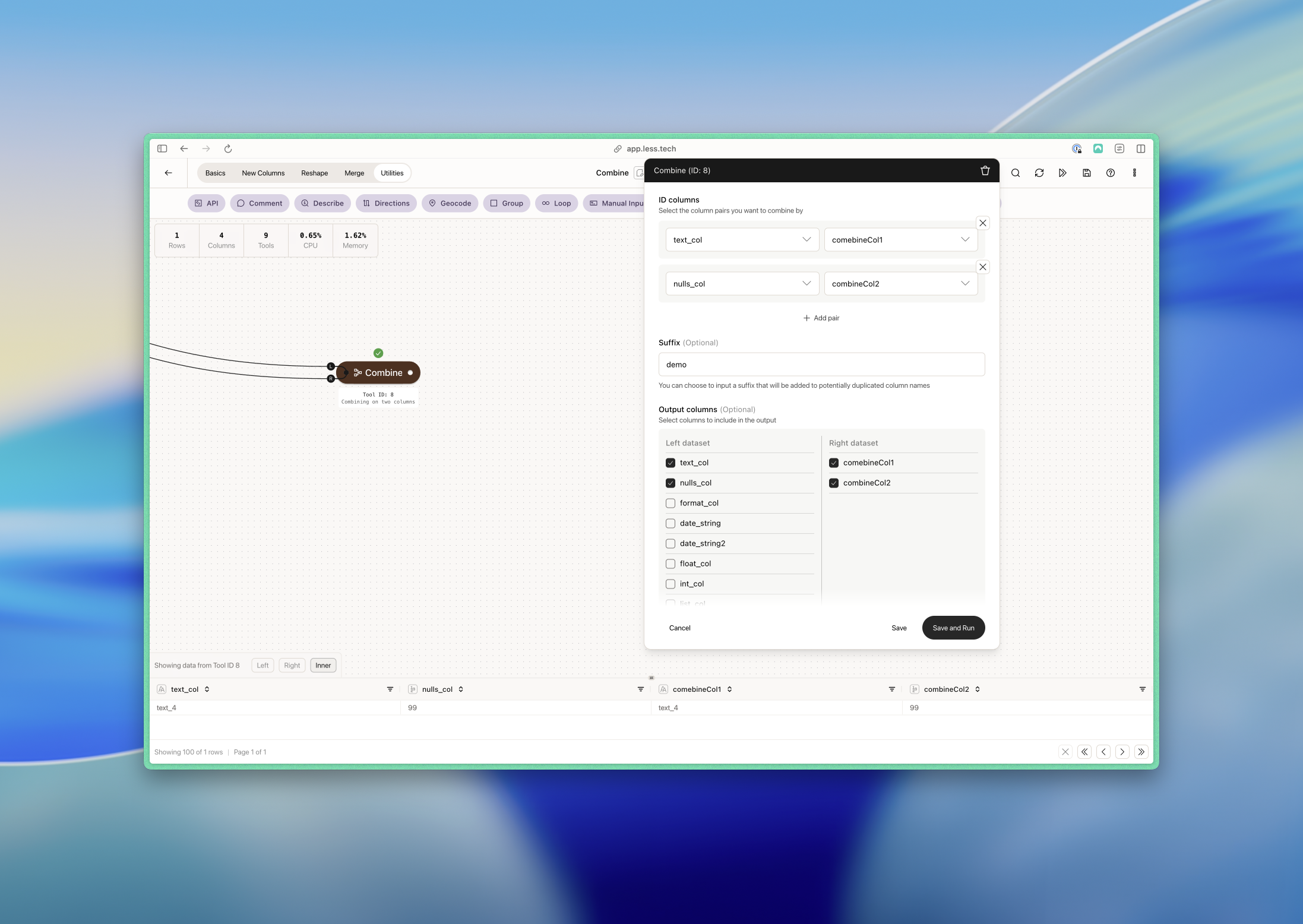
Here we combine with two column pairs. Notice how - as opposed to the example above - we only match a single row because this row matches both of our column pairs.
### Example: Multiple ID columns
Here we combine with two column pairs. Notice how - as opposed to the example above - we only match a single row because this row matches both of our column pairs.