> ## Documentation Index
> Fetch the complete documentation index at: https://docs.less.tech/llms.txt
> Use this file to discover all available pages before exploring further.
# Unique
> Remove duplicate rows
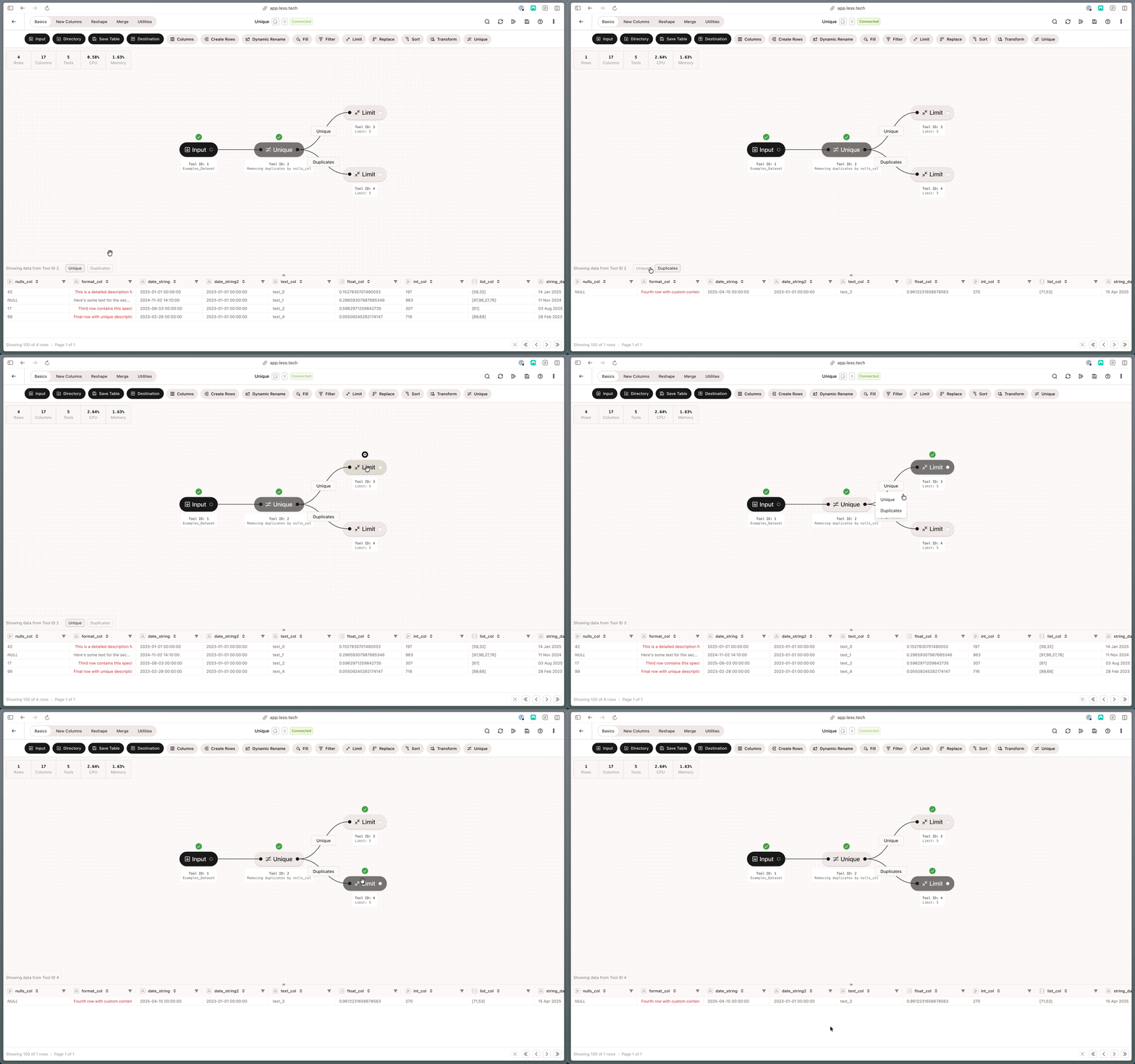
The Unique tool enables you select one or several columns that should be unique whereby all the duplicate rows are removed.
The Unique tool keeps the first rows that is unique and discards all the
following duplicates
The Filter tool outputs two anchors. That means you can easily access the rows that pass through the filter and the rows that don't.
 Note that when you select multiple columns, you create column pairs behind the scenes - almost like combining the two (or more) columns into a new column. If you dataset looks like this:
| amount | text |
| ------ | ----------- |
| 100 | Hello |
| 200 | World |
| 300 | World |
| 200 | Hello World |
| 100 | hello world |
There are then three possible options and output:
1. **amount** should be unique which outputs the first three rows
2. **text** should be unique which outputs the first two rows and last two rows
3. **amount** and **text** should be unique which outputs all five rows
### Configuration
Select the column(s) you would like to be unique. You can select one or
many.
The order in which you select multiple columns does not matter for the
Unique tool
The Unique tool is case sensitive meaning *This* and *this* are two
different and unique values
Note that when you select multiple columns, you create column pairs behind the scenes - almost like combining the two (or more) columns into a new column. If you dataset looks like this:
| amount | text |
| ------ | ----------- |
| 100 | Hello |
| 200 | World |
| 300 | World |
| 200 | Hello World |
| 100 | hello world |
There are then three possible options and output:
1. **amount** should be unique which outputs the first three rows
2. **text** should be unique which outputs the first two rows and last two rows
3. **amount** and **text** should be unique which outputs all five rows
### Configuration
Select the column(s) you would like to be unique. You can select one or
many.
The order in which you select multiple columns does not matter for the
Unique tool
The Unique tool is case sensitive meaning *This* and *this* are two
different and unique values