> ## Documentation Index
> Fetch the complete documentation index at: https://docs.less.tech/llms.txt
> Use this file to discover all available pages before exploring further.
# Replace
> Replace text values in one or multiple columns
The Replace tool is used to replace text values in columns with a new value. It is typically used when either preparing the input data for analysis or before outputting to a table to ensure that the data is in the right format for your reporting/activation layer.
The Replace tool can only be used with text/string columns
### Configuration
Select the column(s) in which you want to replace a value. You can choose multiple columns.
Input the value or pattern you want to replace. If you're using a literal value, you can simple input your text (no need to wrap it in double-quotes). The replace tool will then look for this value in the column(s) you selected. Alternatively, you can input a RegEx pattern if the literal is switched off in Step 5.
This input supports syntax - column references, syntax and parameters
Input the value you want to replace the pattern with. You can reference existing columns in your dataset to dynamically replace values.
If you want to replace with a raw text value, you need to wrap it in double-quotes.
Choose whether to replace all occurrences of the value or pattern or only the first occurrence.
Choose whether we should intepret your pattern as a literal value or a RegEx pattern.
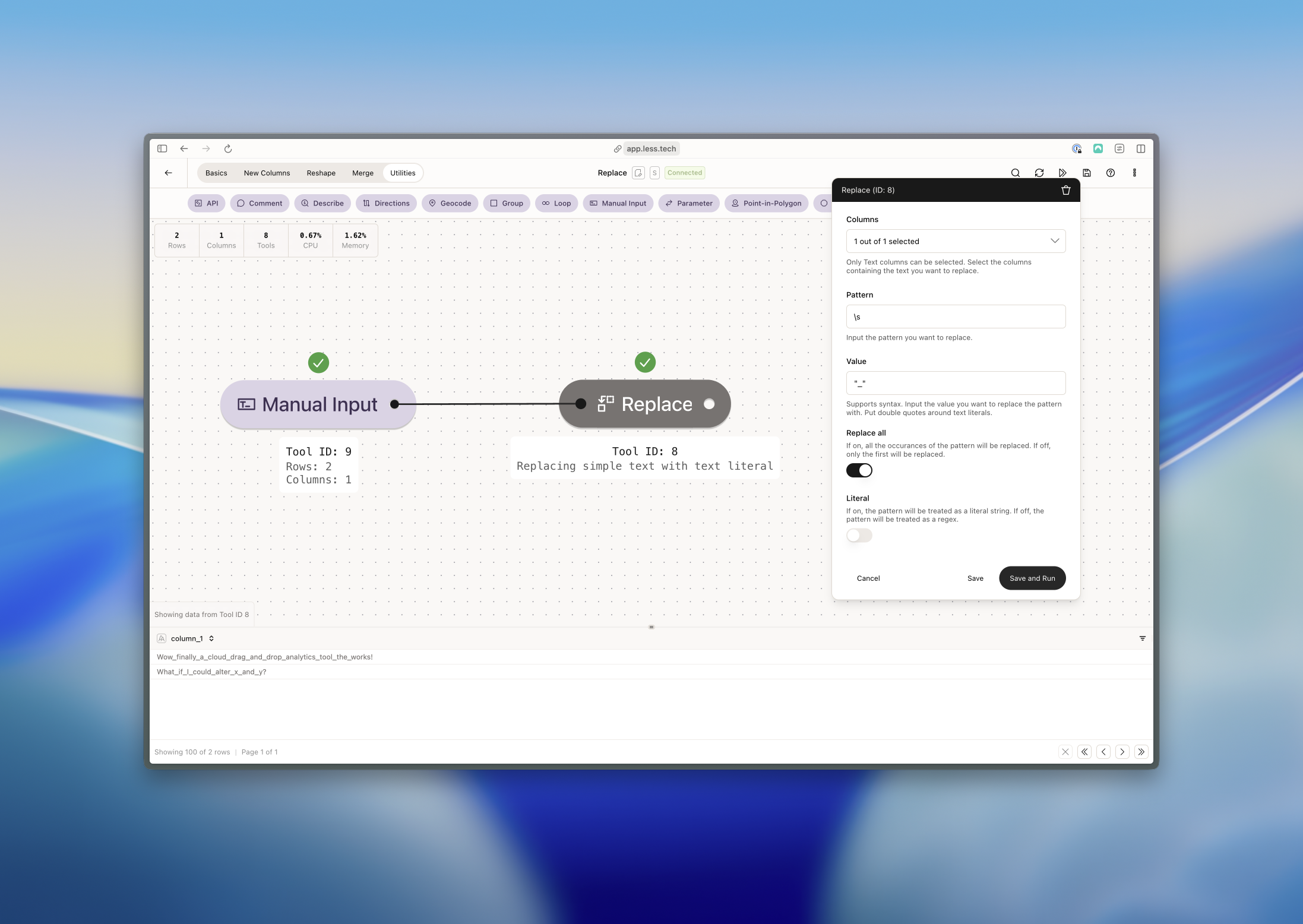
### Example: Replacing spaces with underscores
In this example, we want to replace all spaces with underscores in the *column\_1* column. We can do this with a RegEx patterns, disable the literal option and select the replace all option.
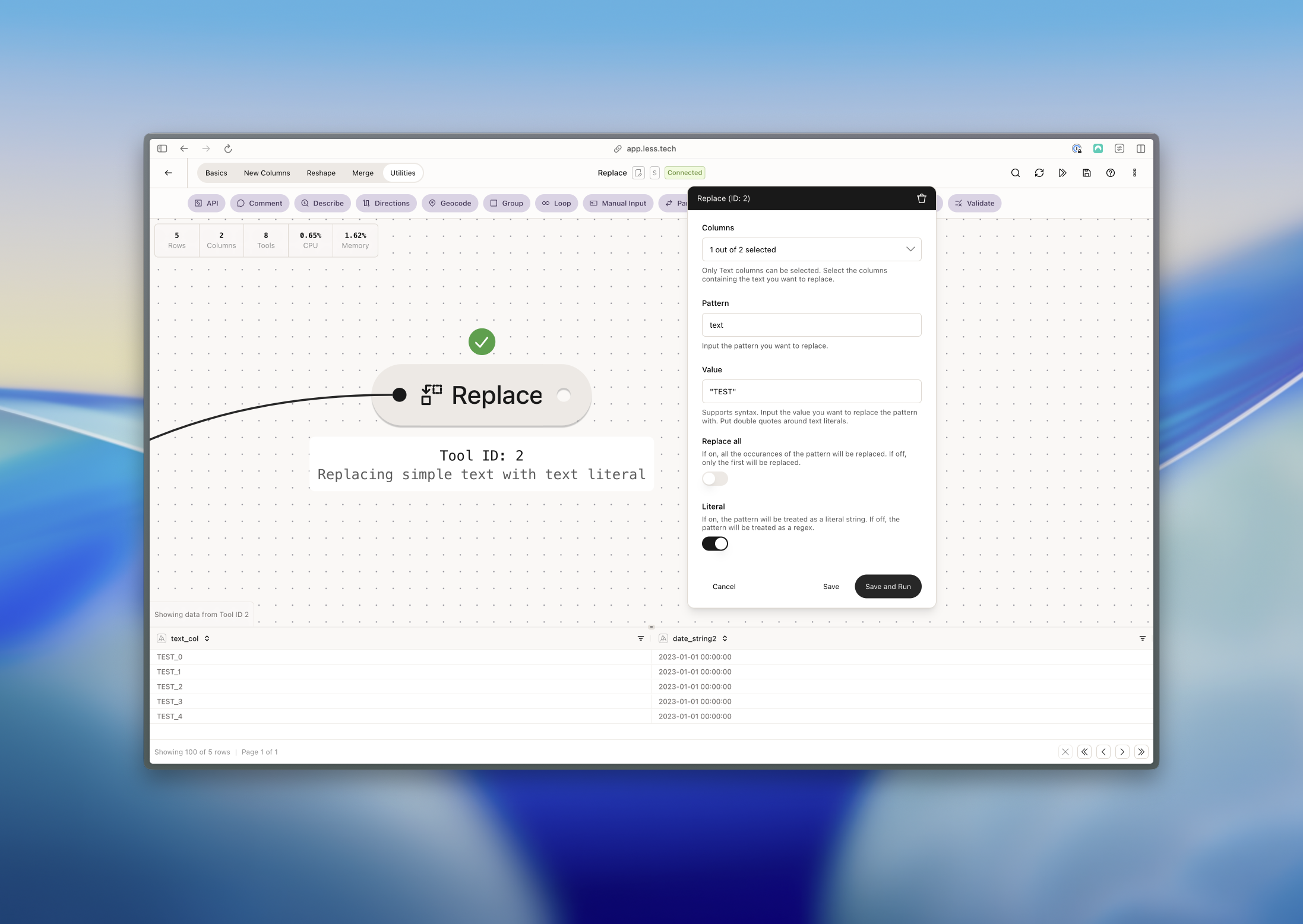
 ### Example: Replacing simple text values
In this example, we want to replace "text" with "TEST" in the *text\_col* column. We can do this with a literal value and by enabling the literal option.
### Example: Replacing simple text values
In this example, we want to replace "text" with "TEST" in the *text\_col* column. We can do this with a literal value and by enabling the literal option.
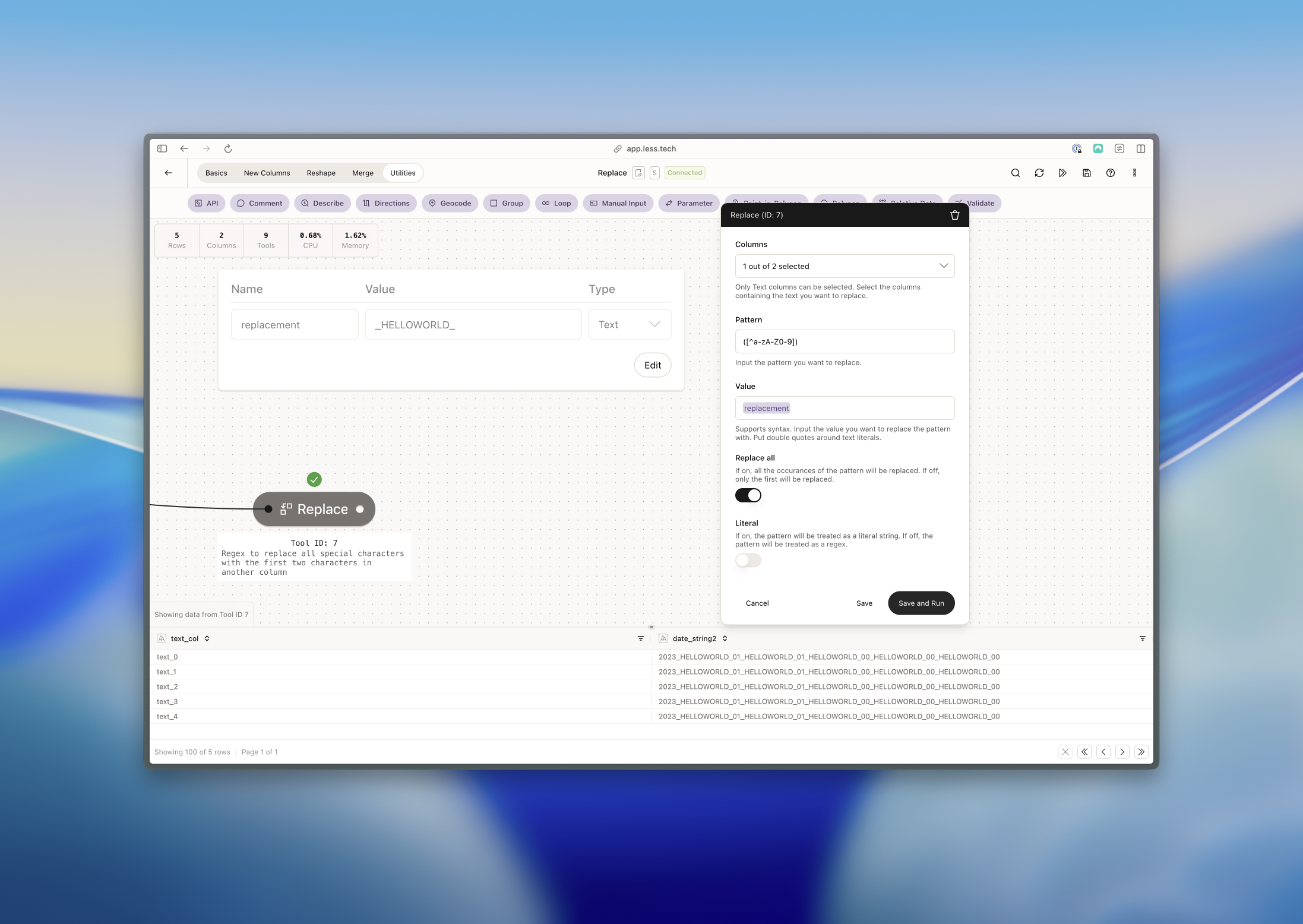
 ### Example: Replace all special characters with a parameter values
In this example, we want to replace all special characters in the *date\_string2* column with a parameter value. We can do this by referencing our *replacement* parameter in the value input, using the a RegEx input in the pattner syntax and disabling the literal option.
### Example: Replace all special characters with a parameter values
In this example, we want to replace all special characters in the *date\_string2* column with a parameter value. We can do this by referencing our *replacement* parameter in the value input, using the a RegEx input in the pattner syntax and disabling the literal option.