> ## Documentation Index
> Fetch the complete documentation index at: https://docs.less.tech/llms.txt
> Use this file to discover all available pages before exploring further.
# Limit
> Reduce the number of rows in your data set
The Limit tool can be used to reduce the size of your dataset. It can be useful if you're working with large datasets and want to increase the performance while you're building your model. Once you're model is ready for production, you can always remove the Limit tool again to ensure that your model is using the full dataset.
### Configuration
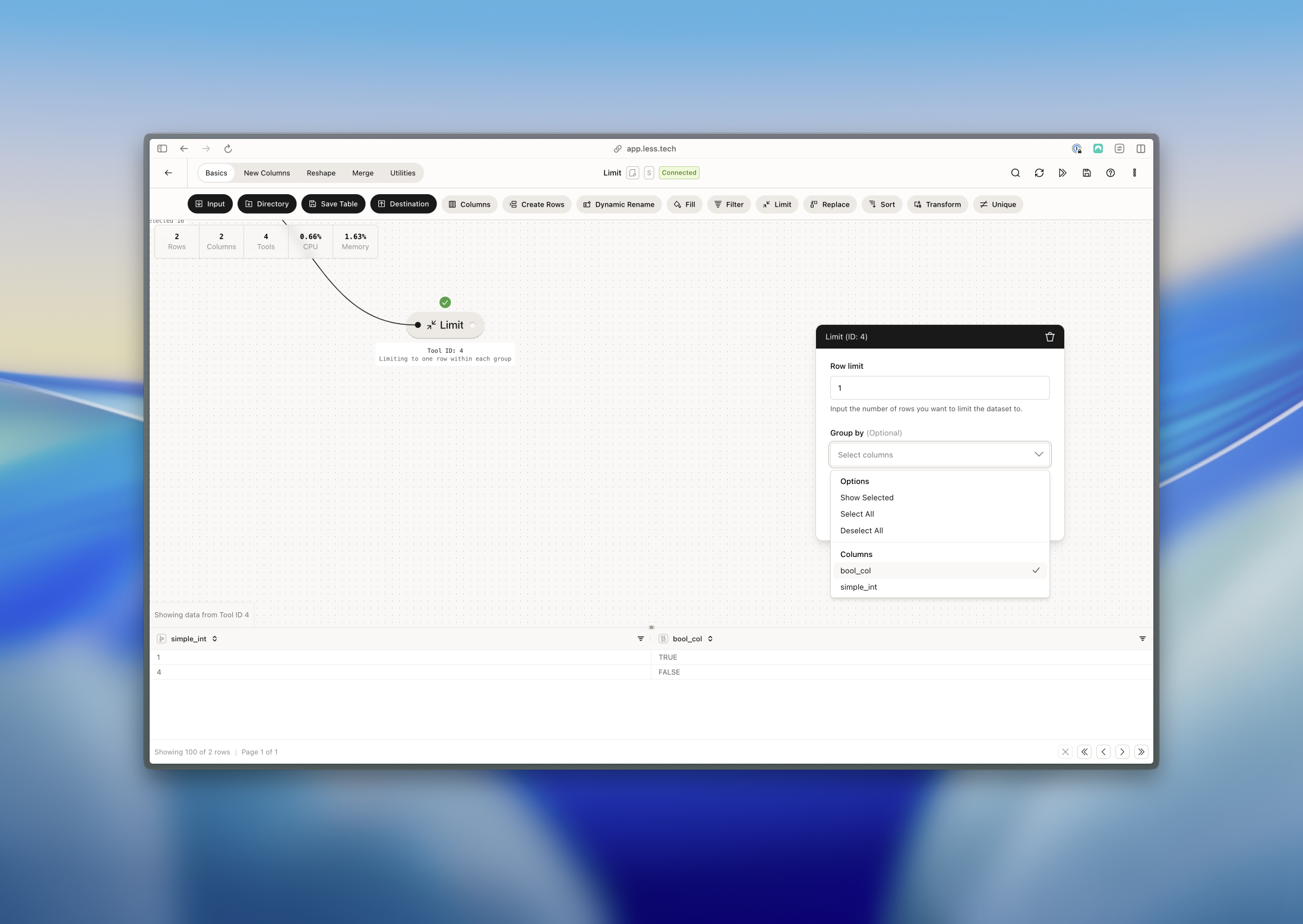
All you have to do is input the number of rows you would like to reduce you
dataset to.
If you want to limit the dataset within a group, you can select the group by column(s) here.
### Example: Limiting within a group
Imagine we have a dataset that looks like this:
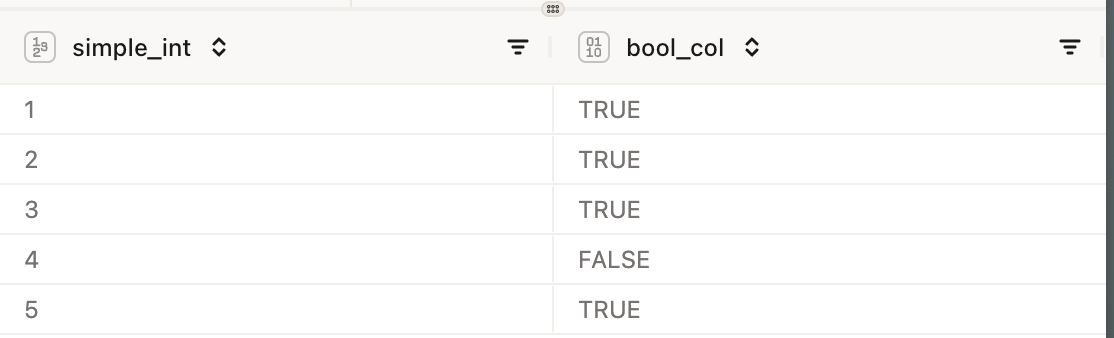 We want to limit the dataset to 1 row per group (true and false in the *bool\_col* column). We can do this by selecting the group by column and then selecting the limit tool.