> ## Documentation Index
> Fetch the complete documentation index at: https://docs.less.tech/llms.txt
> Use this file to discover all available pages before exploring further.
# Email Destinations
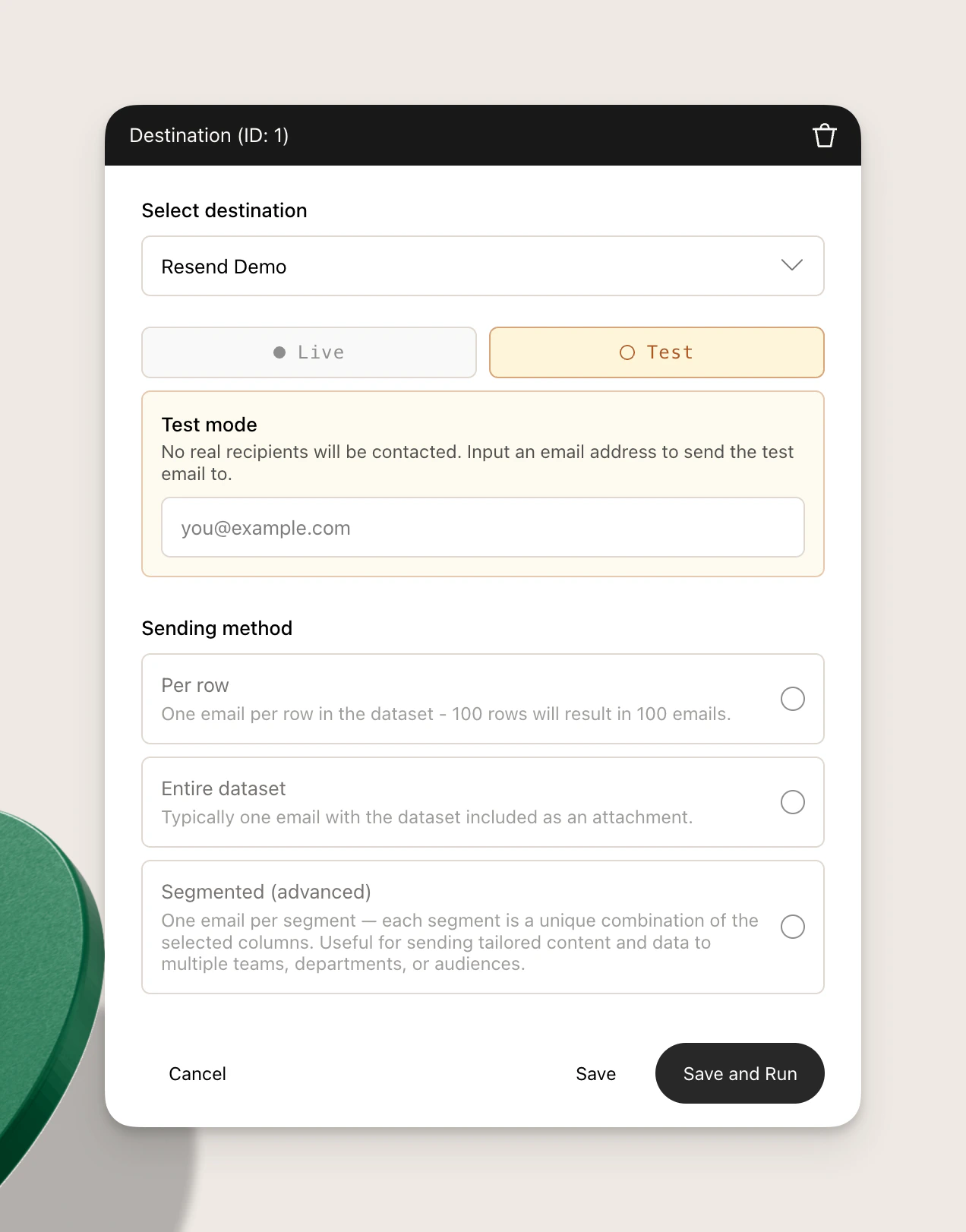
There are a couple of email destination whcih all share the same configuration on the Canvas. Looks like this:
 ### Test mode and Live mode
At the top of the form you choose **Test** or **Live**:
* **Test** (default): Real addresses from your data are **not** used as recipients. Enter a **test email address**; when the tool runs, a single preview is sent **only** to that address. The subject line is prefixed with `(TEST)` where applicable. The Canvas still shows an info message summarizing what would happen in Live mode (row counts, segment counts, columns used, and whether an attachment is included).
* **Live**: Email is delivered to the recipients defined by your sending method (column values or typed addresses). The test address field is hidden; CC and BCC from your configuration are honored.
Use Test mode to validate subject, HTML body, attachments, and column substitutions before switching to Live.
In **Per row** and **Segmented** test mode, the preview uses the **first row** or **first segment** only—so you see one example email, not one per row or segment. **Entire dataset** test mode sends one preview that uses the **full** dataset in the body (including the data table placeholder) and attachment, but still delivers only to your test address.
### Sending method
Pick how you can . The rest of the form appears after you choose a method.
#### Per row
One email **per data row** (100 rows → up to 100 sends, rows with no valid recipients may be skipped).
* **To**: Choose the column whose cells hold recipient addresses. Each cell may be one address or a comma-separated list.
* **CC / BCC** (optional): Same rules, each as an optional column.
* **Subject**: Syntax-aware; you can reference **any** column from the row. Use double quotes around literal text where the editor expects it.
* **Email body**: HTML editor with column and parameter references. You can insert the **DataTable** snippet: a small inline table (first **20** rows × **10** columns of non-recipient columns) substituted into the message.
* **Attachment** (optional): **CSV** or **Excel (.xlsx)**. Each attachment contains **that row’s** data (recipient columns are omitted from the file).
Typical use: many recipients, each with a small personalized message or row-level attachment.
#### Entire dataset
Typically **one** email for the whole run.
* **To**: Type addresses directly (one or comma-separated). **CC** and **BCC** are optional free-text fields with the same format.
* **Subject** and **body**: Plain configuration for that single send—**no** per-row column references in the subject (the dataset is one blob). The body still supports parameters, the **DataTable** placeholder, and HTML.
* **Attachment**: The **full** dataset as CSV or XLSX when selected.
Typical use: scheduled reports to a fixed distribution list.
#### Segmented (advanced)
One email per **segment**, where a segment is each **distinct combination** of the columns you select under **Segment data and recipients**.
* **Segment columns**: Multi-select. Values from these columns are constant within a segment, and only these columns are available in the **subject** syntax picker (plus literals).
* **To / CC / BCC**: Column-based, like Per row. Within each segment, **all unique** addresses found in that segment’s rows for the To column receive **one** shared email (and similarly for CC/BCC).
* **Body**: You can reference segment columns, parameters, and **DataTable**; the table and attachment reflect **that segment’s** rows only.
Typical use: different teams or regions each get one tailored message and their slice of the data.
### Attachment filename
If you choose CSV or Excel, you can optionally set **Attachment filename** with the same syntax rules as the subject where column references are allowed (per mode). If you omit it, a sensible default name is used.
### Limits and validation
* The email body must contain enough visible text after HTML is stripped (minimum length is enforced in the form).
* Large attachments are capped (very large exports may require fewer rows/columns upstream or CSV instead of Excel). If a run hits provider message-size limits, reduce data or drop the attachment.
### Test mode and Live mode
At the top of the form you choose **Test** or **Live**:
* **Test** (default): Real addresses from your data are **not** used as recipients. Enter a **test email address**; when the tool runs, a single preview is sent **only** to that address. The subject line is prefixed with `(TEST)` where applicable. The Canvas still shows an info message summarizing what would happen in Live mode (row counts, segment counts, columns used, and whether an attachment is included).
* **Live**: Email is delivered to the recipients defined by your sending method (column values or typed addresses). The test address field is hidden; CC and BCC from your configuration are honored.
Use Test mode to validate subject, HTML body, attachments, and column substitutions before switching to Live.
In **Per row** and **Segmented** test mode, the preview uses the **first row** or **first segment** only—so you see one example email, not one per row or segment. **Entire dataset** test mode sends one preview that uses the **full** dataset in the body (including the data table placeholder) and attachment, but still delivers only to your test address.
### Sending method
Pick how you can . The rest of the form appears after you choose a method.
#### Per row
One email **per data row** (100 rows → up to 100 sends, rows with no valid recipients may be skipped).
* **To**: Choose the column whose cells hold recipient addresses. Each cell may be one address or a comma-separated list.
* **CC / BCC** (optional): Same rules, each as an optional column.
* **Subject**: Syntax-aware; you can reference **any** column from the row. Use double quotes around literal text where the editor expects it.
* **Email body**: HTML editor with column and parameter references. You can insert the **DataTable** snippet: a small inline table (first **20** rows × **10** columns of non-recipient columns) substituted into the message.
* **Attachment** (optional): **CSV** or **Excel (.xlsx)**. Each attachment contains **that row’s** data (recipient columns are omitted from the file).
Typical use: many recipients, each with a small personalized message or row-level attachment.
#### Entire dataset
Typically **one** email for the whole run.
* **To**: Type addresses directly (one or comma-separated). **CC** and **BCC** are optional free-text fields with the same format.
* **Subject** and **body**: Plain configuration for that single send—**no** per-row column references in the subject (the dataset is one blob). The body still supports parameters, the **DataTable** placeholder, and HTML.
* **Attachment**: The **full** dataset as CSV or XLSX when selected.
Typical use: scheduled reports to a fixed distribution list.
#### Segmented (advanced)
One email per **segment**, where a segment is each **distinct combination** of the columns you select under **Segment data and recipients**.
* **Segment columns**: Multi-select. Values from these columns are constant within a segment, and only these columns are available in the **subject** syntax picker (plus literals).
* **To / CC / BCC**: Column-based, like Per row. Within each segment, **all unique** addresses found in that segment’s rows for the To column receive **one** shared email (and similarly for CC/BCC).
* **Body**: You can reference segment columns, parameters, and **DataTable**; the table and attachment reflect **that segment’s** rows only.
Typical use: different teams or regions each get one tailored message and their slice of the data.
### Attachment filename
If you choose CSV or Excel, you can optionally set **Attachment filename** with the same syntax rules as the subject where column references are allowed (per mode). If you omit it, a sensible default name is used.
### Limits and validation
* The email body must contain enough visible text after HTML is stripped (minimum length is enforced in the form).
* Large attachments are capped (very large exports may require fewer rows/columns upstream or CSV instead of Excel). If a run hits provider message-size limits, reduce data or drop the attachment.